

Buying a laptop is only half the setup. The right laptop accessories can make your computer more comfortable to use, easier to connect, safer to carry, and much more useful for work, study, content creation, and entertainment.
But there is a catch: you absolutely do not need to buy every gadget marketed as a “must-have laptop accessory.” 😄 Some are genuinely useful, while others are basically desk decoration with RGB.
This Laptop Accessories Guide breaks down the accessories worth considering, what each one actually does, which features matter, and where you should spend more or save money. We’ll cover everything from laptop stands, wireless mice and keyboards, USB-C hubs and docking stations to chargers, external SSDs, webcams, cooling pads, sleeves and cable-management accessories.
By the end, you should have a much clearer idea of which laptop accessories you actually need for your setup and which ones you can happily skip.
Quick Answer: Which Laptop Accessories Do You Actually Need?
For most laptop users, you don’t need a giant pile of gadgets. Start with the accessories that solve an actual problem.
The most useful laptop accessories are:
- 🖥️ Laptop stand — improves screen height and creates a better desk setup.
- 🖱️ Wireless or wired mouse — much more comfortable than using a trackpad for long sessions.
- ⌨️ External keyboard — especially useful when your laptop is elevated on a stand.
- 🔌 USB-C hub or docking station — essential when your laptop lacks ports.
- 💾 External SSD — useful for backups, large files, photography and video work.
- 🔋 Compatible USB-C charger and cable — useful as a spare or travel charger where supported.
- 🎥 Webcam or headset — useful for video calls, meetings and content creation.
- 🎒 Laptop sleeve or backpack — protects your laptop during travel.
- ❄️ Cooling pad — more useful for certain gaming and performance-oriented laptops than for every everyday notebook.
The best accessory depends heavily on how you use your laptop. A college student, office worker, gamer and YouTuber may all need completely different setups.
Laptop Accessories at a Glance
| Accessory | Best For | Priority | What to Check |
|---|---|---|---|
| Laptop Stand | Desk users | ⭐⭐⭐⭐⭐ | Height, stability, dimensions |
| Wireless Mouse | Everyone | ⭐⭐⭐⭐⭐ | Ergonomics, connectivity, battery |
| External Keyboard | Desk setup | ⭐⭐⭐⭐ | Layout, key feel, wireless options |
| USB-C Hub | Port expansion | ⭐⭐⭐⭐⭐ | Data speed, display support, PD |
| Docking Station | Multi-monitor/workstation | ⭐⭐⭐⭐ | Ports, display support, charging |
| Charger | Travel/spare | ⭐⭐⭐⭐ | Wattage, USB-PD, compatibility |
| External SSD | Storage/backup | ⭐⭐⭐⭐ | Capacity, interface, speed |
| Laptop Sleeve | Travel | ⭐⭐⭐⭐⭐ | Size, padding, protection |
| Webcam/Headset | Meetings/content | ⭐⭐⭐⭐ | Camera quality, microphone |
| Cooling Pad | Gaming/heavy workloads | ⭐⭐⭐ | Compatibility, fan design |
| External Monitor | Productivity | ⭐⭐⭐⭐⭐ for desk setups | Size, resolution, refresh rate |
| Cable Management | Clean setup | ⭐⭐⭐ | Clips, sleeves, ties |
What Are the Best Laptop Accessories to Buy First?
The best approach is to buy according to your workflow, not according to a giant “100 must-have accessories” list.
For a typical desk user, I’d prioritize:
Laptop stand → mouse → keyboard → USB-C hub → monitor → storage/backup → travel accessories.
For someone who works primarily from cafés or while travelling, the order changes:
Mouse → compact charger → USB-C hub → sleeve → power bank where laptop-compatible → compact keyboard/stand.
And for gaming or demanding workloads:
Mouse → keyboard → monitor → headset → storage → cooling solution → docking/USB expansion.
That distinction matters because an expensive docking station sitting unused on your desk isn’t “future-proofing.” It is just an expensive rectangle.
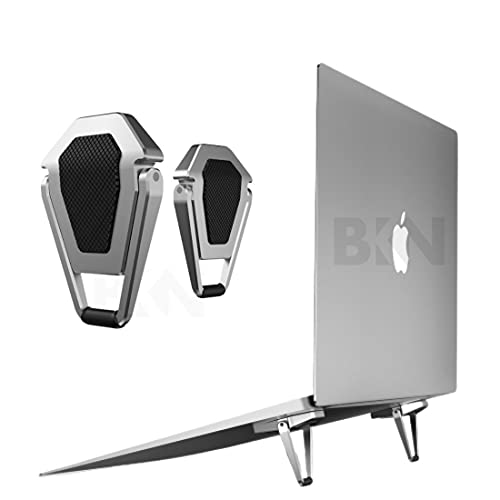
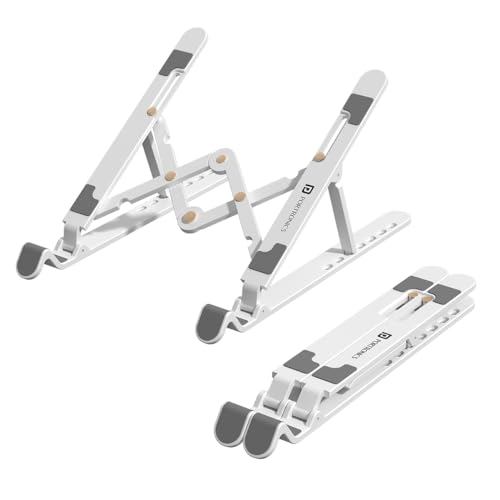
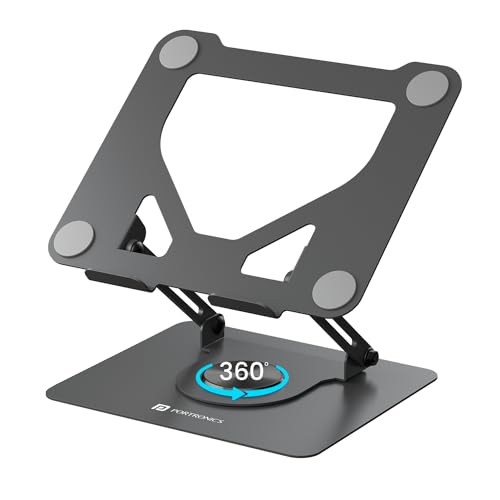
1. Laptop Stand
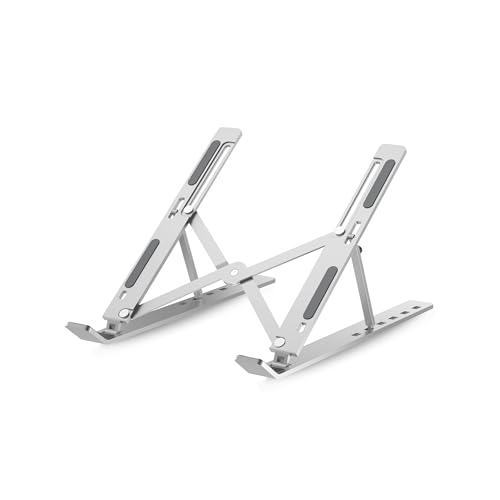
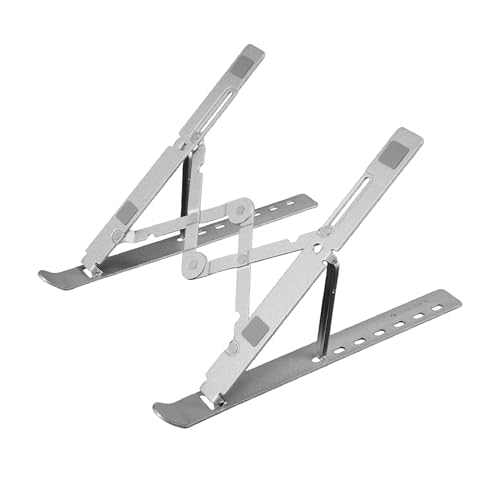
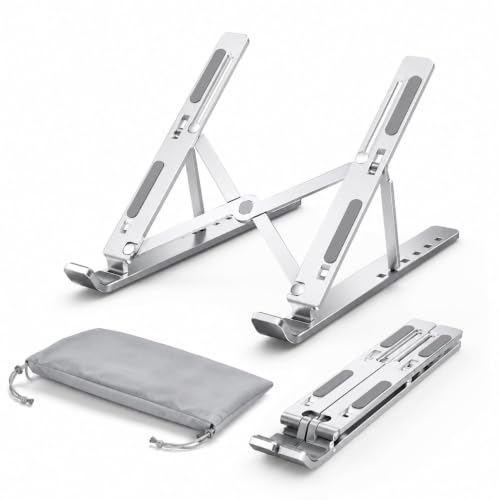
A laptop stand is one of the simplest accessories that can make a desk setup significantly more comfortable.
Raising the laptop can help position the screen at a more suitable viewing height. It can also free up desk space and make it easier to use the laptop with an external keyboard and mouse.
What to Look For
- Adjustable height or fixed elevated design
- Stable base
- Non-slip contact points
- Compatibility with your laptop’s size and weight
- Foldable design if you travel
- Enough ventilation around the laptop
A stand becomes even more useful when combined with an external keyboard and mouse because you can keep the laptop screen elevated instead of typing on the laptop’s built-in keyboard.
Best For
- Work-from-home users
- Bloggers
- Students
- Programmers
- Desk-based professionals
- Content creators
Who Should Skip It?
People who mostly use their laptop on the sofa, bed or while travelling may get less benefit from a permanent desk stand.
👉 For a dedicated deep dive, see our Best Laptop Stands guide.




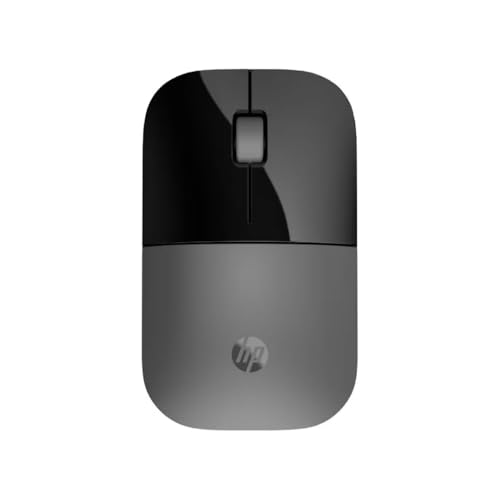
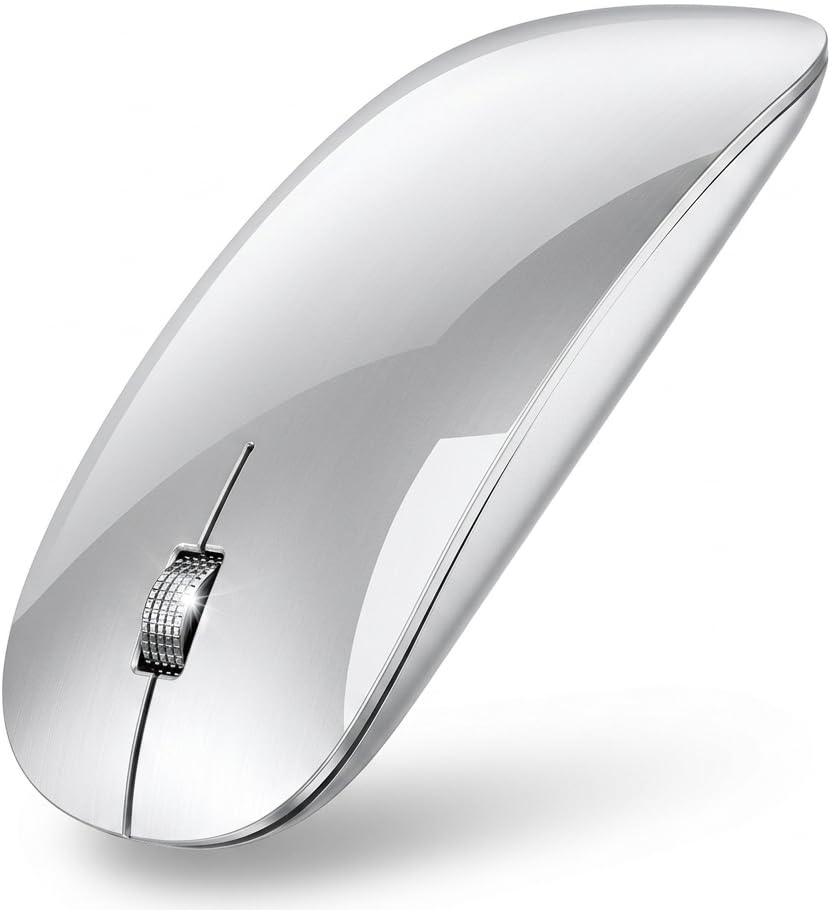
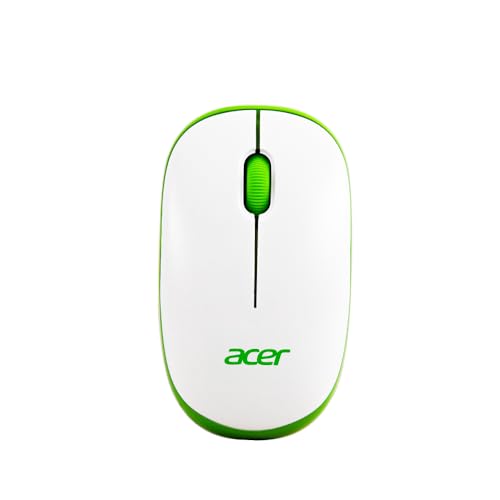
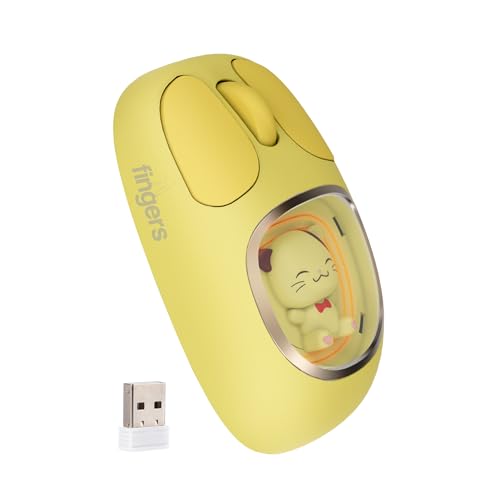
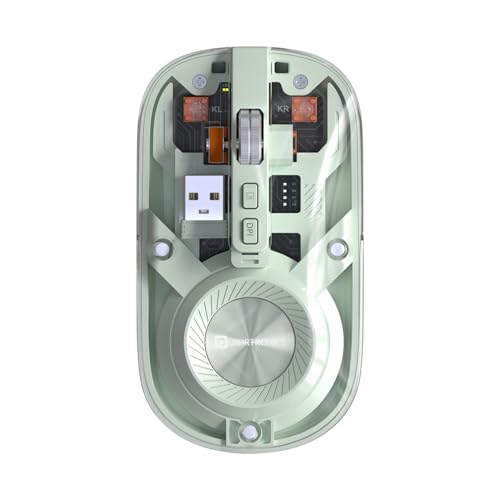
2. Wireless Mouse
The trackpad is convenient. Your wrist after eight hours of spreadsheets may have a different opinion. 😅
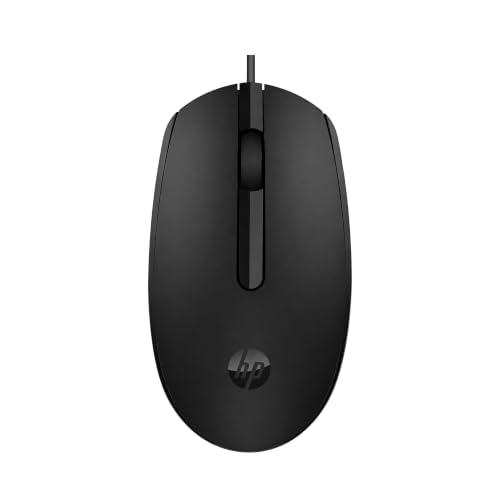
A wireless mouse is one of the easiest ways to improve everyday laptop use.
Key Features to Consider
Ergonomics:
Look for a shape that fits your hand comfortably.
Connectivity:
Bluetooth mice are convenient because they don’t require a USB receiver. Models using 2.4GHz wireless receivers can also be excellent, but your laptop needs a suitable USB port or hub.
Battery life:
Consider whether the mouse uses replaceable batteries or a rechargeable battery.
Buttons:
More buttons can be useful for productivity, but don’t pay extra for ten buttons if you only use two.
Best For
- Office work
- Browsing
- Blogging
- Editing
- Gaming
- Long laptop sessions
For gaming, sensor performance, polling rate, shape and grip style become much more important than they are for ordinary office use.





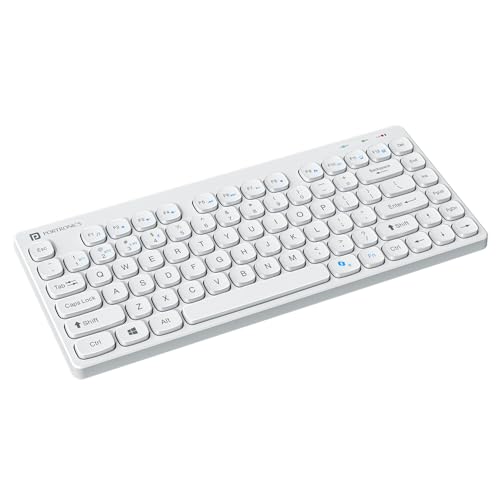
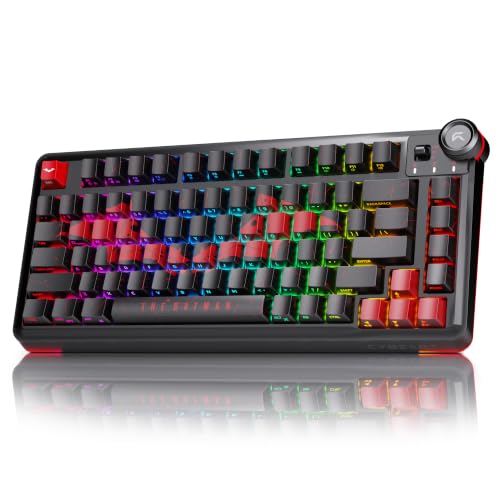
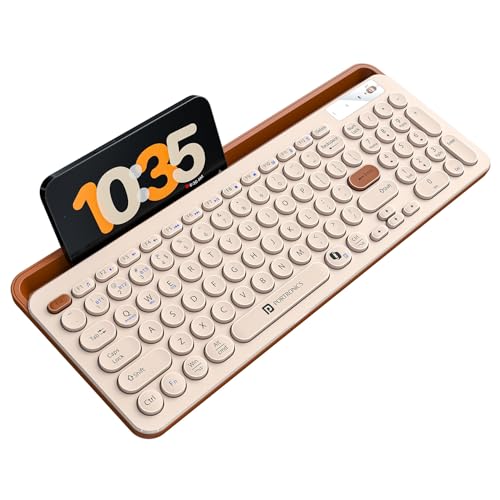
3. External Keyboard
Once you raise your laptop, another problem appears:
Where exactly are you supposed to type?
That’s where an external keyboard comes in.
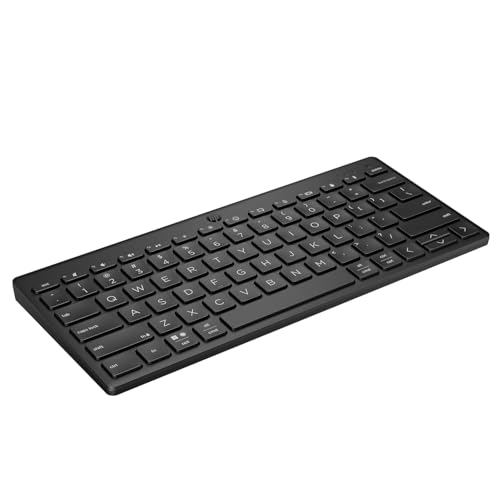
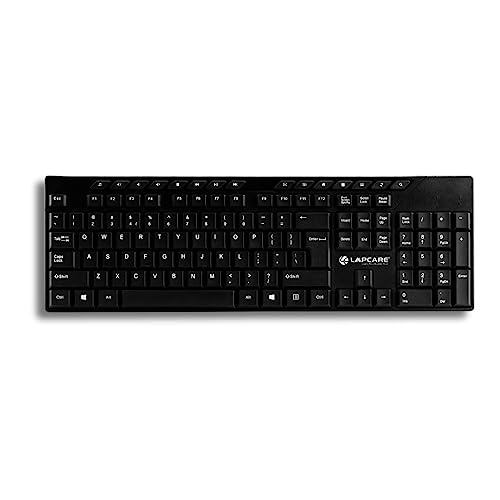
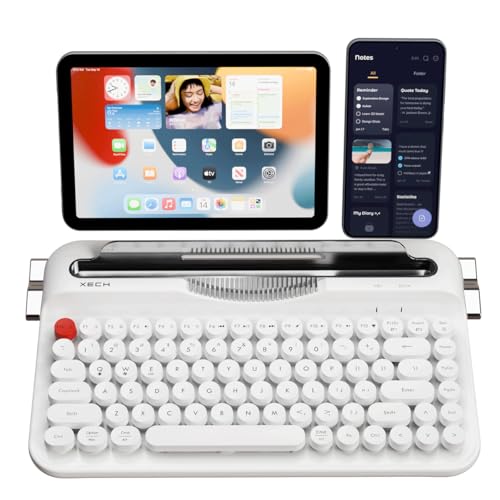
A keyboard makes the most sense in a permanent desktop setup, particularly when paired with a laptop stand or monitor.
What to Look For
- Full-size vs compact layout
- Wireless vs wired connection
- Comfortable key travel
- Windows/macOS compatibility
- Backlighting if you work at night
- Dedicated navigation keys if you need them
Keyboard Types
Membrane keyboard: Usually affordable and quiet.
Mechanical keyboard: More tactile and customizable, although it can be louder and more expensive.
Low-profile keyboard: A good middle ground for people who want a cleaner laptop-like feel.
For office work, don’t automatically assume that the fanciest mechanical keyboard is the right choice. The best keyboard is the one you can comfortably use for hours.



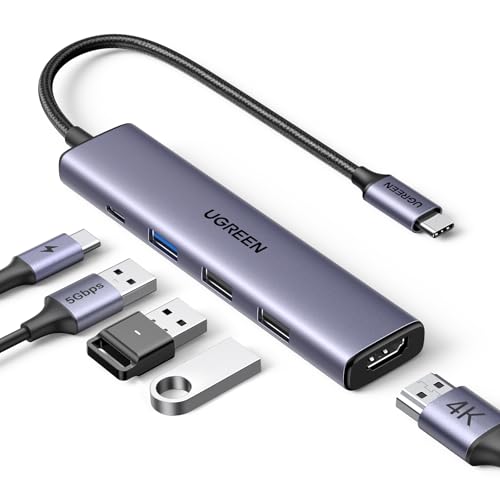
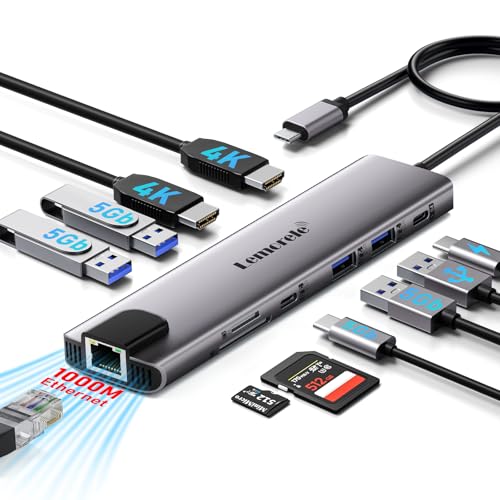
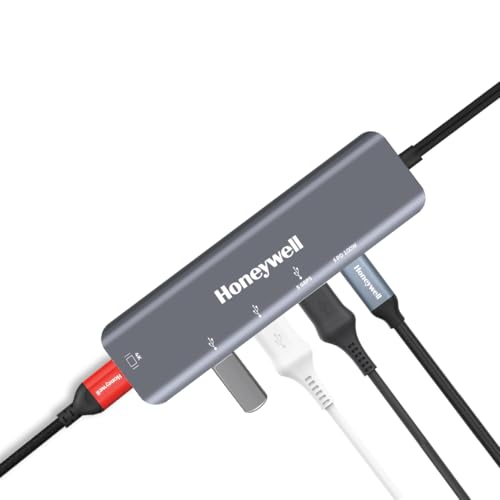
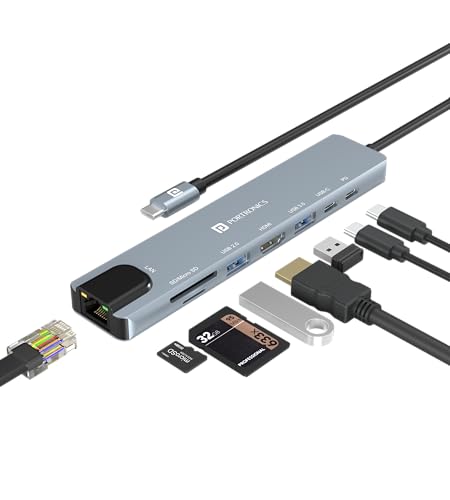
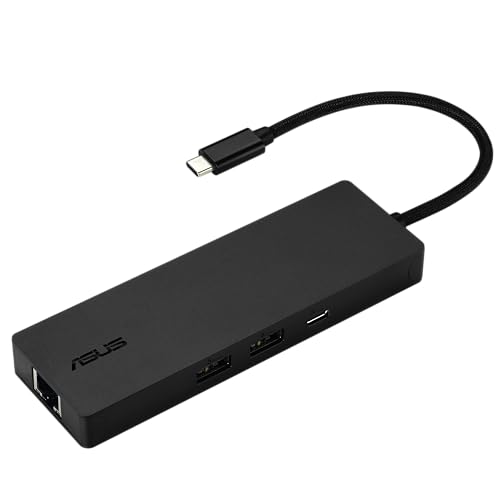
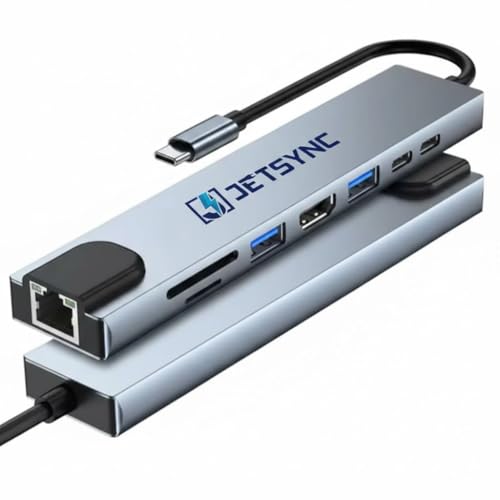
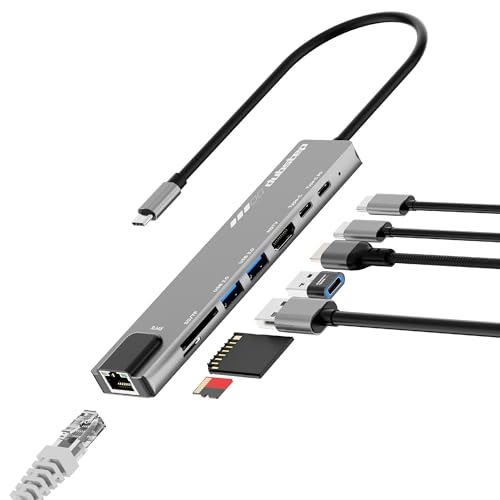
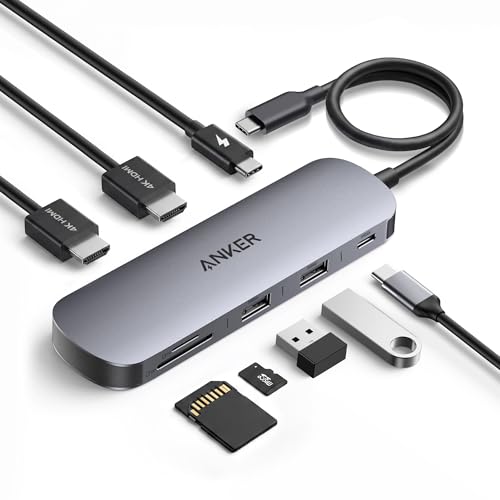
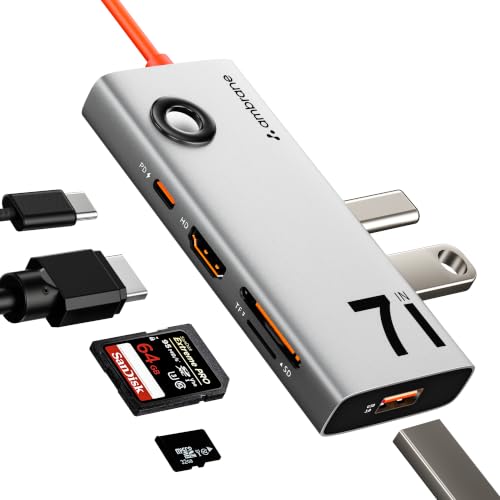
4. USB-C Hub
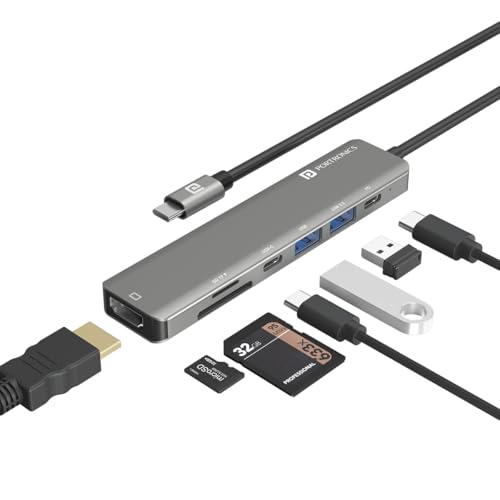
For modern laptops, a USB-C hub can be one of the most useful accessories you own.
A single USB-C connection can potentially handle accessories, displays, storage and power, depending on what the laptop, hub and cable support.
USB-C itself doesn’t guarantee identical capabilities. Different ports and devices can support different data, display and charging features. USB4, for example, supports multiple data and display protocols and can operate at much higher bandwidths than older USB implementations.
A Good USB-C Hub May Include
- USB-A ports
- USB-C data ports
- HDMI
- Ethernet
- SD card reader
- microSD card reader
- 3.5mm audio
- USB-C Power Delivery input
The Big Mistake
Don’t buy a hub based purely on the number of ports.
A 10-port hub isn’t automatically better than a 6-port hub.
Check:
- USB data speed
- HDMI resolution/refresh support
- Ethernet speed
- SD card speed
- Power Delivery support
- Compatibility with your laptop
Display output over USB-C can also depend on DisplayPort Alt Mode support on the host device. VESA documents DisplayPort over USB-C as a standard for carrying display signals through a USB-C connection.
👉 Our related guide: USB-C vs USB-A Hub: Differences, Features & Which One Should You Buy?

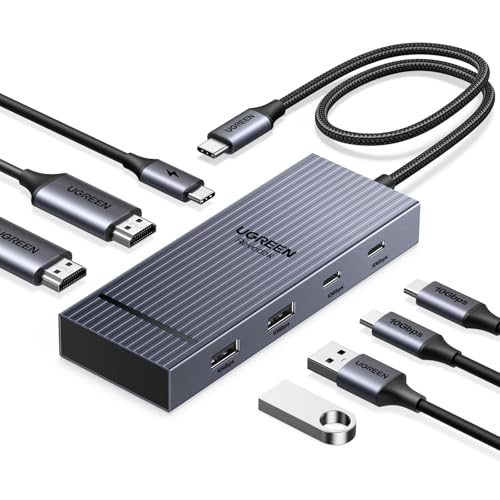
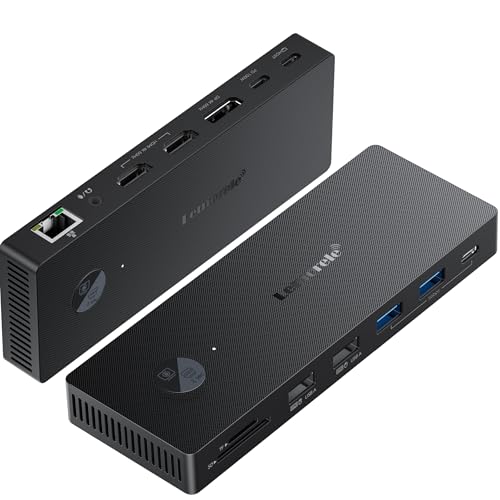
5. Docking Station
A docking station is basically the more serious cousin of the USB-C hub.
A USB-C hub is generally designed to expand connectivity in a relatively compact package.
A docking station is better suited to a fixed desk where you want to connect:
- One or more monitors
- Keyboard
- Mouse
- Ethernet
- Speakers
- External drives
- Other USB accessories
Some modern Thunderbolt docks offer very high bandwidth and extensive connectivity. Intel’s Thunderbolt 5 specification supports up to 80 Gbps bidirectional bandwidth, with Bandwidth Boost allowing up to 120 Gbps in applicable display scenarios.
That does not mean you need Thunderbolt 5.
For everyday office work, a conventional USB-C dock may be perfectly adequate.
Best For
- Multi-monitor setups
- Desktop replacement workflows
- Creators
- Developers
- Professionals with multiple peripherals

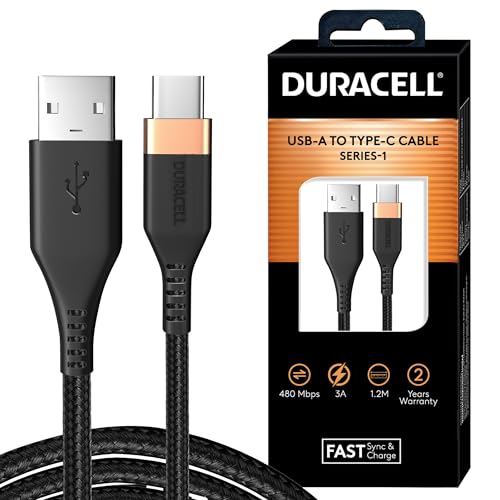
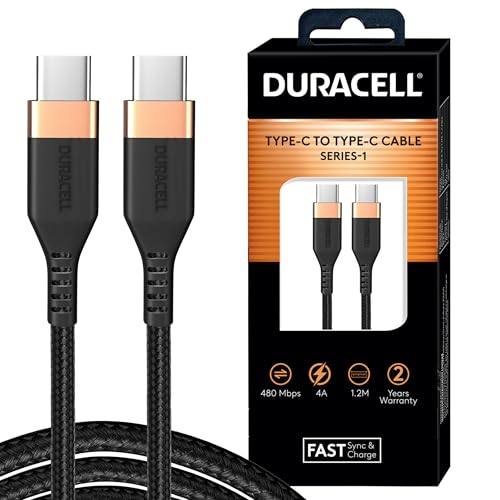
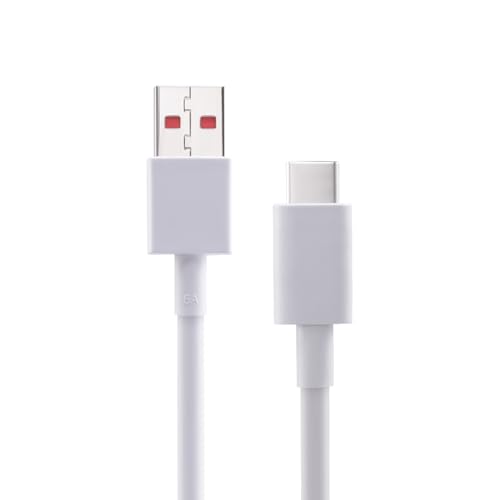
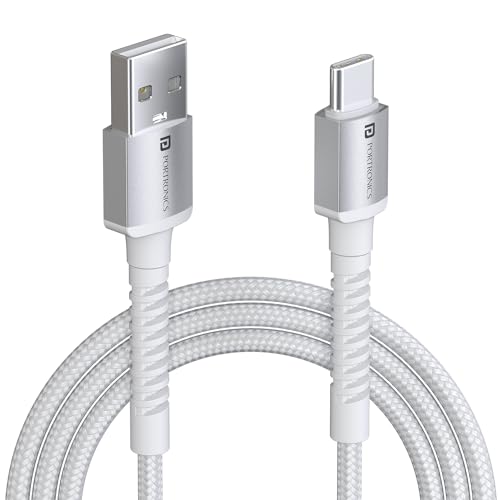
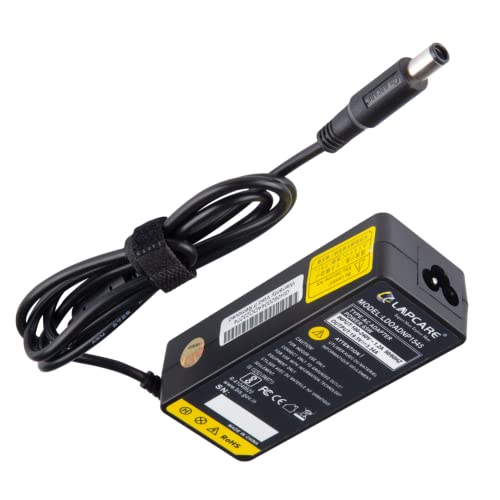
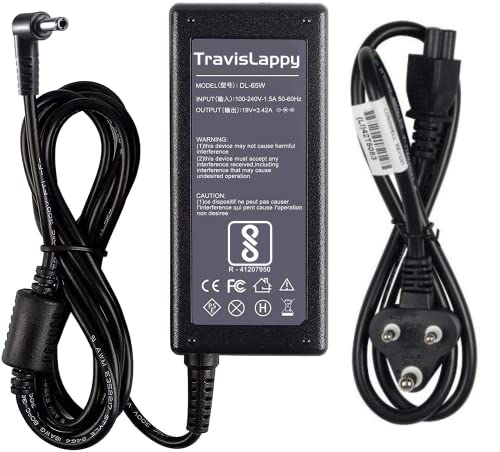
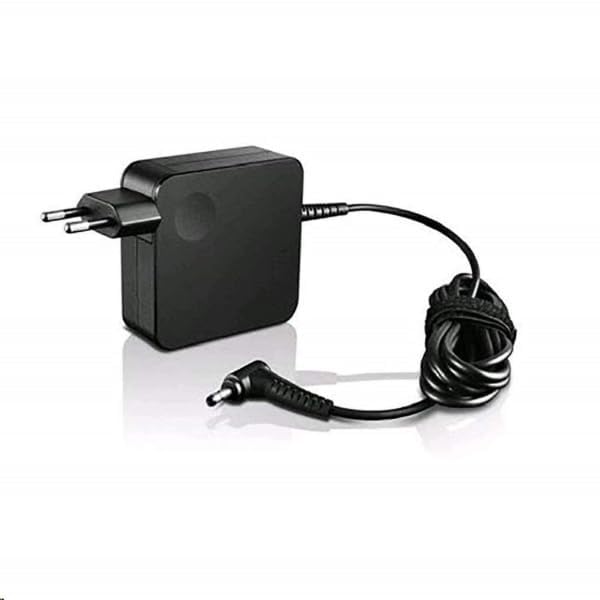
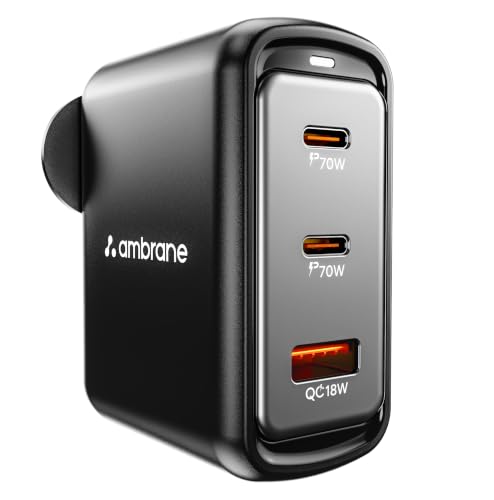
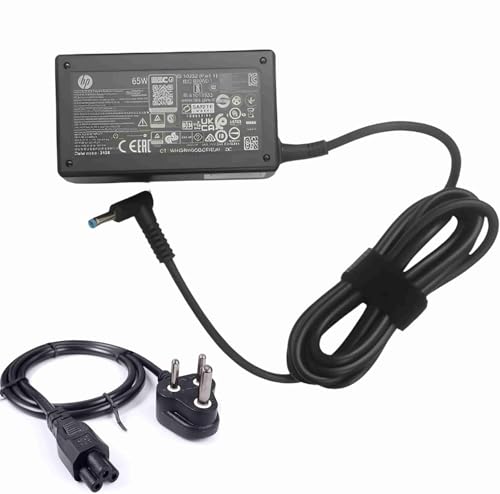
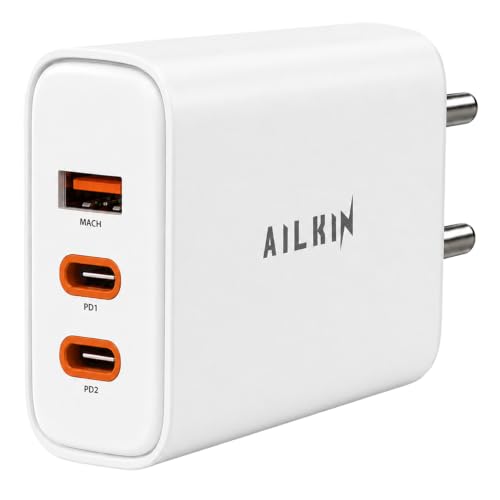
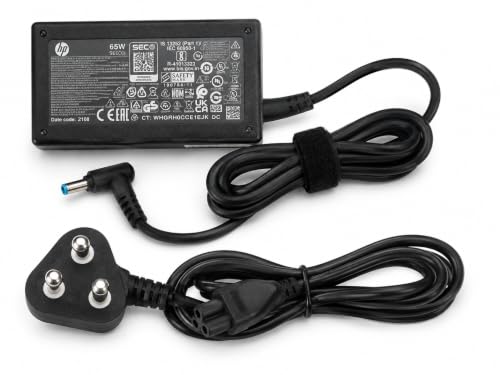
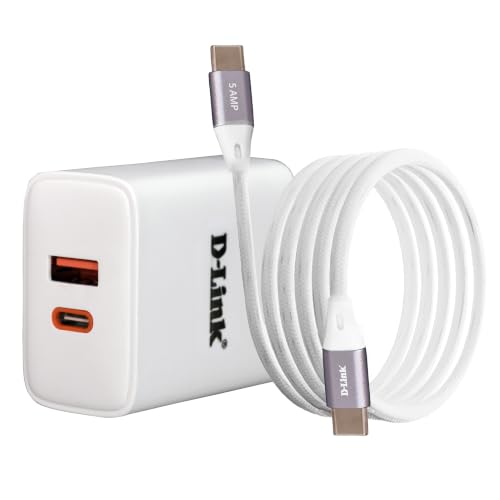
6. Laptop Charger and USB-C Cable
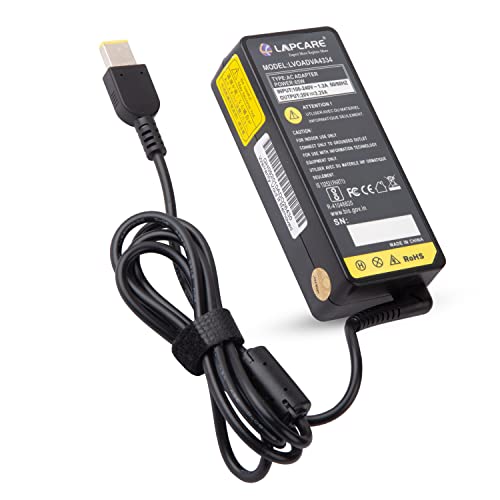
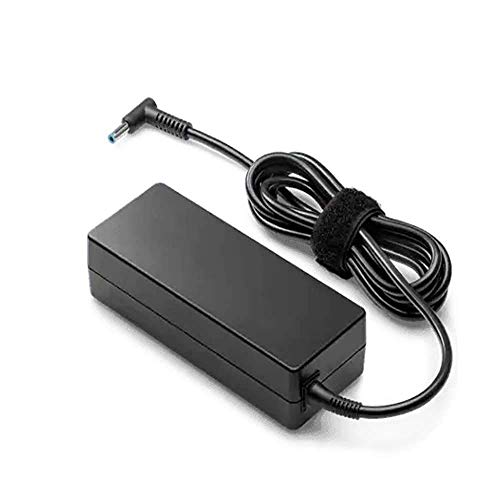
A spare charger can be incredibly useful when your primary charger lives permanently in your office or home.
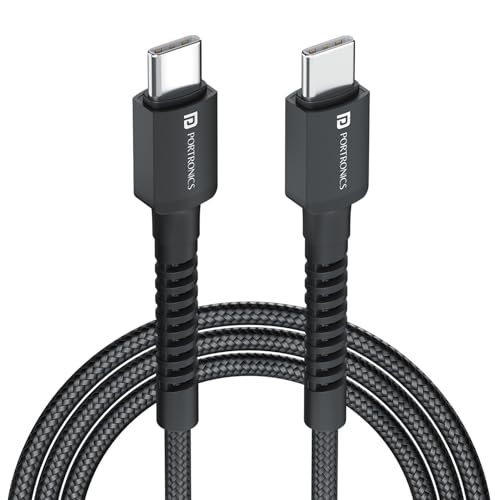
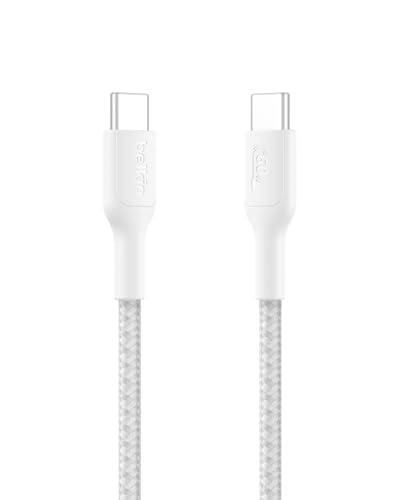
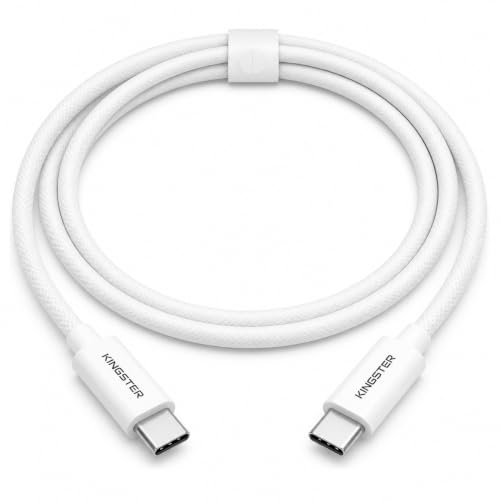
USB Power Delivery allows compatible USB-C devices and chargers to negotiate appropriate power levels. USB PD 3.1 expanded the specification to support up to 240W over compatible USB-C implementations and cables.
But here’s the important part:
240W capability doesn’t mean your laptop needs 240W.
You should check your laptop manufacturer’s recommended charging requirements before buying a replacement.
When Buying a Charger, Check
- Required wattage
- USB Power Delivery support
- Number of USB ports
- Charger size
- Cable included or not
- Brand and safety certifications
- Laptop compatibility
Apple’s current Mac accessory lineup, for example, includes different power adapters and cables across Mac models, showing why charger compatibility should be checked by device rather than assuming every USB-C charger is identical.

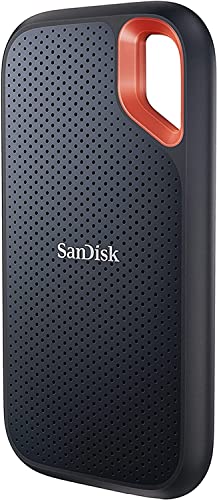
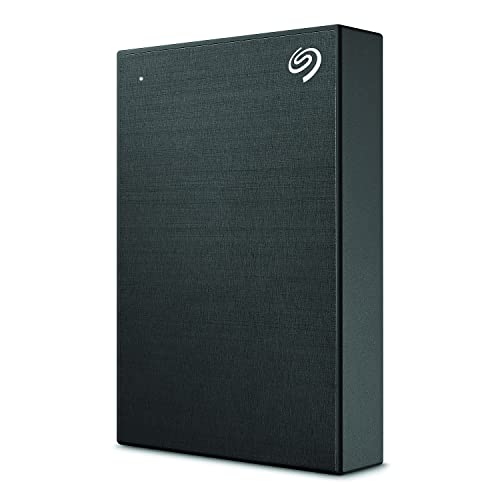
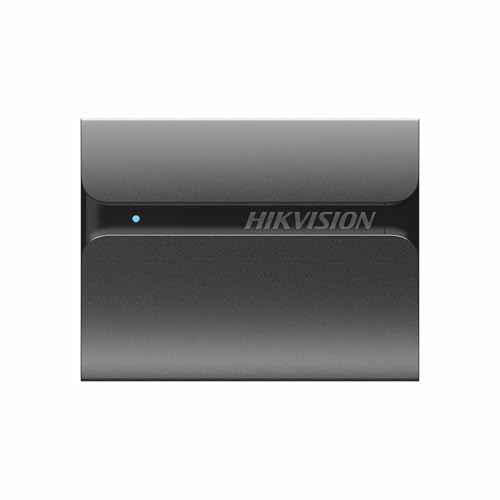
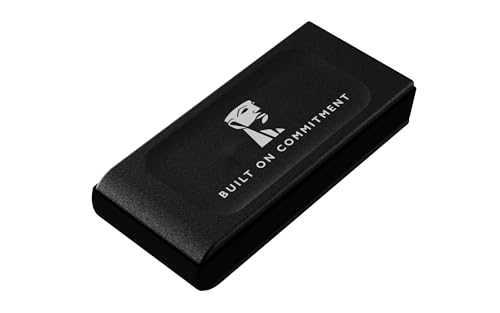
7. External SSD
Running out of storage is one of those problems that becomes much more annoying after the laptop is already full.
An external SSD can provide additional storage for:
- Photos
- Videos
- Documents
- Project files
- Backups
- Games
- Creative assets
SSD vs External Hard Drive
An SSD generally makes more sense when portability and faster access are priorities.
A traditional hard drive can still be useful when you want large amounts of relatively inexpensive storage, especially for less frequently accessed backups.
What to Check
- Capacity
- USB interface
- Sustained transfer performance
- Included cable
- Physical size
- Durability
- Warranty
For video creators and photographers, faster storage interfaces become more valuable because large files can make slower drives painfully tedious.



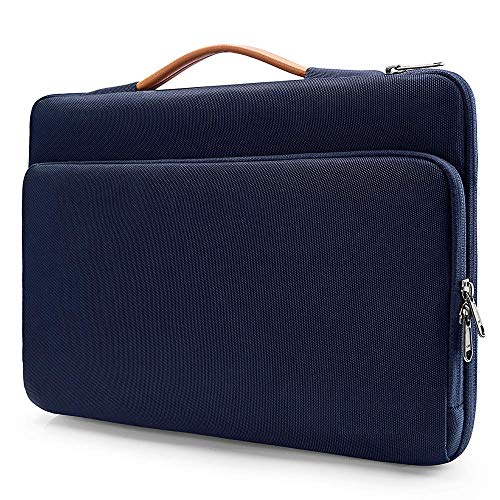
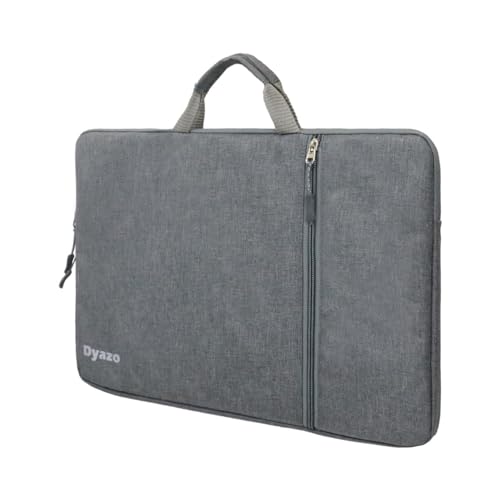
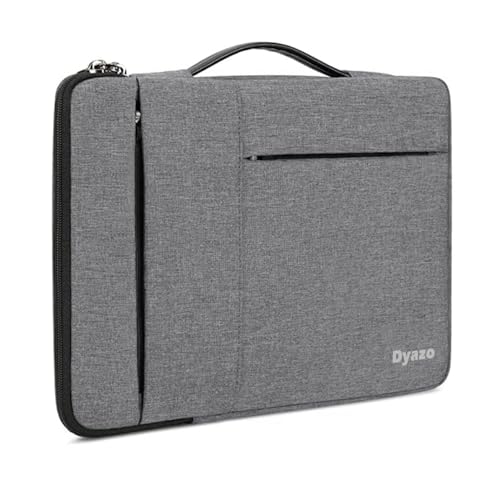
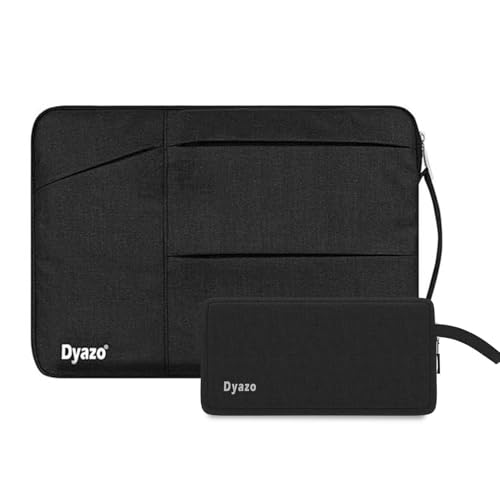
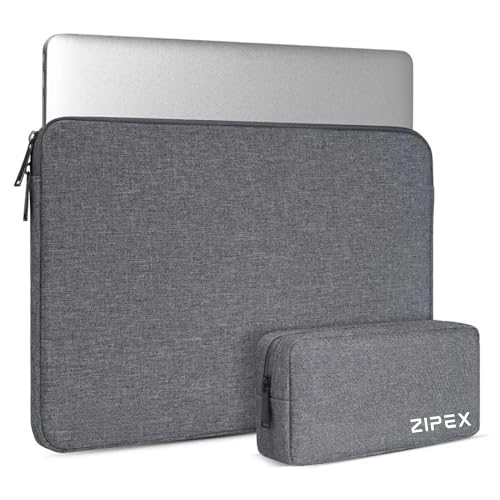
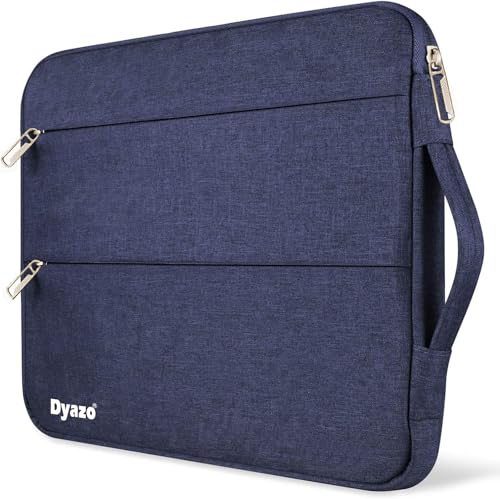
8. Laptop Sleeve or Backpack
This one isn’t exciting.
It is also the accessory you will regret not buying after your laptop takes a tumble in a backpack.
A good laptop sleeve or backpack should provide:
- Proper laptop-size compatibility
- Padding
- Secure closure
- Separate compartments where useful
- Water resistance or a rain cover for travel
- Good weight distribution for backpacks
Don’t buy a 15.6-inch sleeve for a thin 14-inch laptop merely because “it’ll fit.”
A loose laptop can move around more than you’d like.



9. Webcam and Headset
If your laptop is mainly for email and documents, its built-in webcam may be perfectly fine.
For Zoom meetings, interviews, webinars, online teaching, streaming or YouTube, a dedicated webcam and headset can make more sense.
Webcam Features
Look at:
- Resolution
- Low-light performance
- Autofocus
- Field of view
- Microphone quality
- Mounting options
And remember: a good microphone often matters more than chasing higher camera resolution.
A beautiful 4K video with audio that sounds like it was recorded inside a pressure cooker is not exactly a cinematic experience.
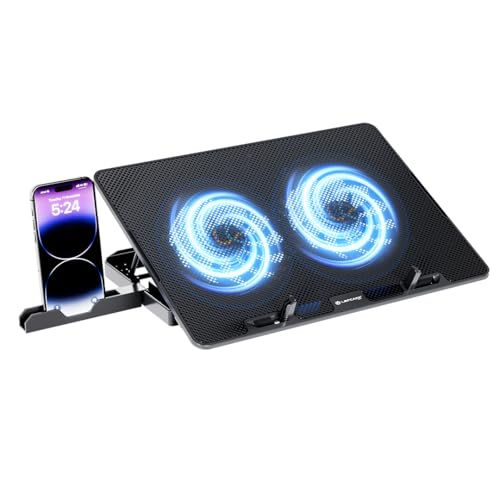
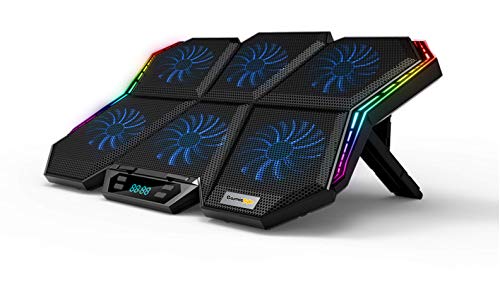
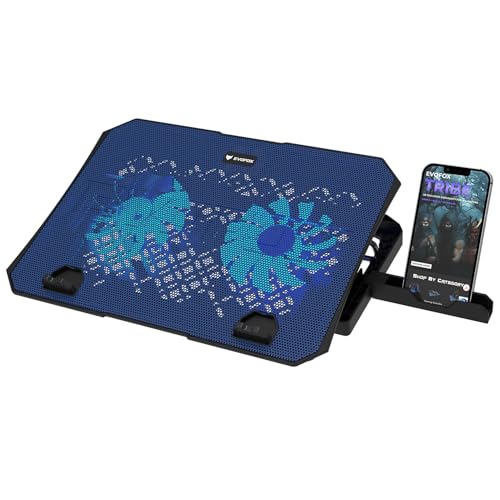
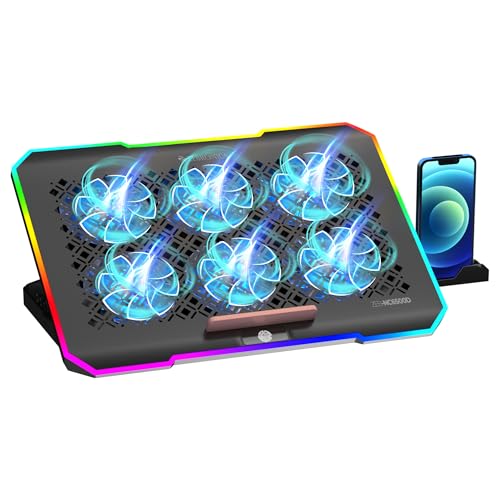
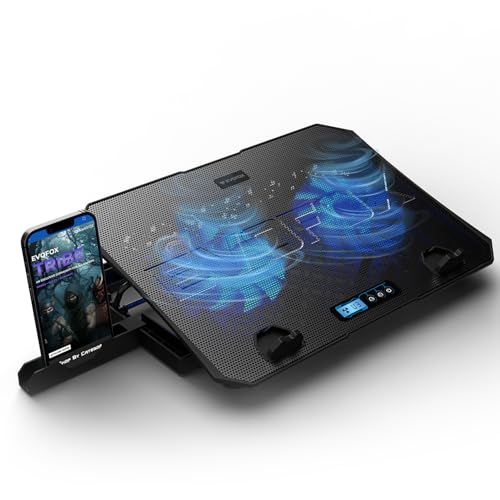
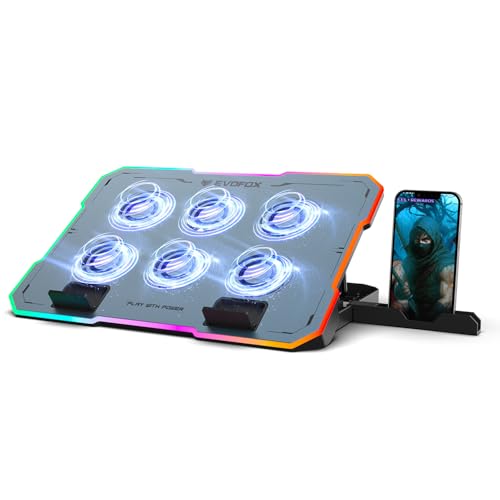
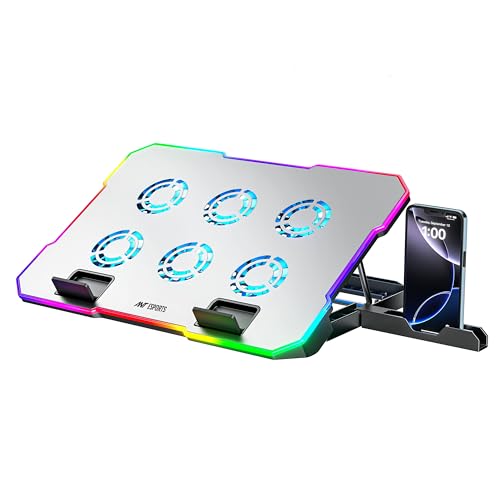
10. Cooling Pad
Cooling pads are often marketed as an essential laptop accessory.
They’re not.
A cooling pad can be useful for laptops that generate substantial heat during gaming or sustained heavy workloads, but the benefit varies significantly by laptop design.
Consider One If:
- You use a gaming laptop
- You run demanding applications for long periods
- Your laptop has a bottom air intake that benefits from improved airflow
- Your laptop runs hot during sustained loads
Don’t Buy One Just Because:
- A YouTube video showed one with dramatic RGB lighting
- Your laptop feels warm during normal browsing
- It looks cool on a desk
A warm laptop isn’t automatically an overheating laptop.


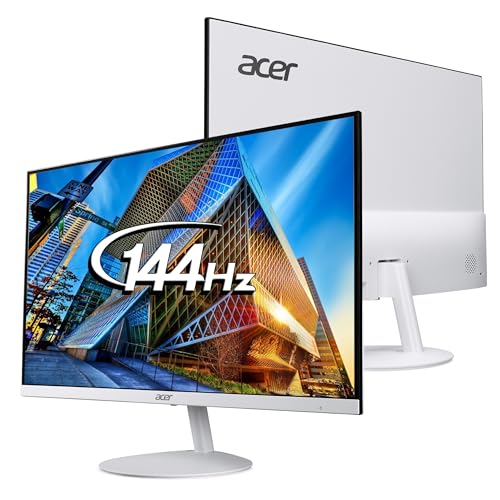
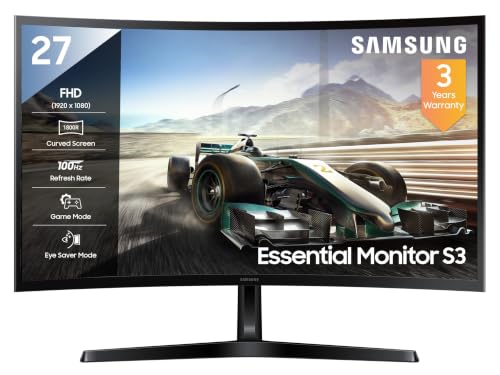
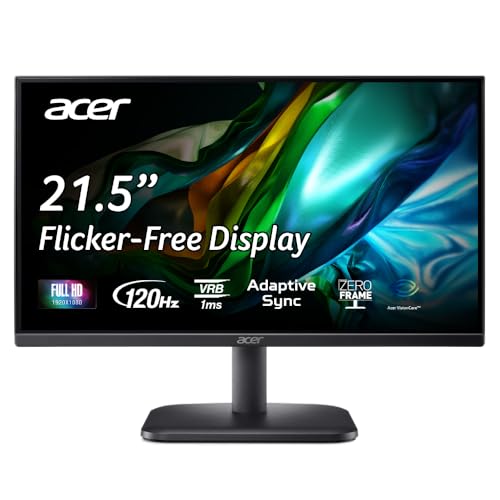
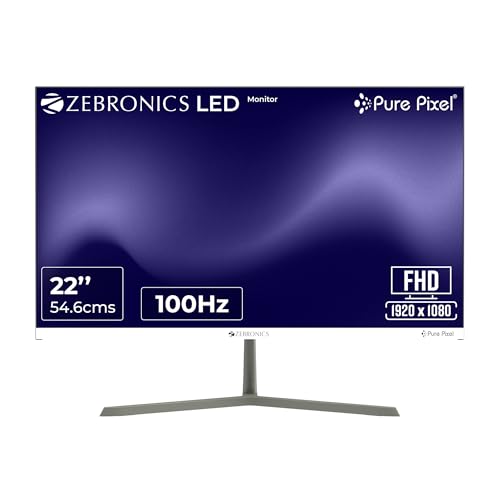
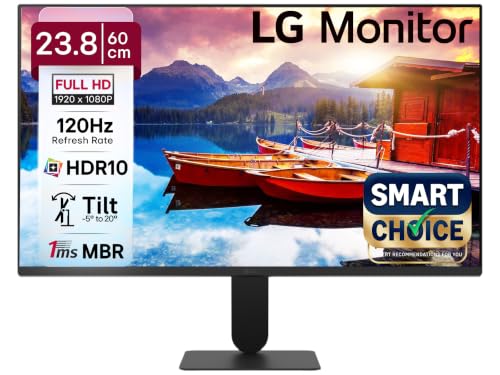
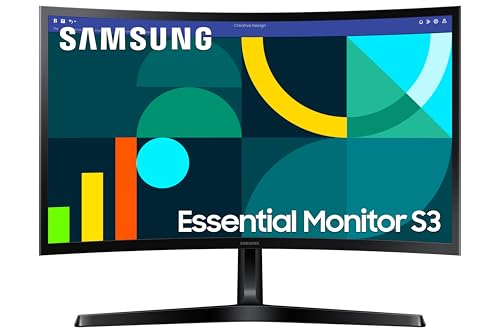
11. Monitor
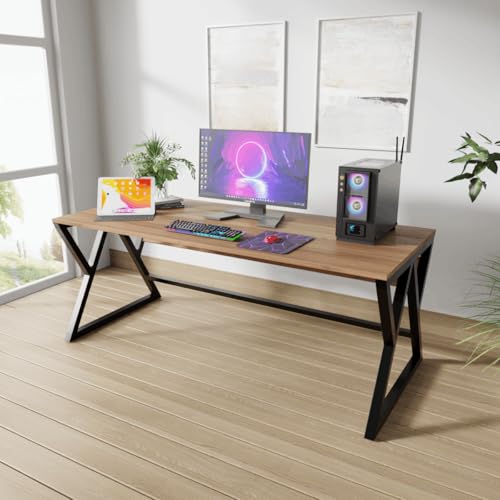
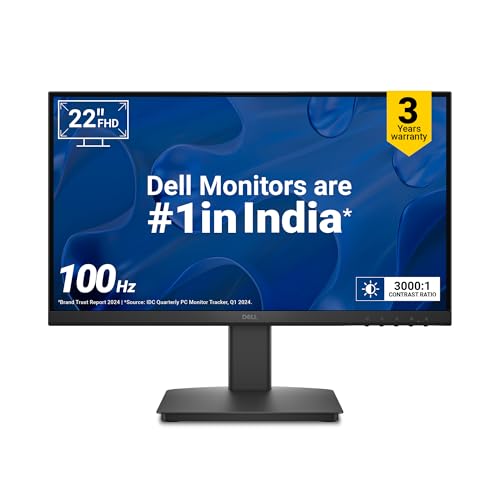
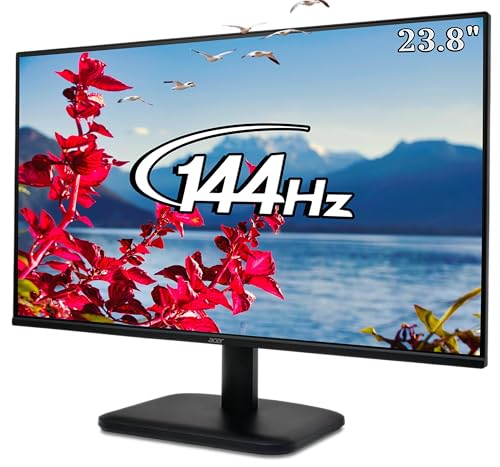
For anyone spending several hours a day at a desk, an external monitor can be one of the most transformative laptop accessories.
It gives you more screen real estate for:
- Research
- Writing
- Spreadsheet work
- Editing
- Coding
- Video production
- Multitasking
What to Look For
Size:
24-inch is a comfortable starting point for many desks, while 27-inch models offer more workspace.
Resolution:
Higher resolutions provide more workspace and sharper text, provided the laptop and software environment handle scaling appropriately.
Refresh rate:
More important for gaming and motion-heavy content than ordinary productivity.
Panel type:
IPS panels are common for general productivity and can offer useful viewing angles and color performance.
Connectivity:
Check HDMI, DisplayPort, USB-C and power-delivery support according to your laptop.


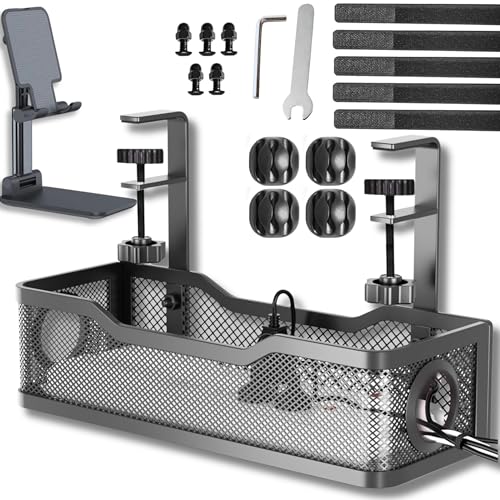
12. Cable Management Accessories
Once you have:
Laptop + monitor + keyboard + mouse + hub + charger + SSD…
Congratulations. You have created a cable ecosystem. 😂
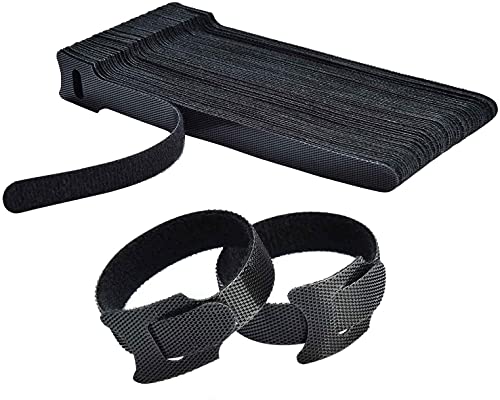
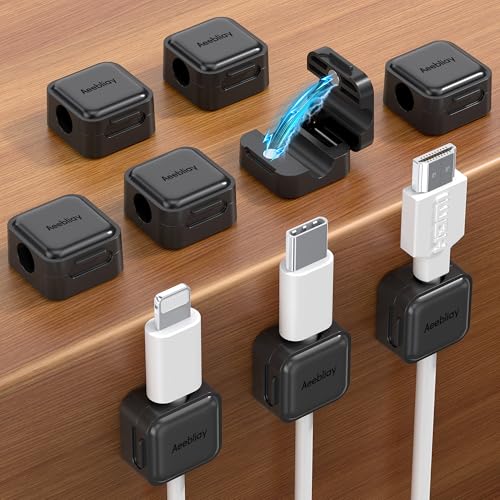
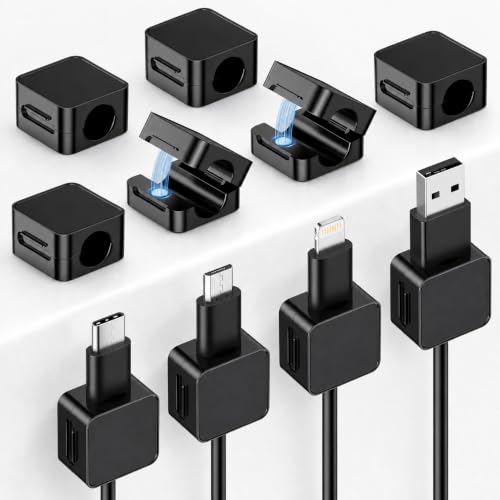
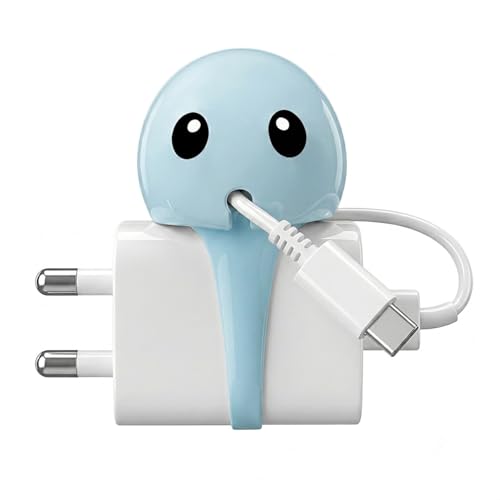
Cable-management accessories help keep everything under control.
Useful options include:
- Velcro cable ties
- Adhesive cable clips
- Cable sleeves
- Desk cable trays
- Charging cable organizers
This is a relatively inexpensive category where you don’t need to overthink things.




Laptop Accessories by Type of User
| User | Most Useful Accessories |
|---|---|
| Student | Mouse, sleeve, USB-C hub, compact charger |
| Office Worker | Stand, mouse, keyboard, monitor, hub |
| Blogger/Writer | Stand, keyboard, mouse, external SSD |
| Content Creator | Monitor, SSD, hub/dock, webcam, microphone |
| Gamer | Gaming mouse, keyboard, monitor, headset, cooling solution |
| Traveller | Sleeve, compact charger, mouse, USB-C hub |
| Programmer | Stand, keyboard, mouse, monitor, dock |
| Work From Home | Stand, monitor, keyboard, mouse, webcam/headset |
What to Look for When Buying Laptop Accessories
Don’t shop for laptop accessories by brand name alone. Start with compatibility and your actual workflow.
1. Check Your Laptop Ports
Before buying anything, inspect your laptop.
You might have:
- USB-A
- USB-C
- HDMI
- DisplayPort over USB-C
- Thunderbolt
- Headphone jack
- SD card slot
- Ethernet
Knowing what you already have prevents unnecessary purchases.
2. Understand USB-C Properly
The USB-C connector is only the physical connector shape.
Capabilities can vary.
One USB-C port may support charging and display output, while another may offer slower USB data without display support.
That’s why specifications matter.
3. Check Power Requirements
For chargers, docks and hubs with charging support, check your laptop’s required wattage.
USB Power Delivery is designed to negotiate power between compatible devices rather than simply forcing maximum power into everything connected.
4. Don’t Pay for Ports You Won’t Use
A photographer might need SD and microSD.
An office user might care more about HDMI and Ethernet.
A student might only need two extra USB-A ports.
Buy for your workflow.
5. Think About Portability
A desktop dock and a tiny travel hub serve different purposes.
There’s no reason to drag a huge docking station around Mumbai traffic when a compact hub does the job. 😄
Common Laptop Accessory Buying Mistakes
Buying Based Only on the Number of Ports
More ports don’t necessarily mean better performance.
Always check what each port actually supports.
Ignoring Laptop Compatibility
This is especially common with USB-C hubs, monitors and chargers.
A connector fitting physically doesn’t guarantee that every advertised feature will work.
Overspending on Gaming Accessories
RGB doesn’t make an office keyboard more productive.
Buy performance features only when they solve a problem.
Buying the Wrong Laptop Sleeve Size
A sleeve that’s too large provides a poor fit. Measure your device and check the manufacturer’s compatibility dimensions.
Forgetting the Cable
You can buy a fantastic SSD, monitor or hub and then discover the bundled cable doesn’t support the feature you expected.
Always check the complete connection chain:
Laptop → cable → accessory → display/storage/device.
Buying a Cooling Pad Automatically
First determine whether your laptop actually benefits from additional airflow.
How We Selected These Accessories
For this guide, we evaluated laptop-accessory categories based on practical usefulness, compatibility requirements, common laptop workflows, connectivity standards, portability, value for money and the situations in which each accessory makes sense.
For technical connectivity guidance, we referred to standards and documentation from organizations including USB-IF, VESA and Intel, rather than assuming that every USB-C accessory behaves identically. USB4 and USB Power Delivery capabilities, for example, depend on the specifications supported by the connected devices, cables and accessories.
Prices and availability can change frequently, so readers should check the current product listing before purchasing.
FAQs
Which laptop accessories are essential?
For most users, the essentials are a comfortable mouse, suitable laptop stand or desk setup, protective sleeve/bag and a compatible charger. A USB-C hub becomes essential when your laptop lacks the ports you regularly need. Other accessories depend on your work.
Is a laptop stand really useful?
Yes, particularly for people who use a laptop at a desk for long periods. Raising the screen can make a desktop arrangement easier to configure and works especially well with an external keyboard and mouse.
Do all USB-C laptop ports support charging?
No. USB-C describes the connector, not a universal set of capabilities. Charging, data speeds and display output depend on the laptop’s specific port implementation and supported standards.
Do I need a USB-C hub or docking station?
A USB-C hub is generally enough for basic port expansion such as USB devices, HDMI or card readers. A docking station makes more sense for a permanent workstation with several peripherals and potentially multiple displays.
Is a wireless mouse better than a laptop trackpad?
Neither is universally better. A trackpad is excellent for portability and gestures, while a mouse can be more comfortable and precise for extended desktop work, editing and gaming.
Should I buy a cooling pad for my laptop?
Not automatically. Cooling pads are more relevant for laptops that experience substantial heat during gaming or sustained heavy workloads. For ordinary browsing and office use, one may provide little practical value.
How much should I spend on laptop accessories?
There is no single ideal budget. Spend more where performance, comfort or compatibility matter such as a good monitor, mouse, SSD, hub or charger and save on simple items such as cable ties and basic organizers.
What laptop accessories are best for working from home?
A strong work-from-home setup usually includes a laptop stand, external keyboard, mouse, monitor and USB-C hub or dock. A webcam or headset becomes more useful if your work involves frequent video meetings.
Final Verdict
The biggest mistake people make with laptop accessories is thinking they need to build an entire “ultimate setup” immediately.
You don’t.
Start with the accessories that solve your biggest everyday problem.
🏆 Best Overall Accessory: Laptop Stand
For desk users, a good stand can improve the overall setup while pairing naturally with a separate keyboard and mouse.
💰 Best Value Accessories: Wireless Mouse + Sleeve
These are relatively simple purchases that can improve everyday usability and laptop protection without requiring a huge budget.
🔌 Best Connectivity Upgrade: USB-C Hub
A good hub can dramatically expand what a thin laptop can connect to, but pay attention to actual data, display and charging capabilities rather than the port count alone.
🖥️ Best Productivity Upgrade: External Monitor
For people who work at a desk every day, an external monitor can make multitasking, research, editing and office work far more comfortable.
💾 Best for Creators: External SSD
Large files quickly make internal laptop storage feel tiny, especially for photography and video work.
🎒 Best for Travellers: Laptop Sleeve + Compact Charger + USB-C Hub
That combination gives you protection, charging flexibility and connectivity without turning your backpack into a mobile office.
At the end of the day, the best laptop accessories are the ones that remove friction from the way you actually use your laptop. You don’t need every gadget. You need the right few.
And honestly, that’s a much cheaper philosophy too. 💸😄