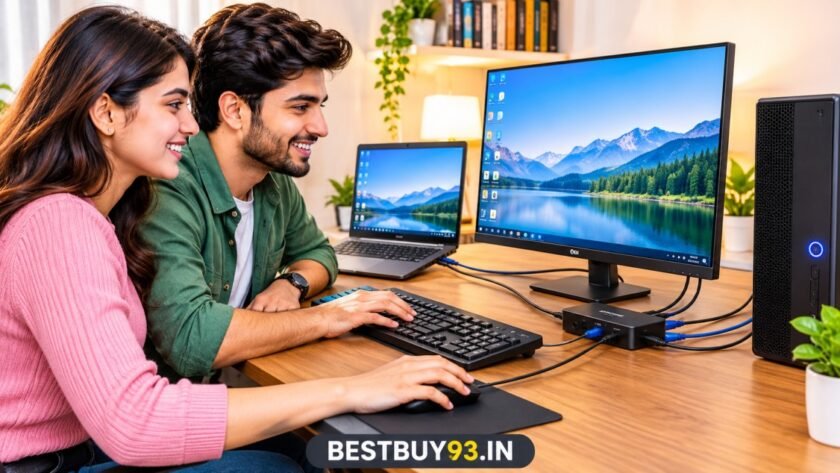

Imagine having a work laptop and a personal desktop on the same desk. You want to use both, but switching between them means unplugging your keyboard, moving your mouse receiver, changing monitor inputs and dealing with a cable mess.
Annoying, right?
That’s exactly where a KVM switch comes in.
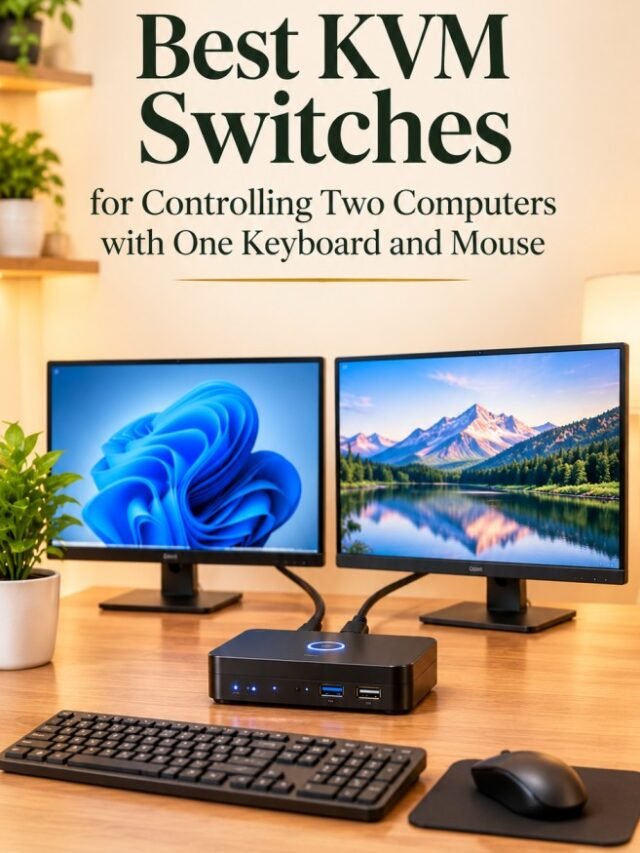
A KVM (Keyboard, Video and Mouse) switch allows you to control two or more computers using one keyboard, one mouse and, depending on the model, one or more shared monitors. Instead of constantly reconnecting accessories, you press a button or use a keyboard shortcut to move between computers.
Whether you’re working from home, managing multiple PCs, coding, editing videos or simply trying to keep your desk organised, a suitable KVM switch can make your setup much easier to manage.
But not every KVM switch supports the same connections. Some handle one HDMI monitor, others support dual displays, and premium models offer USB-C connectivity, higher refresh rates and additional USB ports.
In this guide, we’ll explore some worthwhile KVM switches for two-computer setups, compare their features, explain what to check before buying and help you avoid spending money on a model that doesn’t match your equipment.
Note: Product specifications below are based on manufacturer and seller documentation available during research. We have not independently laboratory-tested these switches. Prices and availability can change, so check the current listing before purchasing.
Quick Answer: Which KVM Switch Should You Consider?
For a straightforward two-computer setup with one HDMI monitor, the UGREEN 15707 is a practical option. It supports 4K at 60Hz and provides additional USB ports for shared accessories.
If you want to control two computers using two monitors, consider the AV Access 4KSW21-DM. For a more advanced dual-monitor gaming or workstation setup, the TESmart HKS202-M24 offers HDMI 2.1 connectivity and high-refresh-rate support.
| KVM switch | Best for | Main advertised feature |
|---|---|---|
| UGREEN 15707 | Everyday two-PC desk | Single monitor, 4K 60Hz, USB 3.0 |
| AV Access 4KSW21-DM | Dual-monitor productivity | Two HDMI monitors, 4K 60Hz |
| TESmart HKS202-M24 | Premium dual-monitor setup | HDMI 2.1, high refresh rates, EDID |
| USB-only sharing switch | Keyboard and mouse sharing without video switching | Shares USB peripherals only |
The last option is not a complete KVM switch, but it’s worth understanding because some people don’t actually need video switching.
What Is a KVM Switch?
A KVM switch is a hardware device that allows multiple computers to share a single set of peripherals.
KVM stands for:
- K – Keyboard: One keyboard can control different computers.
- V – Video: One or more monitors can display the selected computer.
- M – Mouse: One mouse can operate different computers.
For example, imagine that you have:
- One Windows desktop for gaming.
- One laptop for office work.
- One monitor.
- One keyboard.
- One mouse.
Without a KVM switch, you may need to change your monitor input and reconnect or separately switch your USB accessories.
With a compatible KVM switch, you connect both computers to the device, connect your monitor and USB peripherals to the shared ports, and select the computer you want to use.
The important thing: A KVM switch does not combine two computers into one machine. It simply lets you control them using shared accessories.
Find KVM Switches Best Sellers on Amazon India
Best KVM Switches for Two Computers
Here are three distinct KVM switch options covering everyday desk setups, dual-monitor productivity and premium high-performance configurations.
1. UGREEN 15707 HDMI KVM Switch
Best for everyday two-computer setups
The UGREEN 15707 is a useful option if you want to control two computers using one HDMI monitor, keyboard and mouse.
It is designed for people who regularly switch between a work laptop and a personal desktop, or between two desktop computers.
The switch supports up to 4K resolution at 60Hz and includes four shared USB ports for compatible peripherals. This gives you room to connect more than just a keyboard and mouse.
Key features:
- Two computers sharing one HDMI monitor.
- Supports up to 4K at 60Hz.
- Three USB-A 3.0 ports and one USB-C port.
- USB data transfer up to 5Gbps.
- Physical switching button and wired desktop controller.
- Plug-and-play operation without requiring a dedicated driver.
- Compatible with Windows, macOS and Linux systems according to the India listing.
Why consider it?
The biggest advantage is its straightforward design. You don’t need a complicated docking station just to switch between two computers.
The additional USB ports are useful if you also want to share a printer, compatible external storage device or other USB accessory.
The wired controller can be positioned conveniently on your desk, so you don’t have to reach behind your monitor every time you switch computers.
What to check before buying:
- Both computers need compatible HDMI video connections.
- Each computer also needs the required USB connection to the KVM.
- The monitor must have a compatible HDMI input.
- For 4K at 60Hz, use suitable HDMI cables.
- Check the current package contents because cable inclusion can vary by seller or listing.
Pros and cons
| What we like | What we don’t like |
|---|---|
| 4K 60Hz support | Only one monitor output |
| Four shared USB ports | Not a dual-monitor solution |
| Convenient desktop controller | Requires compatible HDMI and USB connections |
| USB 3.0 data support | External power arrangements should be checked |
| No dedicated driver required | Not designed as a full laptop docking station |
Our verdict: The UGREEN 15707 is a sensible starting point for someone who wants to share one monitor, keyboard, mouse and other USB devices between two computers without investing in a complicated setup.

- 2 USB C PCs Share Multiple USB Pheriperals: The 2-In 4-Out USB C switcher enables 2 computers to share 4 USB Pheripheral…
- Connect USB C & USB A Devices: The USB C switch provides 1 USB C port and 3 USB A ports to support connecting various US…
- Design for USB C Computer: The USB C port connects 2 USB C computers directly such as MacBook Pro, Macs, Dell XPS, Asus,…
2. AV Access 4KSW21-DM Dual-Monitor KVM Switch
Best for dual-monitor productivity
If one monitor isn’t enough for your daily workflow, the AV Access 4KSW21-DM is worth considering.
This model is designed for two computers sharing two monitors, along with one keyboard, one mouse and additional USB peripherals.
Think of a setup where one screen displays your spreadsheet while the second shows your browser, editing software or communication application.
Instead of manually changing the monitor inputs on both displays, a dual-monitor KVM can switch the connected computers together.
Key features:
- Supports two computers and two HDMI monitors.
- Up to 4K at 60Hz.
- HDMI 2.0 and HDCP 2.2 support.
- Three USB 3.0 peripheral ports.
- USB data transfer up to 5Gbps.
- Physical button and keyboard hotkey switching.
- Supports HDR formats listed by the manufacturer.
- Supports Windows, macOS and Linux.
- EDID emulation for faster display switching.
- Two operating modes: KVM mode and USB mode.
Why consider it?
The biggest reason to choose this model is its dual-monitor configuration.
It is suitable for users who work across multiple applications and want both displays to move between their two computers.
The USB 3.0 ports also make it possible to share compatible accessories such as a webcam, external drive or printer.
Another useful feature is EDID emulation, which helps the computer maintain display information when switching sources.
What to check before buying:
A dual-monitor KVM needs more connections than a single-monitor model.
Each computer generally needs two separate video outputs, one for each monitor, along with the required USB connection.
If your laptop has only one HDMI output, you may need a compatible docking station or video adapter. Check your computer’s display-output capabilities before ordering.
Also, keyboard hotkeys require the keyboard to be connected to the designated USB port described in the manual.
Pros and cons
| What we like | What we don’t like |
|---|---|
| Supports two computers and two monitors | Requires more cables |
| 4K 60Hz support | Not ideal for buyers needing 4K 144Hz |
| USB 3.0 peripheral sharing | Laptop video compatibility needs checking |
| EDID emulation | Larger and more complex than a basic KVM |
| Physical and hotkey switching | Requires correct connection configuration |
Our verdict: The AV Access 4KSW21-DM is worth considering if your desk already has two monitors and you want to switch both displays and shared peripherals between two computers.

- 𝗗𝘂𝗮𝗹 𝗠𝗼𝗻𝗶𝘁𝗼𝗿 𝗛𝗗𝗠𝗜 𝗞𝗩𝗠 𝗦𝘄𝗶𝘁𝗰𝗵 𝟮 𝗜𝗡 𝟮 𝗢𝗨𝗧: Control 2 computers or laptops for Windows, Mac, Chrome and Linux with one set …
3. TESmart HKS202-M24 HDMI 2.1 Dual-Monitor KVM Switch
Best for premium gaming and workstation setups
The TESmart HKS202-M24 is aimed at people who need more than a basic office KVM.
It supports two computers and two monitors, with HDMI 2.1 connectivity and advanced display features. This makes it an option for users who work with high-resolution displays or high-refresh-rate monitors.
It is particularly interesting if you use one computer for productivity and another for gaming or demanding creative work.
Key features:
- Two computers and two HDMI monitors.
- HDMI 2.1 connectivity.
- Advertised support up to 8K at 60Hz with DSC.
- High-refresh-rate support, including 4K at 144Hz under specified configurations.
- EDID emulation.
- Variable Refresh Rate (VRR), FVA and ALLM support as specified by the manufacturer.
- USB 3.0 peripheral sharing.
- Gigabit Ethernet sharing.
- Physical button, keyboard hotkeys, IR remote and mouse-wheel switching options.
- Additional audio connectivity.
Why consider it?
The biggest advantage is its advanced video support.
A basic 4K 60Hz KVM may be perfectly adequate for office applications, but gaming and high-refresh-rate workflows can require more bandwidth.
The HKS202-M24 is designed for more demanding display configurations.
Its EDID functionality is another important feature. Without suitable display emulation, switching computers can cause monitor re-detection, temporary black screens or changes to desktop layouts.
The manufacturer also advertises multiple switching methods, which can be convenient when the switch is positioned away from your keyboard.
What to check before buying:
- Confirm that your graphics cards and monitors support the intended HDMI 2.1 configuration.
- Check the required HDMI cables and their bandwidth rating.
- Confirm the supported resolution and refresh rate for your exact display setup.
- Check the supplied power adapter and cable requirements.
- Review the keyboard and mouse compatibility modes. Some advanced keyboard and mouse features may not work in legacy emulation mode.
- Verify the latest product revision before ordering.
The manufacturer lists different resolution and refresh-rate combinations, so don’t assume every advertised maximum can be achieved simultaneously.
Pros and cons
| What we like | What we don’t like |
|---|---|
| HDMI 2.1 connectivity | Premium pricing |
| Dual-monitor support | More complicated installation |
| High-refresh-rate capabilities | Requires compatible graphics hardware and monitors |
| EDID emulation | Cable requirements can increase setup cost |
| Multiple switching methods | May be excessive for ordinary office use |
Our verdict: The TESmart HKS202-M24 is a premium option for people who need high-refresh-rate dual-monitor switching. For a simple laptop-and-desktop setup with one standard monitor, it may be more hardware than you actually need.

- HDMI KVM Switch 2 IN 1 OUT: HDMI KVM switch is perfect for hooking up 2 desktops or laptops to share 1 set of keyboard, …
- "Blast, Fast, Past" with USB3.0: The integrated USB 3.0 port offering charging your phone. It allows you to share USB pe…
- Ultra HD 4K@60Hz and EDID Emulators: The Resolution is up to 3840×2160 (4K) @60hz, 3440×1440@100hz, 2560×1440@120Hz and …
KVM Switch Comparison Table
Let’s compare the three recommended models side by side.
| Feature | UGREEN 15707 | AV Access 4KSW21-DM | TESmart HKS202-M24 |
|---|---|---|---|
| Computers supported | 2 | 2 | 2 |
| Monitors supported | 1 | 2 | 2 |
| Video connection | HDMI | HDMI | HDMI 2.1 |
| Advertised maximum resolution | 4K 60Hz | 4K 60Hz | Up to 8K 60Hz with DSC |
| High-refresh support | Standard 4K60 | Selected lower resolutions at higher refresh rates | Advanced high-refresh support |
| USB peripheral sharing | Yes | Yes | Yes |
| Switching options | Button/controller | Button/hotkey | Button, hotkey, IR and mouse options |
| Best for | Everyday desks | Dual-monitor productivity | Premium workstation/gaming |
Which one offers the best value?
- Choose UGREEN if you need one monitor and straightforward USB sharing.
- Choose AV Access if you regularly use two monitors.
- Choose TESmart if your display setup requires advanced HDMI 2.1 capabilities.
Don’t choose a model simply because it advertises the highest resolution. Your computer, graphics card, monitor and cables must all support the required signal.
KVM Switch vs USB Switch: What’s the Difference?
This is one of the most important distinctions to understand before purchasing.
A KVM switch and a USB sharing switch are not the same product.
| Feature | KVM Switch | USB Switch |
|---|---|---|
| Shares keyboard | Yes | Yes, if supported |
| Shares mouse | Yes | Yes, if supported |
| Switches video | Yes | No |
| Shares USB accessories | Usually, depending on model | Yes |
| Can switch computers | Yes | Only USB peripherals |
| Requires video connections | Yes | No |
| Best for | Sharing an entire workstation | Sharing USB accessories only |
When should you buy a USB switch instead?
Imagine you have two computers and one monitor with multiple HDMI inputs.
Your monitor can already switch between the two computers using its own input controls.
However, you still want to share one keyboard and mouse.
In that situation, a USB sharing switch may be enough. It can save you money because you don’t need a complete video-switching solution.
But if you want the monitor, keyboard and mouse to switch together, choose a proper KVM switch.
What to Look for When Buying a KVM Switch
Before purchasing a KVM switch, consider the following specifications.
A. Number of computers and monitors
Start by counting your equipment.
A two-port KVM supports two computers, but that doesn’t automatically mean it supports two monitors.
You need to distinguish between:
- 2 computers + 1 monitor.
- 2 computers + 2 monitors.
- 4 computers + 1 monitor.
- 4 computers + 2 monitors.
Choose according to your actual desk arrangement.
B. HDMI vs DisplayPort
Your KVM switch must match the video connections available on your computers and monitors.
HDMI: Commonly found on laptops, desktops, TVs and monitors.
DisplayPort: Popular with desktop graphics cards and high-refresh-rate monitors.
USB-C: Can carry video on compatible computers, but not every USB-C port supports video output.
Don’t assume that a USB-C connector automatically supports display connectivity.
Look for DisplayPort Alt Mode or Thunderbolt support where required.
C. Resolution and refresh rate
Resolution determines how much visual detail your display can show, while refresh rate determines how frequently the image updates.
| Display requirement | What to look for |
|---|---|
| Full HD office monitor | Compatible 1080p KVM |
| 1440p monitor | KVM supporting your exact resolution and refresh rate |
| 4K office monitor | 4K 60Hz KVM |
| 4K gaming monitor | HDMI 2.1 or suitable DisplayPort KVM with the required refresh-rate support |
| 8K monitor | Compatible 8K KVM, cables and graphics hardware |
A 4K 60Hz KVM isn’t automatically suitable for a 4K 144Hz gaming monitor.
D. USB port speed
If you only connect a keyboard and mouse, USB 2.0 may be sufficient.
But if you also want to share external SSDs, webcams or other data-intensive peripherals, USB 3.0 or faster can be useful.
Check the actual port speed and whether all connected devices can operate at the advertised rate.
E. Switching method
Most KVM switches provide one or more of these options:
- Physical button.
- Wired remote controller.
- Keyboard hotkeys.
- Infrared remote.
- Mouse-based switching.
A wired controller is particularly useful if your KVM is placed behind a monitor or under a desk.
F. EDID emulation
EDID stands for Extended Display Identification Data.
It helps a computer identify the monitor’s supported display capabilities.
Some KVM switches include EDID emulation to keep the display information available when switching between computers.
This can help reduce unwanted window rearrangement, display re-detection and switching interruptions.
If you frequently move between two computers, it’s worth considering.
G. Power delivery
Some USB-C KVM switches and docking-style models offer Power Delivery.
This can allow a compatible laptop to receive power through its USB-C connection.
However, check the actual charging wattage, supported laptop requirements and whether the advertised power is pass-through or guaranteed output.
A KVM switch should not be assumed to replace your laptop charger unless its specifications explicitly support your power requirements.
Common KVM Switch Buying Mistakes
A KVM switch can simplify your desk, but choosing the wrong one can create a different kind of headache.
Avoid these mistakes:
1. Buying a single-monitor KVM for a dual-monitor desk
A single HDMI output cannot control two independent monitors. Check the number of video input and output channels.
2. Ignoring your computer’s video ports
If your desktop has DisplayPort but the KVM only accepts HDMI, you may need compatible adapters. Not all adapters support every resolution or refresh rate.
3. Assuming USB-C always carries video
Some USB-C ports support charging and data only. Confirm video output compatibility.
4. Ignoring refresh-rate limitations
A 4K 60Hz KVM may limit a 144Hz monitor to a lower refresh rate.
5. Forgetting USB peripheral requirements
Count your keyboard, mouse, webcam, printer, storage devices and other accessories before choosing the number of USB ports.
6. Assuming all cables are included
Some switches include host cables, while others require separate purchases. Read the package contents carefully.
7. Overlooking Mac display limitations
Some dual-monitor USB-C setups rely on Multi-Stream Transport (MST). macOS does not support MST in the same way Windows does for independent extended displays.
Mac users should check the exact KVM’s compatibility with their Mac model and chip before buying.
How to Connect Two Computers to a KVM Switch
The installation process is generally straightforward, although the number of cables depends on your chosen model.
For a basic two-computer, one-monitor HDMI setup:
- Place the KVM switch somewhere accessible.
- Connect the first computer’s HDMI output to the first KVM video input.
- Connect the second computer’s HDMI output to the second KVM video input.
- Connect the required USB host cables from both computers to the KVM.
- Connect your monitor to the KVM’s HDMI output.
- Connect your keyboard and mouse to the designated USB ports.
- Connect external power if required.
- Turn on both computers and select the computer you want to control.
For dual-monitor models, repeat the video connection for the second display.
Always follow the manufacturer’s connection diagram. The exact ports and cable requirements differ between models.
Find Hot New Releases KVM Switches on Amazon India
In Case You Are Looking For –
- Best External Monitors for Dual-Screen Productivity
- Best External DVD Drives for Laptops Without Built-In Disc Drives (2026)
- Best USB-C Hubs and Adapters for Laptop Connectivity
- Best Portable SSDs for Backing Up Smartphone Photos and Videos
Frequently Asked Questions About KVM Switches
1. Can one keyboard and mouse control two computers?
Yes. A KVM switch allows one keyboard and mouse to control two or more connected computers. You can switch between them using a physical button, hotkey or another supported control method.
2. Do KVM switches support two monitors?
Some do. Dual-monitor KVM switches can share two displays between two computers. Check that the switch has the required number of video inputs and outputs and that both computers can provide the necessary video signals.
3. Can I use a KVM switch with a laptop and desktop?
Yes. Many KVM switches support laptop-and-desktop configurations. However, check the laptop’s available HDMI, DisplayPort, USB-C or Thunderbolt connections before purchasing.
4. Does a KVM switch reduce display quality?
A compatible KVM switch should transmit the supported video signal without intentionally reducing image quality. However, an incompatible switch or cable can limit resolution, refresh rate, HDR or other display features.
5. Can a KVM switch share a printer and external hard drive?
Many models include additional USB ports that allow compatible devices to be shared. Check the USB version, power requirements and device compatibility before connecting storage drives or other peripherals.
6. Is a KVM switch better than a USB switch?
It depends on your needs. A KVM switch can share video and USB peripherals, whereas a USB switch only shares USB devices. If your monitor already has multiple inputs, a USB switch may be sufficient.
7. Do KVM switches require software?
Many standard KVM switches are plug-and-play hardware devices and don’t require dedicated software. Some specialised docking or DisplayLink-based solutions may require additional software or drivers.
8. Can I use a KVM switch for gaming?
Yes, but choose one that supports your gaming monitor’s resolution, refresh rate, HDR and other required display features. High-refresh-rate gaming setups may need an HDMI 2.1 or suitable DisplayPort KVM.
Final Verdict: Which KVM Switch Should You Buy?
The right KVM switch depends on how your desk is configured.
If you’re switching between two computers with one monitor, you don’t need to spend a fortune on a premium dual-monitor device.
If you use two monitors for work, a dual-monitor KVM can make your setup considerably more convenient.
And if you use high-refresh-rate gaming displays, check the HDMI 2.1 or DisplayPort capabilities before making a purchase.
Here’s our final recommendation:
| Your setup | Our recommendation |
|---|---|
| Two computers, one monitor | UGREEN 15707 |
| Two computers, two monitors | AV Access 4KSW21-DM |
| Premium dual-monitor gaming/workstation | TESmart HKS202-M24 |
| Only sharing keyboard and mouse | USB sharing switch |
Our overall advice: Count your monitors, check your video connections and decide which USB accessories need to be shared before buying. A little planning can save you from purchasing a KVM switch that doesn’t work with your existing setup.
A cleaner desk, fewer cables and one keyboard controlling two computers? That’s a productivity upgrade worth considering.
Explore more computer accessories, technology buying guides and practical product recommendations at BestBuy93.IN.