

A desktop PC might have plenty of power under the hood, but its USB ports can still run out surprisingly quickly. Connect a keyboard, mouse, webcam, external SSD, printer, microphone, wireless receiver and a few other accessories, and suddenly you’re playing musical chairs with USB connections!
That’s where a USB hub comes in. It allows you to connect multiple peripherals through a single USB port, making your desktop setup more convenient and organised.
But not every USB hub is suitable for every desktop. Some are simple four-port expanders, while others offer dedicated charging ports, additional power inputs or even wired Ethernet connectivity. Choosing the wrong one could mean slower file transfers, unstable connections or not having enough power for your devices.
In this guide, we’ll explore some of the best USB hubs worth considering for desktop PCs in India. We’ll compare their connectivity, explain which models suit different setups, discuss what to check before buying and help you decide whether a basic or externally powered hub makes more sense.
Quick Answer: Which USB Hub Should You Buy?
For a desktop setup with several peripherals, the TP-Link UH720 is a strong overall choice because it offers seven USB 3.0 data ports, two dedicated charging ports and an external power adapter.
If you need a simpler four-port expansion hub, consider the TP-Link UH400. For additional power support, the UGREEN 50985 offers four USB 3.0 ports and a separate 5V power input. And if you want to combine USB expansion with wired networking, the TP-Link UE330 is worth exploring.
The right choice ultimately depends on how many devices you connect, their power requirements and the USB port available on your computer.
Best USB Hubs for Desktop PCs at a Glance
Here is a quick comparison of the shortlisted models and what makes each one worth considering.
| USB Hub | Best For | Connectivity | Power |
|---|---|---|---|
| TP-Link UH720 | Overall desktop expansion | 7 USB 3.0 data ports + 2 charging ports | External adapter |
| UGREEN 50985 | Additional power input | 4 USB 3.0 ports | Optional 5V input |
| TP-Link UH400 | Everyday peripherals | 4 USB 3.0 ports | Bus-powered |
| TP-Link UE330 | USB + Ethernet | 3 USB 3.0 ports + Gigabit Ethernet | USB-powered |
| Portronics Mport Link A | Basic connectivity | 1 USB 3.0 + 2 USB 2.0 | Bus-powered |
| Zebronics 210HB | Basic metal-body hub | 1 USB 3.0 + 3 USB 2.0 | Bus-powered |
Our recommendation: Choose the TP-Link UH720 if you regularly connect several devices and want a dedicated powered hub. For a basic keyboard, mouse and flash-drive setup, a compact four-port hub may be more than enough.
Note: Prices, seller ratings and availability can change. Check the current product listing, included accessories and warranty before ordering.
Detailed USB Hub Recommendations
1. TP-Link UH720 – Best Overall USB Hub for Desktop PCs
The TP-Link UH720 is designed for users who want more than just a couple of additional USB ports. It combines seven USB 3.0 data ports with two dedicated charging ports, making it a practical choice for a busy workstation.
Unlike small bus-powered hubs, the UH720 comes with an external power adapter. This is useful when you regularly connect multiple peripherals and want the hub to have its own power supply.
Key features:
- Seven USB 3.0 Type-A data ports.
- Two dedicated 5V/2.4A charging ports.
- Data transfer speeds of up to 5Gbps.
- External power adapter included.
- LED indicators.
- Plug-and-play operation.
- Compatible with Windows, macOS and Linux.
Why consider it?
Imagine having an external hard drive, USB microphone, webcam, keyboard, mouse and flash drive connected to your desktop. With seven dedicated data ports, you have more room for your accessories without constantly unplugging one device to connect another.
The two additional charging ports are useful for charging compatible USB-powered devices. Remember, these are dedicated charging ports rather than extra computer data connections.
Reasons to buy:
- Seven dedicated data ports offer generous expansion.
- External power adapter supports powered operation.
- Dedicated charging connections add convenience.
- Supports up to 5Gbps USB 3.0 transfers.
- Suitable for a more permanent desk setup.
What we don’t like:
- Takes up more desk space than compact hubs.
- Requires an electrical socket for its power adapter.
- Uses a USB Micro-B connection to communicate with the computer.
- Its charging ports do not function as data ports.
Best for: Desktop users connecting several peripherals, storage devices and USB-powered accessories.
Who should skip it? If you only need two or three extra ports for low-power accessories, this hub may be more than you need.
Verdict: The TP-Link UH720 is our leading recommendation for a desktop workstation that needs multiple USB connections and separate power support.
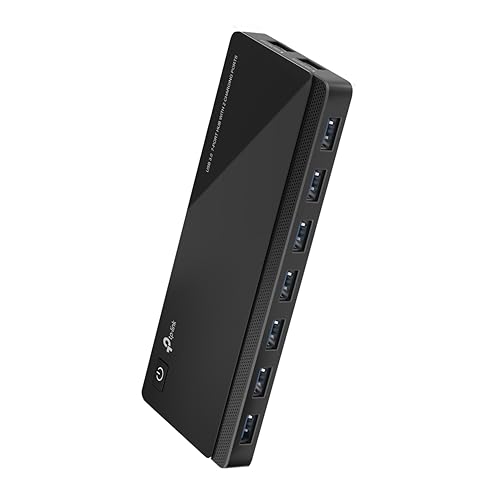
- USB 3.0 ports offer transfer speeds of up to 5Gbps, 10 times faster than standard USB 2.0
- The 7 data transfer ports mean you don't have to switch between devices. Output Interface – 7 USB 3.0 Standard A, 2 2.4A…
- Two exclusive 5V/2.4A charging ports intelligently recognize and optimally charge attached iOS and Android devices
2. UGREEN 50985 – Best Four-Port Hub with Additional Power Input
The UGREEN 50985 is a straightforward four-port USB 3.0 hub with one useful extra: a separate 5V Micro-USB power input.
It connects to your computer through an attached USB-A cable and provides four additional USB-A ports. The extra power input can help when connecting devices that require more power than a typical bus-powered hub can provide.
Key features:
- Four USB 3.0 Type-A ports.
- Data transfer speeds of up to 5Gbps.
- Backward compatibility with USB 2.0 and USB 1.1.
- Separate 5V Micro-USB power input.
- Plug-and-play setup.
- Compatible with Windows, macOS and Linux.
Why consider it?
The additional power input makes this model more flexible than a basic four-port hub. You can use it for everyday accessories and connect a suitable 5V power supply when your peripherals require additional power.
One important detail: the power adapter is not included with the listed product. Check the required power specifications and obtain a compatible supply separately if needed.
Reasons to buy:
- Four USB 3.0 ports.
- Up to 5Gbps advertised data transfer rate.
- Additional power input for demanding devices.
- Compact and relatively simple design.
- Useful for desktop storage and peripheral connections.
What we don’t like:
- External power adapter is not included.
- All connected devices share the hub’s upstream connection.
- No dedicated video output, Ethernet or fast-charging feature.
Best for: Users who want four additional USB 3.0 ports with the option of supplying extra power.
Who should skip it? If you need seven or more ports or want an included power adapter, consider a larger powered hub instead.
Verdict: A sensible middle-ground option for people who want a compact hub without giving up the option of additional power.

- 4 USB Ports Expansion: This USB Hub turns 1 USB A port into 4 USB A ports with your devices for mouses, keyboards, U dis…
- Transfer Files in Seconds: The USB 3.0 Hub supports a max file transfer speed of 5Gbps. That's fast enough to transfer a…
- Plug and Play: No additional drivers or software are required. The USB multiport adapter is plug-and-play for Windows, m…
3. TP-Link UH400 – Best Simple Four-Port USB Hub
Sometimes, you don’t need a complicated docking station. You simply need four additional USB ports that work.
The TP-Link UH400 is designed for exactly that. It provides four USB 3.0 ports through a single USB-A connection and features a compact design with an integrated foldable cable.
Key features:
- Four USB 3.0 Type-A ports.
- Transfer speeds of up to 5Gbps.
- USB 2.0 and USB 1.1 backward compatibility.
- Built-in foldable USB cable.
- LED status indicators.
- Plug-and-play operation.
- Windows, macOS and Linux support.
Why consider it?
The UH400 is particularly useful for connecting everyday desktop accessories such as a keyboard, mouse, wireless receiver and USB flash drive.
Its compact size also makes it easy to position on a desk. You don’t need to deal with a separate power adapter for ordinary low-power peripherals.
However, remember that this is a bus-powered hub. It draws power from the computer’s USB connection, so it isn’t the ideal choice for running several demanding external drives simultaneously.
Reasons to buy:
- Four USB 3.0 ports.
- Compact and easy to position.
- Integrated foldable cable.
- No separate driver installation for supported systems.
- Backward compatibility with older USB devices.
What we don’t like:
- No dedicated external power adapter.
- Not intended for high-power charging.
- Limited to four additional ports.
- All connected devices share the upstream bandwidth.
Best for: Everyday desktop users who need additional ports for keyboards, mice, flash drives and other ordinary peripherals.
Who should skip it? Users with multiple external hard drives or high-power accessories should consider a powered hub.
Verdict: A simple, practical option when your desktop needs a few more USB connections without adding another power adapter to the desk.

- Data transfer speed 10 times faster
- Ultra compact design
- Built-in USB connector cable
4. TP-Link UE330 – Best USB Hub with Gigabit Ethernet
The TP-Link UE330 offers something different from a conventional USB hub: it combines three USB 3.0 ports with a Gigabit Ethernet adapter.
That means you get additional USB connectivity and a wired network connection through one device.
Key features:
- Three USB 3.0 Type-A ports.
- Transfer speeds of up to 5Gbps on the USB ports.
- Gigabit Ethernet connectivity up to 1000Mbps.
- USB-A host connector.
- Plug-and-play operation on supported systems.
- Windows, macOS, Linux and Chrome OS compatibility, subject to version support.
Why consider it?
If your desktop has an unreliable wireless connection or you prefer wired networking, the UE330 combines two useful functions.
The Ethernet port can connect your computer to a router or network switch using a compatible Ethernet cable. The three USB ports can handle everyday accessories.
For users who want a compact USB expansion device without purchasing a separate Ethernet adapter, this combination can be convenient.
Reasons to buy:
- Combines USB expansion and wired networking.
- Three USB 3.0 ports.
- Gigabit Ethernet support.
- Compact design.
- Useful for compatible desktop and laptop setups.
What we don’t like:
- Only three additional USB ports.
- No dedicated external power adapter.
- Not designed for high-power USB accessories.
- Availability and hardware revisions should be checked before purchase.
Best for: Users who want additional USB ports and a wired Ethernet connection in one accessory.
Who should skip it? If your desktop already has a reliable Ethernet connection and you need many additional USB ports, a conventional hub offers better value.
Verdict: A specialised choice for people who want USB connectivity and wired networking together.

- Adds 3 additional USB 3.0 ports that support transfer speed up to 5Gbps, 10 times faster than USB 2.0
- Adds Gigabit Ethernet network connectivity that supports transfer speed up to 1000Mbps
- Compact and light
5. Portronics Mport Link A – Best Compact Budget USB Hub
The Portronics Mport Link A is a small three-port USB-A hub with an aluminium alloy body.
It has one USB 3.0 port for faster data transfers and two USB 2.0 ports for everyday accessories.
Key features:
- One USB 3.0 port with up to 5Gbps transfer speed.
- Two USB 2.0 ports with up to 480Mbps transfer speed.
- Aluminium alloy construction.
- Plug-and-play setup.
- Compact and portable design.
- One-year manufacturer’s warranty as stated by Portronics.
Why consider it?
Not every accessory needs high-speed connectivity. A keyboard, mouse, wireless receiver or basic printer connection usually doesn’t need the same transfer bandwidth as an external SSD.
The Mport Link A provides one faster connection for storage devices while leaving two additional ports for everyday peripherals.
Its aluminium construction also gives it a more premium appearance than many inexpensive plastic hubs.
Reasons to buy:
- Compact aluminium body.
- One USB 3.0 port for faster transfers.
- Two additional USB 2.0 ports.
- Simple plug-and-play operation.
- Affordable entry-level option.
What we don’t like:
- Only one USB 3.0 port.
- Two USB 2.0 ports are slower for file transfers.
- No external power input.
- Not ideal for several high-speed storage devices.
Best for: Basic desktop setups that need a few extra connections without spending much.
Who should skip it? Users transferring large files frequently through multiple USB devices should choose a hub with more USB 3.0 ports.
Verdict: A practical low-cost choice for everyday accessories, provided you understand that not all three ports offer the same speed.
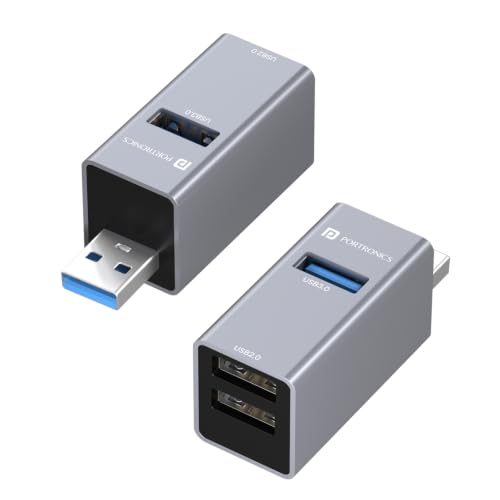
- 3-Port USB-A Expansion Hub: Turn a single USB-A port on your laptop or desktop into three usable USB ports, giving you m…
- 1 × USB 3.0 SuperSpeed Port: Equipped with a high-speed USB 3.0 port that supports data transfer speeds of up to 5Gbps, …
- 2 × USB 2.0 Ports: Two additional USB 2.0 ports offer transfer speeds of up to 480Mbps, perfect for connecting everyday …
6. Zebronics 210HB – Best Basic Metal-Body USB Hub
The Zebronics 210HB is another compact option for users who need basic USB expansion.
It has a metal body and four USB ports, but there is an important specification detail to understand: the listed configuration includes one USB 3.0 port and three USB 2.0 ports.
Key features:
- Four USB ports in total.
- One USB 3.0 port.
- Three USB 2.0 ports.
- Advertised transfer speed up to 5Gbps on the USB 3.0 connection.
- Metal housing.
- Compact design.
Why consider it?
The Zebronics 210HB can be useful if your desktop has a limited number of accessible USB ports and most of your accessories are low-bandwidth devices.
You could use the USB 2.0 connections for a keyboard, mouse or wireless receiver, while reserving the USB 3.0 port for a compatible flash drive.
The metal construction is another practical design feature for users who prefer a more solid-looking accessory.
Reasons to buy:
- Four additional USB connections.
- Metal body.
- Compact form factor.
- One USB 3.0 port for faster data transfers.
- Suitable for basic peripherals.
What we don’t like:
- Only one USB 3.0 port.
- Three USB 2.0 ports are slower.
- No external power input.
- Not suitable for demanding multi-drive setups.
Best for: Basic desktop connectivity with a mixture of low-power accessories.
Who should skip it? Anyone expecting all four ports to provide USB 3.0 speeds should choose another model.
Verdict: A basic option, but check the port configuration carefully before buying. Four ports do not automatically mean four high-speed ports!
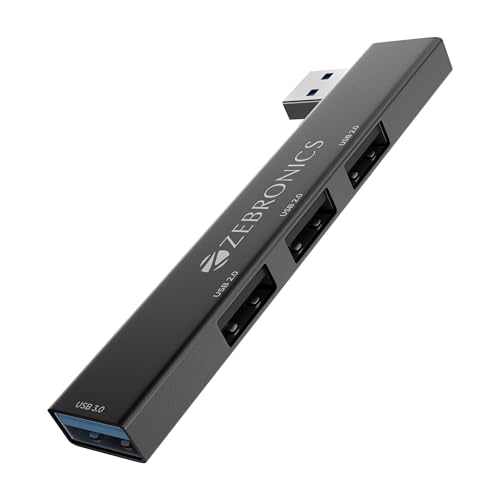
- USB 3.0 CONNECTOR: Designed with a USB 3.0 connector for significantly improving data transfer speed, and enhancing effi…
- LIGHTWEIGHT DESIGN: Features a functional and sleek design with a metal body emphasizing portability. Its lightweight co…
- TRANSFER SPEED: Boasts transfer speeds of up to 5 Gbps, reducing the time needed to back up data, sync devices, and tran…
USB Hub Comparison: What Are the Differences?
The number of ports is only one part of the buying decision. The USB standard, power arrangement and additional connections can make a significant difference to everyday use.
| Feature | TP-Link UH720 | UGREEN 50985 | TP-Link UH400 | TP-Link UE330 |
|---|---|---|---|---|
| USB data ports | 7 | 4 | 4 | 3 |
| USB data standard | USB 3.0 | USB 3.0 | USB 3.0 | USB 3.0 |
| Advertised maximum speed | 5Gbps | 5Gbps | 5Gbps | 5Gbps |
| Extra power support | Included adapter | Separate 5V input | No | No |
| Charging ports | 2 dedicated | No | No | No |
| Ethernet | No | No | No | Gigabit |
| Best use | Larger workstation | Flexible four-port setup | Everyday peripherals | USB + wired networking |
A quick clarification about USB speeds: The advertised 5Gbps is a theoretical interface rate, not a guarantee that every connected device will transfer files at that speed. Actual performance depends on the computer’s USB port, the hub, the connected device, cable quality and simultaneous activity. Connected devices also share the hub’s upstream connection.
What to Look for When Buying a USB Hub for a Desktop PC
Before choosing a USB hub, consider how you actually use your computer. A hub for a keyboard and mouse doesn’t need the same specifications as one used for multiple external SSDs.
A. Number of USB Ports
Start by counting the devices you want to connect simultaneously.
| Your Devices | Suggested Hub |
|---|---|
| Keyboard and mouse | 2–3 ports |
| Keyboard, mouse, webcam and receiver | 4 ports |
| Multiple external drives and accessories | 7+ ports |
| Full workstation setup | 7+ port powered hub |
It’s sensible to leave one spare port for occasional accessories. You don’t want to buy a four-port hub and immediately discover that you needed five!
B. USB 2.0 vs USB 3.0 vs USB 3.2
USB standards determine the maximum supported data-transfer rate.
| USB Standard | Theoretical Maximum Data Rate | Suitable For |
|---|---|---|
| USB 2.0 | 480Mbps | Keyboards, mice and basic receivers |
| USB 3.0 / USB 3.2 Gen 1 | 5Gbps | Flash drives, external HDDs and general storage |
| USB 3.2 Gen 2 | 10Gbps | Faster external SSDs and large file transfers |
| USB 3.2 Gen 2×2 | 20Gbps | Compatible high-speed storage devices |
A faster USB hub won’t magically make a slower computer port faster. Your computer, hub, cable and connected device must all support the relevant speed.
Also, don’t confuse USB Type-A and Type-C connectors with transfer speeds. Connector shape and data-transfer capability are two different specifications.
C. Powered vs Bus-Powered Design
This is one of the most important decisions.
A bus-powered hub draws electricity from the computer. It is generally suitable for low-power accessories.
An externally powered hub uses a separate adapter connected to a wall socket. It is a better choice for a setup involving multiple external drives or other demanding peripherals.
If your desktop has several power-hungry USB devices, don’t choose a hub based only on the number of ports.
D. Cable Length and Placement
Desktop towers often sit under a desk, while the keyboard, mouse and other accessories are placed on top.
A short hub cable may make it difficult to position the hub conveniently.
Look for a model with a cable long enough for your desk arrangement. If you need an extension cable, ensure it supports the relevant USB standard and is within the manufacturer’s recommended length.
E. Build Quality and Port Design
A USB hub is something you may plug and unplug regularly. A sturdy enclosure, properly fitted connectors and a stable base can make everyday use more convenient.
Also consider the direction of the ports. Side-facing ports can be easier to access when the hub sits beside a monitor, while front-facing ports may work better for flash drives and external storage.
F. Warranty and After-Sales Support
For Indian buyers, check:
- Whether the seller provides a GST invoice.
- Whether the product has an India-valid warranty.
- Whether the power adapter is included.
- Whether the exact model number matches the manufacturer’s listing.
- Whether replacement or return support is available.
An inexpensive imported hub may look attractive, but poor after-sales support can make it a frustrating purchase.
Powered vs Bus-Powered USB Hubs: Which One Is Better?
A powered USB hub and a bus-powered USB hub serve different purposes.
| Comparison | Powered Hub | Bus-Powered Hub |
|---|---|---|
| Power source | External adapter | Computer’s USB port |
| Suitable for keyboard and mouse | Yes | Yes |
| Multiple external drives | Better suited | May be limited |
| Separate power socket required | Yes | No |
| Typical design | Larger desktop hub | Compact hub |
| Best for | Workstations and demanding peripherals | Basic everyday use |
When Should You Buy a Powered USB Hub?
Consider an externally powered hub if you regularly connect:
- Multiple external hard drives.
- Several bus-powered storage devices.
- USB-powered accessories with higher power requirements.
- A large collection of peripherals that need stable power.
When Is a Bus-Powered Hub Enough?
A simple hub is generally sufficient for:
- Keyboard and mouse.
- Wireless keyboard or mouse receivers.
- USB flash drives.
- Basic USB accessories.
- Occasional low-power peripherals.
Important: An external power adapter does not increase the hub’s data-transfer bandwidth. It provides additional electrical power, not a faster USB connection.
Common USB Hub Buying Mistakes
A little checking before purchasing can save you from an unnecessary return.
Mistake 1: Assuming all ports have the same speed
Some hubs combine USB 3.0 and USB 2.0 ports. Check the individual port specifications rather than relying on the total port count.
Mistake 2: Ignoring the power requirement
Connecting several external drives to a small bus-powered hub may cause instability. Consider a powered model for demanding devices.
Mistake 3: Confusing charging ports with data ports
Some desktop hubs include dedicated charging ports. These may charge a phone or tablet but cannot connect that device to the computer for data transfer.
Mistake 4: Expecting a USB hub to add HDMI or Ethernet
A basic USB hub expands USB connectivity. It doesn’t automatically provide video output or wired networking. Look for those features explicitly.
Mistake 5: Expecting every connected device to receive the full advertised speed
The hub’s upstream connection is shared. Connecting several devices and transferring files simultaneously can reduce the available bandwidth for each device.
Mistake 6: Buying an incompatible connector
Check whether your computer has an available USB-A or USB-C host port. A Type-C hub connected through an unsuitable adapter may not deliver every advertised feature.
How to Set Up a USB Hub on a Desktop PC
Most standard USB hubs are simple to install.
- Place the hub on a stable surface near your computer.
- Connect its upstream cable to an available USB port on the desktop.
- If it is an externally powered hub, connect the supplied adapter as instructed by the manufacturer.
- Wait for your operating system to recognise the hub.
- Connect your keyboard, mouse, storage devices and other accessories.
- Test the devices individually before using them together.
Most ordinary USB hubs are plug-and-play and do not require separate drivers on supported operating systems.
For important file transfers, use the computer’s direct USB port if you experience connection instability or need to troubleshoot a device.
Frequently Asked Questions
1. Do USB hubs work with desktop PCs?
Yes. USB hubs work with desktop computers that have a compatible USB port. They allow you to connect multiple peripherals through a single host connection.
2. Can I connect multiple external hard drives to one USB hub?
Yes, provided the hub and computer support the devices and their power requirements. An externally powered hub is generally a better choice when connecting multiple power-hungry drives.
3. Does a USB hub reduce transfer speed?
A hub can limit the available bandwidth because connected devices share the upstream connection. Actual transfer speeds also depend on the computer’s USB port, the hub’s standard, cables and connected devices.
4. Is a powered USB hub better than a normal USB hub?
A powered hub is better suited to setups with several demanding peripherals because it uses a separate power adapter. A normal bus-powered hub is usually sufficient for low-power accessories such as keyboards and mice.
5. Can I use a USB 3.0 hub with a USB 2.0 port?
Yes, USB 3.0 hubs are generally backward compatible with USB 2.0 connections. However, the connection will operate at the lower USB 2.0 speed.
6. Can a USB hub charge my smartphone?
Some hubs include dedicated charging ports, while others only provide standard USB data connections. Check the charging specifications before purchasing. A basic USB data port should not automatically be treated as a fast-charging port.
7. Do USB hubs require drivers?
Most standard USB hubs support plug-and-play operation on compatible operating systems. Specialised hubs with additional features may have different requirements, so check the manufacturer’s compatibility information.
8. How many USB devices can I connect to one hub?
The number depends on the hub’s physical ports, power capabilities, USB controller and operating-system support. A seven-port hub provides seven additional data connections, but that doesn’t mean every device can operate at maximum speed simultaneously.
Final Verdict: Which USB Hub Is Worth Buying?
The best USB hub for your desktop depends on how many devices you connect and whether those devices need additional power.
- Best overall: TP-Link UH720 – a strong choice for a larger desktop setup with seven USB 3.0 data ports and two dedicated charging ports.
- Best four-port option with extra power support: UGREEN 50985 – useful if you want a separate power input for demanding peripherals.
- Best simple everyday hub: TP-Link UH400 – suitable for keyboards, mice, flash drives and other regular accessories.
- Best for USB and wired networking: TP-Link UE330 – combines three USB 3.0 ports with Gigabit Ethernet.
- Best compact budget choice: Portronics Mport Link A – useful for basic peripherals and occasional faster file transfers.
- Best basic metal-body option: Zebronics 210HB – a simple four-port hub, provided its one USB 3.0 and three USB 2.0 configuration suits your needs.
Our overall pick is the TP-Link UH720 for users who want a more capable desktop expansion hub. However, if your requirements are limited to a keyboard, mouse and occasional USB drive, there’s little reason to spend extra on a large powered model.
Choose based on the devices you actually use not just the biggest port count printed on the packaging!