


A practical guide to choosing the right USB-C hub for your laptop, tablet, home office, or travel setup.
Your laptop has a sleek design, a sharp display, and impressive performance but only two USB-C ports. Then you need to connect a mouse, an external monitor, a pen drive, and a charger. Suddenly, that minimalist laptop life feels a little less convenient.
That’s where a USB-C hub comes in.
A USB-C hub expands one compatible USB-C port into several connections, helping you connect accessories without constantly swapping cables. Depending on the model, it may add USB-A ports, HDMI, SD card readers, Ethernet, and USB-C power pass-through.
But not every hub supports every feature. Some are designed for basic accessories, while others support external displays, high-speed data transfer, or charging pass-through. Choosing the wrong one can mean buying a hub that physically connects but doesn’t deliver the display resolution, charging, or speed you expected.
In this guide, we’ll explain what to look for, compare common hub types, and help you choose a USB-C hub that suits your devices and budget.
Also Read | Best Laptop Stands in India: Top Picks
1. What Is a USB-C Hub?

A USB-C hub is a compact accessory that connects to a USB-C port and provides additional ports for peripherals and other devices.
Depending on the hub, you may get:
- USB-A ports for a mouse, keyboard, pen drive, or other accessories.
- HDMI output for a compatible external monitor or TV.
- USB-C data ports for supported accessories.
- USB-C Power Delivery (PD) pass-through for charging.
- SD or microSD card readers for supported memory cards.
- Ethernet for a wired network connection.
The important detail: a USB-C connector does not automatically mean every USB-C feature is supported. USB-C describes the connector shape; supported data rates, video output, and charging capabilities depend on the host device, hub, cable, and specifications.
For example, a laptop’s USB-C port may support data but not external video output. A hub with HDMI cannot add video capability if the laptop’s port or graphics system does not support it.
Who should consider a USB-C hub?
A USB-C hub can be useful for:
- Laptop users with limited ports.
- Work-from-home professionals connecting keyboards, mice, and monitors.
- Students using laptops or compatible tablets.
- Content creators transferring files from memory cards.
- Travellers who want to carry one compact adapter.
- People connecting a laptop to a projector or TV.

2. USB-C Hub vs Docking Station: What’s the Difference?
The terms are sometimes used interchangeably, but they generally refer to different types of accessories.

Compact and portable. Typically expands a single port for everyday accessories and basic connectivity
![“4画面”対応で計13ポートのちょっとすごいUSBドック ~価格も手頃なj5create「JCD543」を試す- PC Watch[Sponsored]](https://images.openai.com/static-rsc-4/rWYSkIN9ZLYihBjmk4LjuvyubzJEGnXL3_P4ZM8O2dhUaqXAcDVh5P9dRU1FsNLhRGjdBzAnneVqWo00f3TdG0eNxp70H2Mb8GQkYa0Pxl5TlnsCP0O7b00amGU7m1v9fDQhEx4Fu_TxUoUZCdWE3EJn7SZTyEmioZj2TXlgSVU?purpose=inline "Best USB-C Hubs in India: 2026 Buying Guide 19")
Docking station
Usually offers more connections and may support multiple displays, wired networking, and a more permanent desk setup.
| Feature | USB-C hub | Docking station |
|---|---|---|
| Port expansion | Basic to moderate | Moderate to extensive |
| Portability | Usually compact | Often larger |
| Power | May support PD pass-through | May include a dedicated power supply |
| Display support | Depends on hub and host | Depends on dock and host |
| Typical use | Travel, study, everyday peripherals | Permanent workstation |
| Setup | Usually plug-and-play for supported functions | May require more cables or software |
Which one do you need?
If you want to connect a mouse, keyboard, pen drive, and one compatible monitor, a hub may be enough. If you need several displays, many peripherals, Ethernet, and a more permanent desk connection, compare docking stations too.
The number of ports alone doesn’t determine which accessory is suitable. Check the supported functions and your computer’s capabilities.

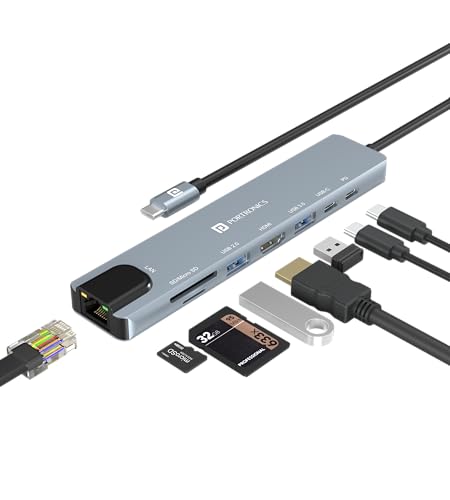
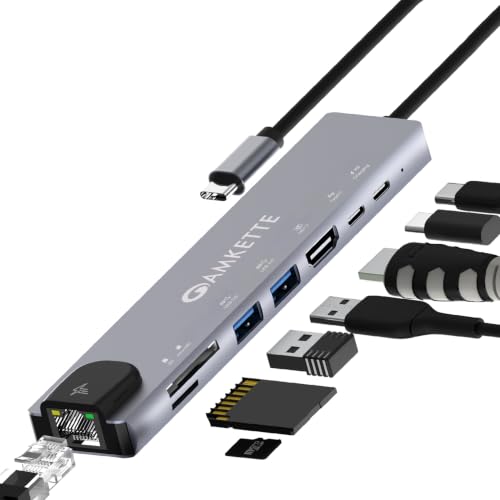
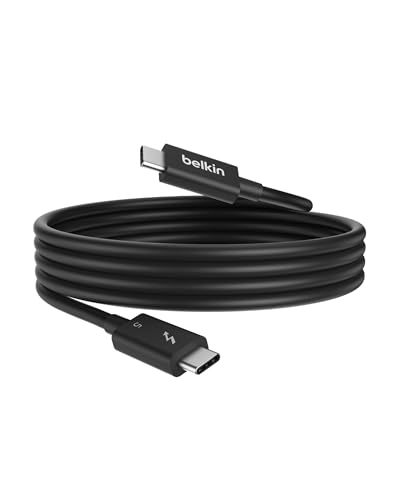
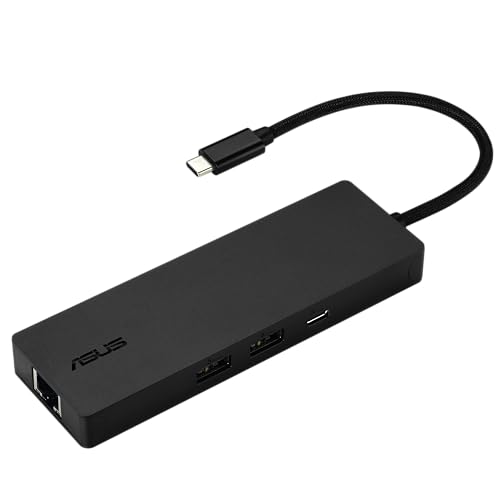
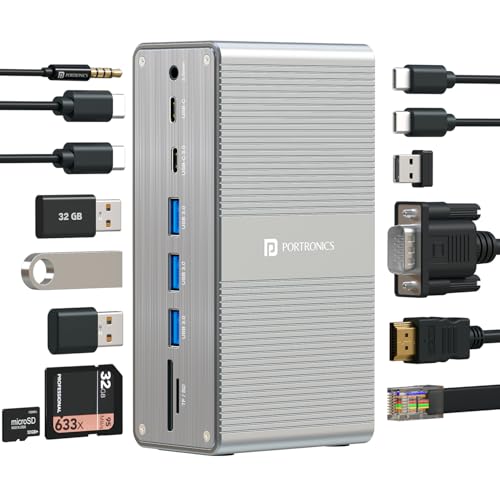
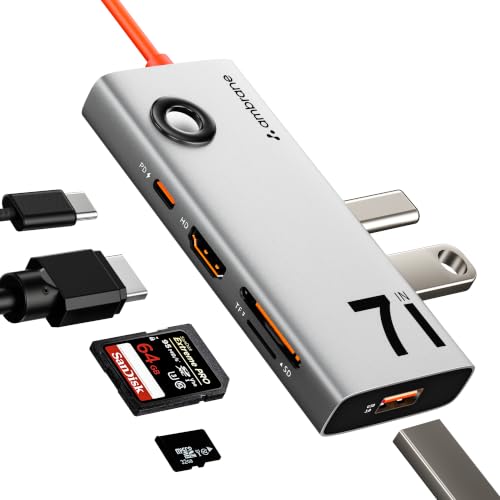
3. Best USB-C Hubs: Product Options to Compare
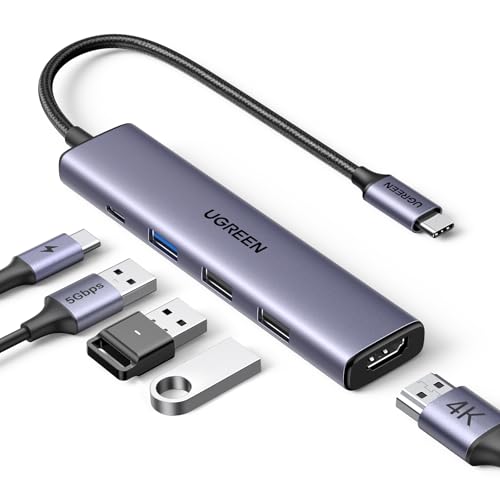
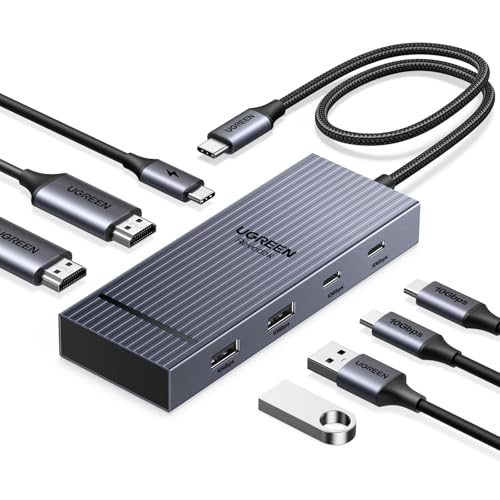
The following product cards are options to evaluate for your setup. Before purchasing, confirm the exact model’s port configuration, supported display resolution and refresh rate, power delivery limits, and compatibility with your device.

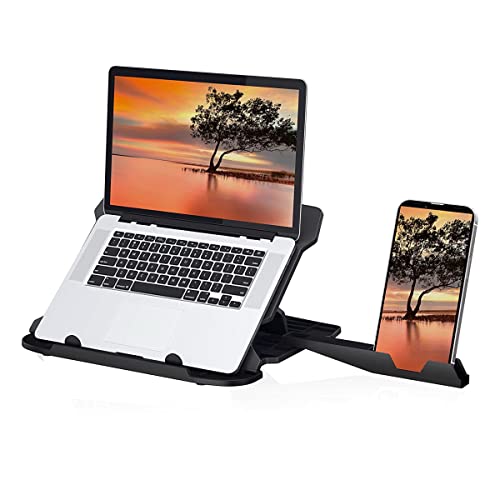

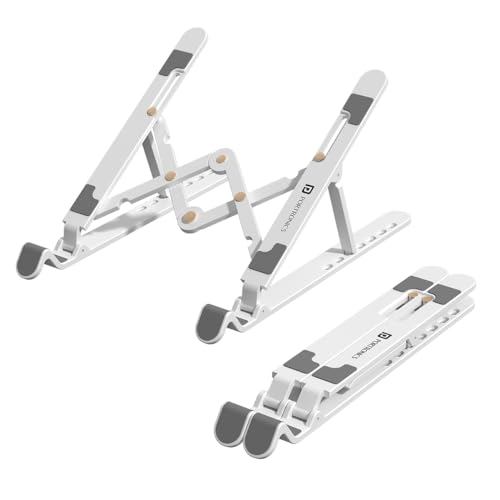
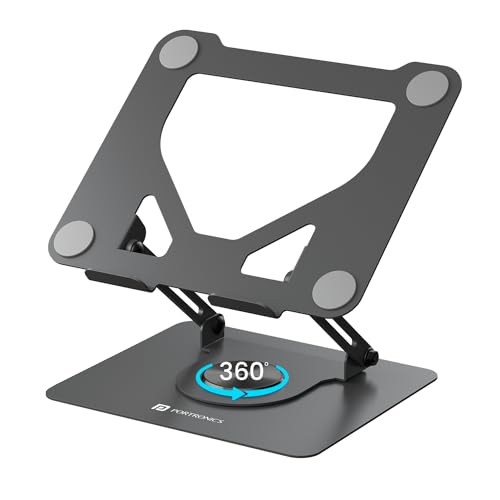
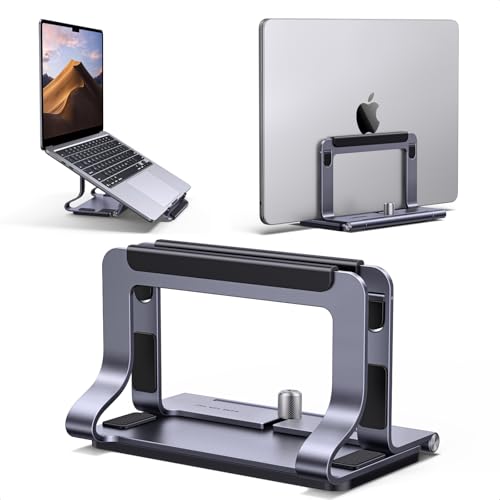
Product prices, ratings, availability, and exact specifications can change. Verify the current listing and model details before buying.
How to shortlist a hub
Rather than choosing based only on the number of ports, compare these essentials:
- For everyday peripherals: Count the USB-A ports you need.
- For external displays: Confirm HDMI or DisplayPort support and the resolution/refresh rate your laptop can output.
- For charging: Check whether the hub supports USB-C PD pass-through and how much power reaches the laptop.
- For creators: Look for the card-reader formats and transfer speeds you need.
- For travel: Consider size, cable design, and whether the hub needs external power.
4. Key Features to Check Before Buying a USB-C Hub
1. Port selection

Start with your actual devices. A hub with ten ports isn’t useful if you only need three and it may still lack the one port you need.
| Port | Common use |
|---|---|
| USB-A | Mouse, keyboard, flash drive, accessories |
| USB-C data | Supported USB-C peripherals and storage |
| HDMI | Connect a compatible monitor, TV, or projector |
| SD / microSD | Transfer files from memory cards |
| Ethernet (RJ45) | Wired network connection |
| USB-C PD input | Power pass-through to a compatible host |
Buying tip: Check whether a USB-C port is for data, charging input, display output, or a combination. The connector shape alone does not tell you its function.
2. USB data speed
USB-C hubs may include ports supporting different USB data standards and speeds. The actual transfer rate depends on the hub, connected device, cable, and host port.
If you mainly use a mouse or keyboard, data speed may not be a priority. If you frequently move large video files or backups, it matters much more.
Look for the exact advertised USB standard and speed rather than relying on vague phrases such as “high-speed USB.”
3. HDMI and external display support
An HDMI port doesn’t guarantee that every monitor resolution or refresh rate will work.
Check:
- Your laptop’s USB-C video output capability.
- The hub’s supported HDMI resolution and refresh rate.
- Whether the advertised display mode requires a particular host standard.
- Whether connecting other ports affects the available display bandwidth.
If you plan to use a 4K monitor, verify the exact supported 4K refresh rate. “4K support” by itself may not tell you whether the hub supports 30 Hz, 60 Hz, or another mode.
4. Power Delivery (PD) pass-through
Some hubs allow you to connect a compatible USB-C charger to the hub while also connecting the hub to your laptop.
This can be convenient because the laptop can receive power while you use other ports. But the hub’s advertised PD input is not necessarily the same as the power delivered to the laptop.
For example, some power may be used by the hub itself, and the final charging capability depends on the hub, charger, cable, and laptop.
Before buying: Check the hub’s power pass-through rating and the power requirements of your laptop. Don’t assume every USB-C port on a hub supports charging.
5. Compatibility with your laptop or tablet
Compatibility is one of the most important checks.
Confirm:
- Your device’s exact model.
- Whether its USB-C port supports data.
- Whether it supports DisplayPort Alternate Mode, Thunderbolt, or USB4 video features, if required.
- Whether your operating system supports the hub’s functions.
- Whether the manufacturer lists any limitations.
A hub may work for USB accessories on one device but fail to provide video output on another. Always check your specific model, not just the brand.
6. Build quality, cable, and heat
A hub is often handled, packed, unplugged, and moved around. Look for a sturdy enclosure, a cable that suits your desk, and a layout that doesn’t make adjacent ports difficult to use.
Some hubs can become warm during operation, especially when handling power or several connected devices. Heat alone doesn’t prove a product is faulty, but stop using any device that becomes unusually hot, smells burnt, or behaves abnormally.
7. Size and portability
For travel, a compact hub with the ports you need may be more convenient than a large multiport model. For a permanent workstation, a larger unit with more connections may make sense.
Think about where you’ll keep it, how often you’ll carry it, and whether its cable reaches your laptop comfortably.
5. USB-C Hub Comparison: Which Type Fits Your Work?
This table compares common hub configurations by use case not specific model performance.
| Hub type | Typical connections | Suitable for |
|---|---|---|
| Basic USB-C adapter | A few USB-A ports | Mouse, keyboard, flash drive |
| HDMI multiport hub | USB-A, HDMI, sometimes PD | Laptop + external display |
| Card-reader hub | USB-A, SD/microSD, sometimes HDMI | Photography and content workflows |
| Ethernet hub | USB-A, HDMI, RJ45, sometimes PD | Desk setups needing wired networking |
| Higher-bandwidth hub | More advanced data/display support | Compatible devices and demanding peripherals |
A quick decision guide
What do you need your USB-C hub for?
Mouse, keyboard, and pen drive
External monitor or projector
SD card transfers for photos or videos
Wired Ethernet connection
Several devices on a permanent desk
How to Choose a USB-C Hub for Your Device
For a Windows laptop
Check the exact laptop’s USB-C specifications. Some models support video output and charging through USB-C; others have more limited functionality.
If you want to use an external monitor, verify the laptop’s supported display output and the hub’s compatible display modes. If you want to charge through the hub, check the laptop’s power requirements and the hub’s PD pass-through details.
For a MacBook
Check the specific MacBook model and its external display capabilities. Display support can vary by model, and a hub cannot override the computer’s own limitations.
If you need multiple monitors, confirm whether the proposed hub uses a supported native display path or relies on additional software. Don’t assume a multi-HDMI hub will automatically provide independent extended displays.
For a tablet
First confirm that your tablet supports USB-C accessories and the functions you need. Some tablets support external displays and USB peripherals; capabilities vary by model and operating system.
If you plan to use a keyboard, mouse, and external monitor, check each function separately rather than assuming the tablet behaves exactly like a laptop.
For a work-from-home desk
A practical setup may include:
- Laptop or compatible tablet.
- USB-C hub.
- External monitor, if needed.
- Keyboard and mouse.
- Charger connected through supported PD pass-through.
- Ethernet, if you prefer a wired connection.
Keep the hub where its cable and ports are easy to access. If you connect and disconnect your laptop daily, leave the desk accessories connected to the hub so you only need to plug in one cable.
Common USB-C Hub Buying Mistakes
Mistake 1: Assuming every USB-C port supports video
USB-C is a connector type, not a guarantee of display output.
Avoid it: Check your device’s specifications for the required video capability.
Mistake 2: Buying based only on port count
A hub with many ports may not support the display mode, charging power, or data speed you need.
Avoid it: Match the ports and specifications to your actual devices.
Mistake 3: Confusing PD input with laptop charging output
A hub may advertise a high PD input figure, but that does not always mean the same wattage reaches the laptop.
Avoid it: Check the manufacturer’s power-delivery details and your laptop’s charging requirements.
Mistake 4: Ignoring display refresh rate
A listing that says “4K HDMI” may not specify the refresh rate you expect.
Avoid it: Verify the exact resolution and refresh-rate combination.
Mistake 5: Expecting multiple HDMI ports to mean multiple independent displays
Multiple physical display connectors do not guarantee independent extended displays on every operating system or host device.
Avoid it: Check the hub’s display architecture and your computer’s supported monitor configuration.
Mistake 6: Forgetting the charger and cable
The hub’s charging capability depends on the connected charger and cable as well as the hub and laptop.
Avoid it: Verify that your charger and cable support the required power delivery.
Pros and Cons of USB-C Hubs
Pros
- Expand a laptop’s available connections.
- Reduce repeated cable swapping.
- Many models are compact and travel-friendly.
- Can connect supported displays and accessories.
- Some support charging pass-through.
- Useful for compact home-office setups.
Cons
- Features vary considerably between models.
- Host-device limitations still apply.
- Ports may share bandwidth.
- PD pass-through may deliver less power than the input rating.
- Some models may become warm under load.
- A hub may not replace a full docking station.
Research Methodology
This guide focuses on USB-C hub selection criteria: connector and port types, USB data capability, video output, power pass-through, device compatibility, portability, and common setup limitations.
The recommendations are intended as a practical buying framework rather than a laboratory ranking. Product specifications can vary by model and revision, and the same hub may behave differently depending on the host device, cable, charger, operating system, and connected peripherals.
Before purchasing, verify the exact product listing and the official specifications for both the hub and your computer or tablet.
Frequently Asked Questions
1. What is a USB-C hub used for?
A USB-C hub expands a compatible USB-C port into additional connections, such as USB-A, HDMI, Ethernet, card readers, or USB-C power pass-through, depending on the model.
2. Do all USB-C hubs support HDMI?
No. Some hubs only provide USB data ports. Even if a hub has HDMI, your host device must support the required video output for it to work.
3. Can I charge my laptop through a USB-C hub?
Some hubs support USB-C Power Delivery pass-through. Check the hub’s supported power input and output, your charger, cable, and laptop requirements before relying on it for charging.
4. Will a USB-C hub work with every laptop?
No. Compatibility depends on the laptop’s USB-C port capabilities, operating system, hub specifications, and the functions you want to use.
5. Can I connect two monitors to a USB-C hub?
Some hubs support multiple displays, but the result depends on the hub’s design and your computer’s display capabilities. Verify whether it supports independent extended displays, the resolutions, and the refresh rates you need.
6. Is a USB-C hub the same as a docking station?
Not exactly. Hubs are generally compact port expanders, while docking stations tend to offer more extensive connectivity for desk setups. Their capabilities overlap, so compare specifications rather than relying only on the product name.
7. Does a USB-C hub reduce internet speed?
A wired Ethernet port’s supported speed depends on the hub and network equipment. USB bandwidth, network conditions, and other connected devices can also affect performance. Check the hub’s Ethernet specification if wired networking is important.
8. Can I use a USB-C hub with a tablet?
Often, if the tablet supports the required USB-C accessory functions. Check your exact model’s support for USB devices, external displays, and power pass-through.
9. Why does my USB-C hub get warm?
Some warmth can occur during operation, especially when power and multiple devices are connected. If it becomes unusually hot, smells burnt, or behaves abnormally, disconnect it and stop using it.
10. How many ports should a USB-C hub have?
Choose based on the accessories you actually use. Count your USB devices, display connections, card-reader needs, Ethernet requirements, and charging needs before deciding.
11. Can I connect a pen drive and an external monitor at the same time?
A compatible multiport hub may support both, provided the host device supports the required functions and the hub’s port configuration allows it.
12. What should I check before buying a USB-C hub online in India?
Check the exact model, port list, supported USB speeds, display resolution and refresh rate, PD pass-through, compatibility, warranty terms, and current seller details. Avoid relying on vague product titles alone.
Conclusion: Choose the Hub That Fits Your Setup
A USB-C hub can make a laptop or tablet much more convenient by bringing the connections you need into one compact accessory. But the right choice depends on more than how many ports appear in the product photo.
Start by listing your devices and the connections you need. Then verify your laptop or tablet’s USB-C capabilities, the hub’s data and display specifications, charging pass-through, and any limitations that could affect your setup.
For basic peripherals, a simple hub may be enough. For external displays, memory cards, Ethernet, or a more complex desk setup, compare the exact specifications carefully and consider whether a docking station better suits your needs.
The best USB-C hub for you is the one that supports your devices and your everyday workflow without paying for ports you’ll never use. 🔌























[…] Also Read | Best USB-C Hubs in India: 2026 Buying Guide […]