


Modern laptops and tablets are getting thinner, lighter and, apparently, increasingly allergic to ports. 😅 You might have a USB-C port, but then discover that your monitor needs HDMI, your mouse uses USB-A, your camera uses an SD card, your wired internet needs Ethernet and your laptop still needs charging.
That’s where a USB-C hub comes in.
A good USB-C hub can turn one compatible USB-C port into several useful connections for your monitor, keyboard, mouse, external SSD, memory cards, Ethernet and charger. But here’s the catch: not every USB-C hub supports the same features, and simply seeing “USB-C” on your laptop does not automatically mean it supports video output, charging or high-speed data.
In this guide, we’ve researched current USB-C hubs suitable for the Indian market and compared them based on port selection, data speeds, display support, Power Delivery, portability, compatibility and everyday usefulness.
We’ll also explain what to look for before buying, why a 10-in-1 hub isn’t automatically better than a 6-in-1 model, and when you should skip a regular hub and buy a proper docking station instead.
Also Read | USB-C vs USB-A Hub: Which to Buy?
What Is a USB-C Hub?
A USB-C hub is a connectivity adapter that expands one compatible USB-C port into multiple ports.
Depending on the model, those ports can include:
- USB-A
- USB-C data
- HDMI
- DisplayPort
- Ethernet
- SD card
- microSD card
- 3.5mm audio
- USB-C Power Delivery
For example, the Anker 555 converts a compatible USB-C connection into eight ports, including HDMI, USB-A, USB-C data, Ethernet, SD, microSD and USB-C PD input.
This is especially useful for laptops and tablets with limited physical connectivity.
But don’t confuse USB-C hub with USB-C port.
USB-C describes the physical connector. The capabilities behind that connector can vary significantly.
One laptop’s USB-C port may support:
- Data only
Another may support:
- Data + charging
Another may support:
- Data + charging + DisplayPort video
And a Thunderbolt or USB4 port can offer considerably more bandwidth.
Always check your device specifications before buying.
Best USB-C Hubs for Laptops, Tablets & Everyday Use
1. Anker 555 USB-C Hub (8-in-1) — Best Overall
The Anker 555 USB-C Hub is the most balanced option in this roundup for people who want one compact hub for work, study, external storage, displays and networking.
Key Features
- 8-in-1 design
- 4K HDMI at 60Hz
- Two USB-A data ports
- USB-C data port
- Up to 10Gbps data transfer
- Gigabit Ethernet
- SD card reader
- microSD card reader
- Up to 100W PD input with up to 85W available to the laptop
- Aluminium construction
Anker specifies two USB-A 10Gbps ports and one USB-C 10Gbps data port, while the HDMI output supports 4K at 60Hz and Ethernet reaches 1Gbps.
Why We Recommend It
The reason this one stands out is balance.
You get fast USB data, display output, wired networking and memory-card readers without moving into a huge desktop dock.
That makes it particularly useful if your everyday setup includes:
Laptop + monitor + mouse + keyboard + external drive + SD card + charger.
Best For
- Work-from-home setups
- Content creators
- Students
- Photographers
- MacBook users
- Windows ultrabooks
- External SSD users
Who Should Skip It
Skip it if you only need one or two USB-A ports. A smaller and cheaper hub will make more sense.
It’s also important to note that Anker specifies the host USB-C port needs to support Power Delivery and DisplayPort Alt Mode for the relevant charging/video functionality.
Pros
- 10Gbps USB data
- 4K60 HDMI
- Gigabit Ethernet
- SD and microSD
- Compact compared with a full docking station
- Useful port combination
Cons
- Charger isn’t included
- More expensive than basic hubs
- Host-device compatibility matters
- Can become warm under heavy load, according to Anker
Our Verdict
Best overall for users who want one USB-C hub that covers most everyday laptop connectivity needs.
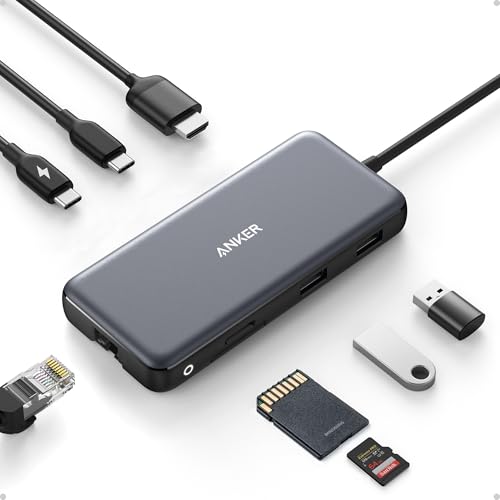
- The Anker Advantage: Join the 65 million+ powered by our leading technology.
- Massive Expansion: Equipped with a USB-C Power Delivery input port, a built-in 7.48″ USB-C cable, a USB-C data port, 2 U…
- High-Speed, High-Def: USB-C and USB-A data ports provide file transfer at speeds up to 10 Gbps, while an HDMI port suppo…
2. TP-Link UH6120C — Best Budget USB-C Hub
If you don’t need SD cards but do want HDMI, Ethernet, USB ports and charging support, the TP-Link UH6120C is a particularly practical option.
Key Features
- 6-in-1 design
- 4K60 HDMI
- Gigabit Ethernet
- USB-C 5Gbps data
- Two USB-A 5Gbps ports
- Up to 100W Power Delivery
- Aluminium body
- Braided cable
- Plug-and-play design
TP-Link lists compatibility across Windows, macOS, Linux, iPadOS, iOS, Android, Chrome OS and Nintendo OS, although individual features can still depend on the host device.
Why We Recommend It
Not everyone needs a card reader.
If your setup is primarily:
Laptop → hub → monitor + mouse + keyboard + Ethernet + charger
then paying extra for SD and microSD slots may not be necessary.
That’s where a six-port hub can actually be smarter than an eight- or ten-port model.
Best For
- Students
- Office workers
- Home-office setups
- Budget buyers
- Users who need Ethernet
- Users with one external monitor
Who Should Skip It
Skip it if you regularly transfer photos or videos from SD cards.
Pros
- 4K60 HDMI
- Gigabit Ethernet
- 5Gbps USB
- 100W PD support
- Compact construction
- Broad OS support
Cons
- No SD card reader
- No microSD reader
- Not intended as a full workstation dock
Our Verdict
A sensible budget choice when your priority is HDMI + Ethernet + USB connectivity rather than maximum port variety.
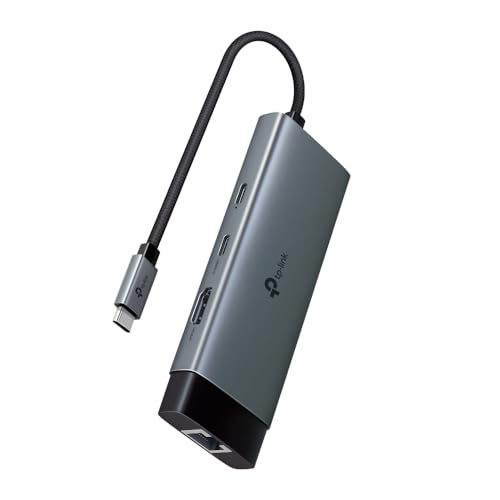
- 6 in 1 USB-C Hub —— UH6120C turns a single USB-C port into 6 ports with a 4K@60Hz HDMI, 1 Gbps ethernet, 100W Power Deli…
- Ultra High-Definition Media Display —— Connect to an external monitor via the 4K@60Hz HDMI port for a stunning ultra hig…
- Stable Gigabit Connection —— This compact gadget provides stable Gigabit Ethernet connectivity for your ultrabook, Chrom…
3. UGREEN Revodok 107 — Best Value
The UGREEN Revodok 107 takes a different approach by combining HDMI, Ethernet and card readers in a relatively compact seven-port package.
Key Features
- 7-in-1
- HDMI 4K60
- Gigabit Ethernet
- Two USB-A 3.0 ports
- SD/TF card reader
- 100W USB-C PD input
- Up to 5Gbps USB transfer
UGREEN specifies that its 100W PD input can provide up to 95W maximum when charging the connected device, while 4K60 HDMI requires a compatible DP Alt Mode host.
Why We Recommend It
This is an interesting middle ground.
You get the things many creators and office users actually need:
HDMI + Ethernet + USB-A + SD + microSD + charging.
If the Anker 555 is more than you want to spend, this type of configuration can offer a strong balance.
Best For
- Creators
- Students
- Remote workers
- Photographers
- Laptop users who need Ethernet
- People transferring files from memory cards
Who Should Skip It
If you need 10Gbps USB data, this isn’t the right model. Its listed USB data ports are 5Gbps.
Pros
- 4K60 HDMI
- Gigabit Ethernet
- SD/TF readers
- 100W PD input
- Compact seven-port configuration
Cons
- USB data is limited to 5Gbps
- Requires compatible video-capable USB-C host for 4K60
- No USB-C data port in the listed configuration
Our Verdict
A strong value-oriented choice for people who need more than basic USB expansion but don’t need 10Gbps data.

- 7 in 1 USB-C Hub: This USB C ethernent hub turns a single USB-C port into 7 ports with a 4K@60Hz HDMI, gigabit ethernet,…
- Stable Gigabit Ethernet Connection: USB C hub comes with Gigabit RJ45 ethernet port that supports 1000Mbps with faster, …
- 4K HD Visuals: USB C Dock is equipped with a 4K@60Hz HDMI port. Enjoy visually stunning movies, high-definition online m…
4. Belkin USB-C 11-in-1 Multiport Dock — Best for Large Desk Setups
If your idea of “I need a few more ports” has somehow turned into “I have connected half my desk to this laptop”, look at the Belkin 11-in-1.
This is closer to a desktop docking solution than a tiny travel hub.
Key Features
- 11-in-1 design
- HDMI
- DisplayPort
- VGA
- Three USB-A ports
- Gigabit Ethernet
- SD
- microSD
- 3.5mm audio
- USB-C PD
- Laptop-stand functionality
- Up to 100W pass-through charging
Belkin says the dock supports up to 100W pass-through charging and up to 5Gbps data transfer. It can also function as a laptop stand, with the ports positioned toward the rear for cable management.
Why We Recommend It
The standout feature isn’t simply the number “11.”
It’s the variety.
VGA is increasingly uncommon on newer hubs, but if you’re connecting to an older projector or office display, having VGA can still save you from hunting for another adapter.
The inclusion of HDMI, DisplayPort and VGA also makes this more flexible for mixed office environments.
Best For
- Desktop workstations
- Office users
- Presentations
- Older projectors
- Multiple peripherals
- Users who want Ethernet and card readers
Who Should Skip It
Skip it if you’re mainly travelling with a tablet or laptop. A smaller hub will be easier to carry.
Also note that display behaviour varies by operating system. Belkin specifies different multi-display capabilities for Windows and macOS, including mirrored-only behaviour for some Mac configurations.
Pros
- Huge variety of ports
- HDMI + DisplayPort + VGA
- Gigabit Ethernet
- SD + microSD
- Audio
- Laptop-stand design
- 100W pass-through
Cons
- Larger than a travel hub
- 5Gbps data bandwidth
- More than most casual users need
- Display support depends on the host
Our Verdict
Choose this when your USB-C hub is becoming the centre of a permanent desk setup.
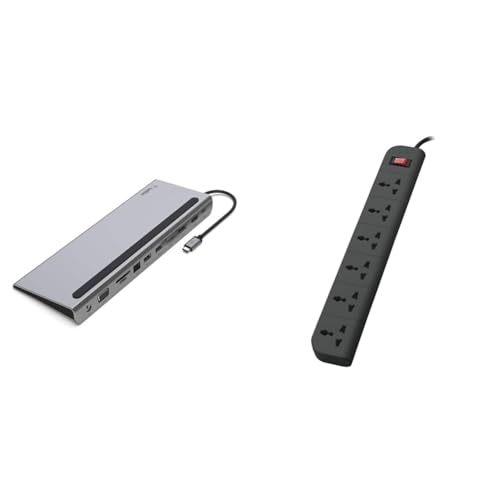
- Supplies multimedia and Ethernet ports that have been eliminated from the latest Apple and PC laptops
- Connects USB-C devices to projectors, monitors, SD cards, and thumb drives
- Ethernet port ensures safe and secure internet connection
5. Portronics Mport 8 — Best Affordable Multi-Port Option
If you’re looking for a more affordable Indian-market option, the Portronics Mport 8 is worth considering.
Key Features
- 8-in-1 design
- 4K HDMI
- Ethernet
- USB 3.0
- USB 2.0
- SD card
- microSD card
- USB-C PD/data connectivity
Portronics currently lists the Mport 8 with 4K HDMI, 100Mbps Ethernet, USB 3.0/2.0, SD/microSD and Type-C PD/data support, along with a one-year warranty.
Why We Recommend It
This is a case where more ports don’t necessarily mean better performance.
The Mport 8 offers plenty of connectivity for ordinary peripherals and basic display use, but its 100Mbps Ethernet is much slower than the Gigabit Ethernet found on the Anker, TP-Link and UGREEN options.
So its appeal is primarily affordability and port variety.
Best For
- Budget buyers
- Basic home-office use
- Keyboard and mouse
- Occasional HDMI display
- SD card users
Who Should Skip It
Skip it if you have a fast broadband connection and specifically want to use Ethernet at close to Gigabit speeds.
Also skip it if you frequently transfer huge files and need 10Gbps USB connectivity.
Pros
- Affordable
- 8-port design
- HDMI
- SD and microSD
- USB-C PD
- Ethernet
Cons
- Ethernet limited to 100Mbps
- USB data isn’t 10Gbps
- Less suitable for demanding workflows
Our Verdict
A budget-friendly option for everyday expansion, but don’t confuse its eight ports with the performance of a premium 8-in-1 hub.
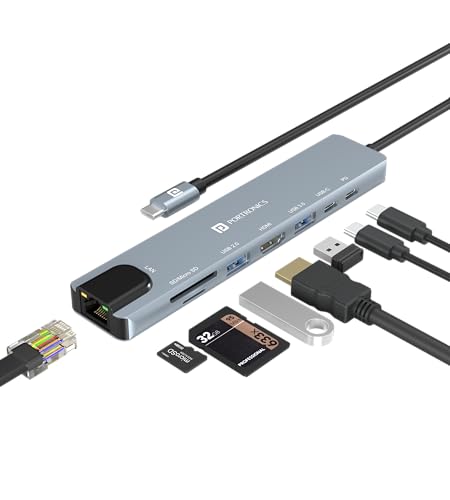
- 8-in-1 USB-C Hub: Maximize your device’s potential with the Portronics Mport 8 USB-C hub featuring 8 essential ports, in…
- 4K HDMI Video Output: Connect to any monitor or projector at upto 4K 30Hz resolution, delivering crisp visuals for prese…
- High-Speed 100 Mbps Ethernet Port: Enjoy reliable internet with the RJ45 Ethernet port for speeds up to 100 Mbps, ensuri…
Best USB-C Hubs at a Glance
| USB-C Hub | Best For | HDMI | Data Speed | Ethernet | Card Reader | PD |
|---|---|---|---|---|---|---|
| Anker 555 8-in-1 | Best Overall | 4K60 | Up to 10Gbps | 1Gbps | SD + microSD | Up to 85W output |
| TP-Link UH6120C | Best Budget | 4K60 | 5Gbps | 1Gbps | No | Up to 100W |
| UGREEN Revodok 107 | Best Value | 4K60 | 5Gbps | 1Gbps | SD + TF | Up to 100W input |
| Belkin 11-in-1 | Desk setup | Up to 4K | 5Gbps | 1Gbps | SD + microSD | Up to 100W |
| Portronics Mport 8 | Affordable expansion | 4K | USB 3.0/USB 2.0 | 100Mbps | SD + microSD | Yes |
Specifications are based on current manufacturer listings. Actual performance depends on the host device, cables, display and connected peripherals.
USB-C Hub Comparison Table
| Product | Best For | HDMI | USB Data | Ethernet | Card Readers | Charging |
|---|---|---|---|---|---|---|
| Anker 555 8-in-1 | Overall | 4K60 | Up to 10Gbps | 1Gbps | SD + microSD | Up to 85W output |
| TP-Link UH6120C | Budget | 4K60 | 5Gbps | 1Gbps | — | Up to 100W |
| UGREEN Revodok 107 | Value | 4K60 | 5Gbps | 1Gbps | SD + TF | Up to 95W host output |
| Belkin 11-in-1 | Desk setup | Up to 4K | 5Gbps | 1Gbps | SD + microSD | Up to 100W |
| Portronics Mport 8 | Affordable expansion | 4K | USB 3.0/2.0 | 100Mbps | SD + microSD | Yes |
Sources: manufacturer specifications from Anker, TP-Link, UGREEN, Belkin and Portronics.
What to Look for When Buying a USB-C Hub
Buying a USB-C hub based solely on the number of ports is one of the easiest ways to waste money.
Here’s what actually matters.
1. Check the USB-C Host Port
This is the most important step.
Before buying, check whether your laptop/tablet USB-C port supports:
- USB data
- DisplayPort Alt Mode
- USB Power Delivery
- Thunderbolt
- USB4
If the host port doesn’t support video output, an ordinary HDMI-equipped hub won’t magically create a video signal.
2. Check HDMI Resolution and Refresh Rate
Don’t stop at “4K HDMI.”
Look for the actual specification:
4K@30Hz ≠ 4K@60Hz
For office documents and static presentations, 4K30 may be acceptable.
For smoother desktop movement, video and general everyday use, 4K60 is preferable when your laptop and display support it.
3. Check USB Data Speed
This is another major difference.
| USB Speed | Practical Use |
|---|---|
| USB 2.0 | Keyboard, mouse, basic peripherals |
| 5Gbps | Everyday storage and accessories |
| 10Gbps | External SSDs and large file transfers |
| 20Gbps+ | High-performance workflows |
| 40Gbps+ | USB4/Thunderbolt-class setups |
If you regularly move large video files, RAW photographs or backups, don’t buy a hub with only USB 2.0 ports just because it says “8-in-1.”
4. Look at Ethernet Speed
If you’re buying a hub for wired internet, check whether it has:
- 100Mbps
- 1Gbps
- 2.5Gbps
For most home and office users, Gigabit Ethernet is the sensible target.
That’s one reason the TP-Link, UGREEN and Anker models are more compelling for wired networking than the 100Mbps Ethernet on the Portronics Mport 8.
5. Understand Power Delivery
A hub saying 100W PD doesn’t necessarily mean your laptop receives 100W.
For example, Anker specifies up to 100W input but up to 85W output to the laptop because the hub consumes some power itself.
So always check:
PD input → hub overhead → actual host charging output
6. Check Card Reader Support
Photographers, content creators and people who regularly use cameras may want:
- SD
- microSD/TF
If you never use memory cards, don’t pay extra for them.
7. Consider Cable Length
A short attached cable can be neat with a laptop but awkward when the USB-C port is on the opposite side from your other accessories.
For desktop setups, cable positioning matters more than you might expect.
USB-C Hub vs Docking Station: Which Should You Buy?
A USB-C hub and docking station overlap, but they’re not quite the same thing.
Choose a USB-C Hub If:
- You travel frequently
- You use one laptop
- You connect one monitor
- You need a few extra ports
- You don’t want an external power brick
- You want something that fits in a laptop bag
Choose a Docking Station If:
- Your laptop stays on a desk
- You connect multiple monitors
- You need Ethernet permanently
- You use several peripherals
- You want one-cable desk connectivity
- You need higher display or bandwidth capabilities
A full dock is usually the better answer for a serious workstation.
And yes, more ports isn’t automatically better. A 13-in-1 hub with slow USB ports can be less useful for an SSD-heavy workflow than a six-port hub with 10Gbps connectivity.
Do USB-C Hubs Work With Tablets?
Yes, many USB-C hubs can work with tablets—but compatibility varies considerably.
TP-Link, for example, lists iPadOS, iOS and Android among supported operating systems for the UH6120C.
Anker also lists iPad Pro compatibility for the 555, but notes that tablet charging behaviour can differ from laptop charging because of mobile-device power limitations.
Before buying a hub for a tablet, check:
- Does the tablet support USB-C data?
- Does it support external displays?
- Does it support USB-C charging through the hub?
- Does the operating system support the connected accessory?
- Does the tablet support the required video protocol?
For an iPad or Android tablet, a hub can be incredibly useful—but only when the tablet itself supports the features you’re trying to add.
Common USB-C Hub Buying Mistakes
Buying Based Only on “8-in-1” or “10-in-1”
The number of ports tells you very little about their quality.
Always inspect what those ports actually are.
Assuming Every USB-C Port Supports HDMI
It doesn’t.
Look for DisplayPort Alt Mode or the relevant video-output specification.
Ignoring Ethernet Speed
A 100Mbps Ethernet port may technically be Ethernet, but it’s a completely different proposition from Gigabit Ethernet.
Confusing PD Input With Laptop Output
100W PD input doesn’t automatically mean 100W reaches the laptop.
Buying a Hub for Dual Monitors Without Checking the Laptop
Multi-display support depends on the host device, operating system and hub technology.
Belkin specifically notes that multi-display behaviour differs between Windows and macOS on its 11-in-1 dock.
Buying a Full Dock for a Travel Laptop
If you’re travelling with a laptop and only need HDMI + USB-A, a large 11-in-1 dock is overkill.
Buying the Cheapest Hub Available
This is one of those accessories where saving ₹500 today can become annoying when HDMI starts disconnecting, Ethernet isn’t fast enough or the port arrangement doesn’t suit your setup.
Who Should Buy a USB-C Hub?
A USB-C hub makes sense if:
- Your laptop has too few ports
- You need HDMI
- You connect USB-A accessories
- You use an external SSD
- You transfer files from SD cards
- You need wired Ethernet
- You want one cable for several peripherals
- You frequently work from different locations
Who Should Skip a USB-C Hub?
You probably don’t need one if:
- Your laptop already has all the ports you need
- You rarely connect peripherals
- You only need one USB-A device
- You don’t use external displays
- You don’t need wired Ethernet
- You have a dedicated desktop dock already
Sometimes the best accessory is the one you don’t buy. Your wallet has been waiting for someone to say this. 😄
How We Selected These USB-C Hubs
We selected the products for this guide based on current manufacturer specifications and practical use cases, rather than simply counting ports.
We considered:
- Port selection
- USB data speeds
- HDMI/display capabilities
- Power Delivery
- Ethernet speed
- SD/microSD support
- Laptop compatibility
- Tablet compatibility
- Portability
- Desk-use suitability
- Brand availability
- Warranty information where available
- Value for money
- Whether the hub solves a specific connectivity problem
We also compared the differences between budget, mid-range and more workstation-oriented hubs.
We have not claimed personal hands-on testing of these products. Specifications and availability can change, so shoppers should verify the latest listing before purchasing.
Frequently Asked Questions
Is a USB-C hub worth buying for a laptop?
Yes, if your laptop lacks ports or you regularly connect an external monitor, USB-A accessories, storage, Ethernet or memory cards. A good hub can consolidate several connections into one USB-C connection. If your laptop already has all the connectivity you need, however, buying a hub may add unnecessary cost and clutter.
What is the best USB-C hub for everyday use?
For a broad mix of everyday needs, the Anker 555 8-in-1 is a strong option because it combines 4K60 HDMI, 10Gbps USB data, Gigabit Ethernet, SD/microSD and laptop charging support. Its compatibility requirements should still be checked before purchase.
Can a USB-C hub charge a laptop?
Many USB-C hubs support Power Delivery pass-through charging. However, the advertised PD input is not necessarily the same as the power delivered to the laptop. Hub power consumption and the laptop’s own charging requirements affect the final charging output.
Can I connect an external monitor through a USB-C hub?
Yes, provided the laptop or tablet’s USB-C port supports the required video-output technology, such as DisplayPort Alt Mode. Simply having a USB-C connector does not guarantee display output.
Is 4K at 60Hz better than 4K at 30Hz?
For most modern desktop use, yes. 4K60 provides a smoother experience when moving windows, scrolling and playing supported video. However, 4K30 can still be perfectly usable for presentations and basic office work.
Do USB-C hubs work with iPads?
Many do, but the exact functionality depends on the iPad model and operating system. Some hubs can provide storage, USB peripherals, display output and charging, while individual features may be limited by the tablet.
Do USB-C hubs slow down external SSDs?
They can, depending on the hub’s USB standard and how many devices are sharing its bandwidth. If you use an external SSD regularly, look for a hub with 10Gbps or faster data ports rather than a basic USB 2.0/5Gbps model.
Should I buy a USB-C hub or a docking station?
Buy a hub for portability and basic expansion. Choose a docking station if you’re building a permanent workstation with multiple displays, Ethernet and several peripherals. A dock generally makes more sense when your laptop stays on a desk most of the time.
Final Verdict
There isn’t one USB-C hub that’s perfect for every laptop, tablet and desk.
The right choice depends on what you need to connect and what your USB-C port actually supports.
🏆 Best Overall: Anker 555 USB-C Hub
Choose this if you want a balanced combination of 4K60 HDMI, 10Gbps USB data, Gigabit Ethernet, SD/microSD and laptop charging in a compact format.
Best for: Work, study, content creation and everyday laptop setups.
💰 Best Budget: TP-Link UH6120C
Choose this if you mainly need HDMI, Gigabit Ethernet, USB peripherals and charging without paying extra for card readers.
Best for: Students, office workers and home-office users.
⭐ Best Value: UGREEN Revodok 107
Choose this if you want HDMI + Ethernet + SD/TF + USB-A + PD in one compact seven-port hub.
Best for: Creators and users who want more connectivity without moving to a large dock.
🖥️ Best for a Desk Setup: Belkin 11-in-1
Choose this if you need a broad selection of connections including HDMI, DisplayPort, VGA, Ethernet, USB-A, SD, microSD and audio.
Best for: Permanent workstations and mixed office equipment.
💸 Best Affordable Multi-Port Option: Portronics Mport 8
Choose this if your priority is lots of basic connectivity at a lower price, and you don’t need Gigabit Ethernet or 10Gbps USB.
Best for: Basic home and office setups.
The Bottom Line
Before you click Buy, check three things:
1. Does your USB-C port support the features you need?
2. Are the data and display speeds sufficient for your workload?
3. Do you actually need all those ports?
If you answer those three questions first, choosing a USB-C hub becomes much easier.
And honestly, that’s the whole point of a good buying guide: don’t buy the hub with the biggest number on the box—buy the one that solves your actual connectivity problem. 🔌💻