
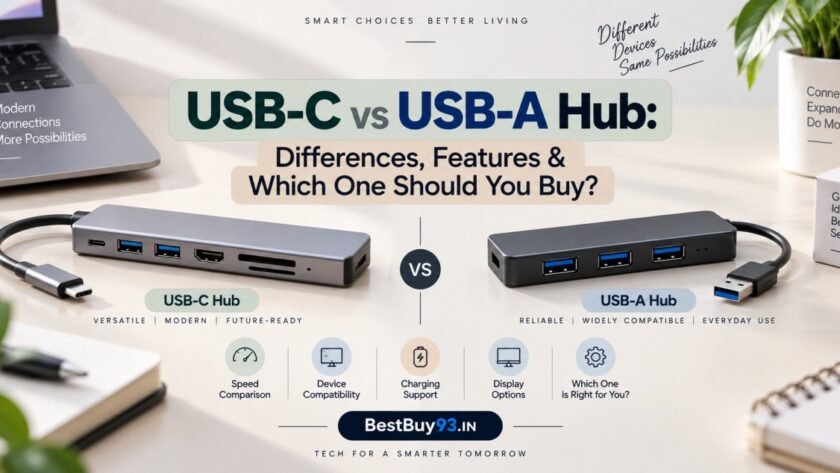

Running out of USB ports on your laptop or desktop? A USB hub can make it easier to connect accessories such as a mouse, keyboard, pen drive, printer, external storage drive, and other peripherals.
But when you start shopping, you’ll quickly come across two common options: USB-C hubs and USB-A hubs. They may look similar, but the connector, compatibility, and supported features can differ significantly.
A USB-C hub connects through a USB-C port, while a USB-A hub connects through the familiar rectangular USB-A port. However, the connector alone doesn’t tell you everything about data-transfer speed, display support, or charging capabilities.
In this guide, we’ll compare USB-C vs USB-A hubs, explain where each one is useful, and help you choose the right option for your laptop, desktop, tablet, or other compatible device.
Also Read | Best USB-C Hubs in India: 2026 Buying Guide
What Is a USB Hub?
A USB hub is an accessory that expands one USB connection into multiple ports. Instead of connecting every peripheral directly to your computer, you can plug several accessories into a single hub.
For example, a hub might let you connect:
- A wireless mouse receiver
- A keyboard
- A USB flash drive
- An external hard drive
- A printer
- A card reader
The number and type of ports depend on the hub. Some models offer only additional USB ports, while others include HDMI, Ethernet, SD card slots, or power delivery.
Important: A hub can only provide features supported by the host device, its USB port, and the hub itself.
What Is a USB-A Hub?
A USB-A hub uses the familiar rectangular USB-A connector to connect to a computer or another host device.
It’s commonly used with older laptops, desktop computers, and devices that still have USB-A ports. Many USB-A hubs expand one port into several USB-A ports, making it convenient to connect everyday peripherals.
Common Uses of a USB-A Hub
- Connecting a keyboard and mouse
- Using USB flash drives
- Connecting compatible printers
- Adding ports to a desktop computer
- Connecting basic USB accessories
USB-A hubs are often straightforward to use, especially when your computer already has a compatible USB-A port.
However, a USB-A hub generally won’t provide USB-C-specific functions such as USB-C Power Delivery passthrough or USB-C DisplayPort Alternate Mode simply because it has multiple ports. Those capabilities depend on the complete hardware design.
What Is a USB-C Hub?
A USB-C hub connects through the smaller, oval-shaped USB-C connector. It is commonly used with newer laptops, tablets, and other devices that support USB-C connectivity.
USB-C hubs can offer a wider variety of expansion options, depending on the model. These may include USB-A ports, USB-C data ports, HDMI, Ethernet, SD card readers, and power input.
Common Uses of a USB-C Hub
- Expanding ports on a thin laptop
- Connecting USB-A accessories to a USB-C device
- Connecting an external display, when supported
- Connecting wired Ethernet, when supported
- Reading SD or microSD cards
- Charging a compatible laptop through supported Power Delivery passthrough
One important detail: USB-C describes the connector shape, not a guaranteed performance level. Two USB-C hubs can have very different data speeds, display capabilities, and charging support.
USB-C vs USB-A Hub: Key Differences
| Feature | USB-A Hub | USB-C Hub |
|---|---|---|
| Host connector | Rectangular USB-A | Oval USB-C |
| Reversible plug | No | Yes |
| Common use | Older and current USB-A devices | Many newer laptops and tablets |
| USB-A accessories | Usually direct connection | Often supported through USB-A ports on the hub |
| USB-C accessories | Requires suitable adapter or hub port | May be supported, depending on port capabilities |
| Display output | Not a standard feature of a basic USB-A hub | Possible on compatible hubs and host devices |
| Laptop charging | Not typical for ordinary USB-A hubs | Possible with compatible USB-C Power Delivery hardware |
| Ethernet / card reader | Available on some models | Available on some models |
| Performance | Depends on USB generation and implementation | Depends on USB generation and implementation |
| Compatibility | Requires a suitable USB-A host port | Requires a suitable USB-C host port and supported features |
The key takeaway is that USB-C hubs often offer more expansion possibilities, but USB-A hubs can still be perfectly practical for basic peripherals. Choose according to your device and the functions you actually need.
1. Connector Design and Convenience
USB-A Hub
USB-A has a rectangular connector that can only be inserted in one orientation. It’s familiar and widely used, but it may feel less convenient when connecting accessories in tight spaces.
USB-C Hub
USB-C has a compact, reversible connector, so you can plug it in either way. This can be convenient when connecting a hub to a laptop on a crowded desk or while travelling.
The smaller connector also fits well with modern, slim devices. But convenience doesn’t automatically mean better performance: the supported USB standard and hardware still matter.
2. Data Transfer Speed
Data-transfer speed is one of the most important things to check when comparing USB hubs.
USB-A and USB-C are connector types. The actual transfer speed depends on the USB standard supported by the host port, hub, cable, and connected device.
| USB Standard | Theoretical Maximum Signalling Rate |
|---|---|
| USB 2.0 | 480 Mbps |
| USB 5Gbps | 5 Gbps |
| USB 10Gbps | 10 Gbps |
| USB 20Gbps | 20 Gbps |
| USB 40Gbps | 40 Gbps |
| USB 80Gbps | 80 Gbps |
These are signalling rates, not guaranteed real-world file-copy speeds. Actual performance can be lower due to protocol overhead, connected devices, cable quality, and shared hub bandwidth.
A USB-A hub can support high-speed USB standards when designed for them. Likewise, not every USB-C hub supports the fastest USB speeds.
Which One Is Faster?
Neither connector wins automatically.
A USB-A hub supporting USB 3.x can be faster than a basic USB-C hub limited to USB 2.0. A high-performance USB-C hub can support much higher bandwidth, but only when the host, hub, and cable all support the relevant standard.
Buying tip: Check the listed USB data rate for the exact hub model instead of relying on “USB-C” or “USB 3.0” alone.
3. Charging and Power Delivery
Charging support is another area where USB-C hubs can be useful.
Some USB-C hubs include a USB-C Power Delivery input. This allows a compatible charger to supply power through the hub to a compatible laptop or tablet.
However, there are a few details to check:
- Does the hub support Power Delivery passthrough?
- What is its maximum supported power input?
- How much power can it deliver to the host after the hub’s own requirements?
- Does your laptop support charging through its USB-C port?
- Is the charger powerful enough for your device?
A hub advertised as supporting 100W input, for example, does not necessarily deliver the full 100W to the laptop. Some power may be used by the hub, and the actual output depends on the model.
A standard USB-A hub is generally intended for data and peripheral connections rather than charging a laptop through USB Power Delivery.
Important: A USB-C port on a hub may be data-only. Don’t assume that every USB-C port supports laptop charging.
4. External Monitor and Display Support
If you want to connect your laptop to an external monitor, a USB-C hub may be useful—but compatibility is essential.
Some USB-C hubs include HDMI or DisplayPort outputs. These require the host device to support the appropriate display-output method, such as DisplayPort Alternate Mode or a compatible USB4/Thunderbolt implementation.
Before buying, check:
- Whether your laptop’s USB-C port supports video output.
- Whether the hub supports your monitor’s required resolution and refresh rate.
- Whether the hub supports one or multiple external displays.
- Whether your operating system and laptop support the intended display configuration.
A USB-A hub does not normally provide native USB-C display output. Some specialised USB display adapters use additional technology and software, but they are not equivalent to a basic USB-A hub.
Buying tip: If connecting a monitor is essential, verify the exact display specifications rather than choosing based on connector shape alone.
5. Compatibility With Laptops, Tablets, and Desktops
Compatibility should be your first check before purchasing any hub.
USB-A Hub Compatibility
A USB-A hub is useful when your host device has a USB-A port. It can be a practical option for older laptops and desktop computers that use USB-A for everyday accessories.
If your laptop has only USB-C ports, you’ll need a compatible adapter or a different hub designed for USB-C.
USB-C Hub Compatibility
A USB-C hub is useful when your device has a USB-C port that supports the features you need.
For example, a USB-C hub with HDMI won’t necessarily work for video output on every USB-C-equipped device. Some USB-C ports support only data and charging, while others also support display output.
Quick Compatibility Checklist
| Your Device | What to Check |
|---|---|
| Older laptop with USB-A | A USB-A hub may be suitable |
| Newer laptop with USB-C | Check USB-C hub compatibility and supported features |
| Tablet with USB-C | Check operating-system support, power needs, and display support |
| Desktop PC | Check available ports and whether the hub will be used for data or other functions |
| Laptop with only USB-C | Choose a hub with a compatible USB-C host connector |
| Laptop with USB-A and USB-C | Select based on the ports and functions you need |
6. Port Selection: What Should You Look For?
The right hub is not necessarily the one with the most ports. It’s the one that has the ports you’ll actually use.
Common USB-A Hub Ports
- Multiple USB-A ports
- USB 2.0 or higher-speed USB ports
- Optional external power input on some models
Common USB-C Hub Ports
- USB-A ports for older accessories
- USB-C data ports
- USB-C Power Delivery input on supported models
- HDMI or DisplayPort output on supported models
- Ethernet
- SD and microSD card readers
Some hubs combine several of these features in one compact accessory. Others focus only on adding USB ports.
Before buying, make a short list of the devices you plan to connect. This helps avoid paying for ports you won’t use—or buying a hub that’s missing a necessary connection.
7. Portability and Desk Setup
A compact USB hub can be useful for travel, office work, study, and home setups.
USB-A hubs are available in small, lightweight designs that are easy to carry. USB-C hubs also come in compact formats, including multiport adapters designed for laptops with limited built-in connections.
For a permanent desk setup, consider cable length, placement, and whether you need an externally powered hub. If you regularly connect power-hungry devices or several accessories at once, check the hub’s power requirements and limits.
For travel, a smaller hub with only the ports you need may be more convenient than a bulky dock.
8. Powered vs Bus-Powered Hubs
Some hubs draw power from the host device. These are commonly called bus-powered hubs.
Other hubs have a separate power supply. These are often called powered hubs.
Bus-Powered Hub
A bus-powered hub is usually simple and portable because it doesn’t require a separate power adapter. It can work well for low-power accessories such as a mouse, keyboard, or basic flash drive.
However, the power available to connected devices is limited by the host connection and hub design.
Powered Hub
A powered hub uses an external power supply to provide power to connected devices within its rated limits.
It may be useful for certain setups involving multiple peripherals or devices that need more power. Still, it is important to check the hub’s supported power output and the requirements of the connected devices.
Note: A powered USB hub is not automatically a laptop charger. Check for explicit host-charging or Power Delivery support.
USB-C vs USB-A Hub: Pros and Cons
USB-A Hub
Pros
- Useful for devices with USB-A ports
- Straightforward for everyday peripherals
- Available in compact, simple designs
- Can support high-speed data when the hardware supports it
Cons
- Connector is not reversible
- Not a direct fit for USB-C-only devices
- Basic models generally don’t provide USB-C Power Delivery passthrough
- Display output is not a standard feature of a basic USB-A hub
USB-C Hub
Pros
- Reversible, compact connector
- Convenient for many newer laptops and tablets
- Can combine USB-A, USB-C, display, Ethernet, and card-reader connections
- Some models support Power Delivery passthrough
Cons
- Features vary significantly between models
- USB-C does not guarantee high transfer speeds
- Display output depends on host-device support
- Some hubs require a separate charger for power passthrough
Which Hub Should You Buy?
The right choice depends on your device, accessories, and intended use.
| Your Requirement | Hub Type to Consider |
|---|---|
| Add USB ports to a computer with USB-A | USB-A hub |
| Connect USB-A accessories to a USB-C-only laptop | USB-C hub with USB-A ports |
| Connect a monitor through USB-C | Compatible USB-C hub with supported video output |
| Charge a laptop while using connected accessories | USB-C hub with verified Power Delivery passthrough |
| Use a mouse, keyboard, and flash drive | Either type, depending on your host port |
| Carry a compact multiport adapter | USB-C hub, if your device supports it |
| Connect several higher-power devices | Check powered-hub options and power ratings |
USB-C vs USB-A Hub: Buying Checklist
Before placing your order, use this checklist:
- Confirm which host ports your laptop or computer has.
- Check the USB standard and maximum data rate.
- Confirm the number and type of ports.
- Verify whether USB-C ports are data-only, charging-capable, or video-capable.
- Check HDMI or DisplayPort resolution and refresh-rate support if using a monitor.
- Confirm Power Delivery passthrough and actual host power output if charging matters.
- Check whether the hub needs an external power supply.
- Make sure the cable and hub are compatible with your device.
- Check the manufacturer’s compatibility notes and warranty.
Common Mistakes to Avoid
1. Assuming Every USB-C Port Supports Video
USB-C is a connector standard. A USB-C port may support data and charging without supporting display output.
2. Choosing by Port Count Alone
A hub with many ports may not support the speed, power, or display features you need. Check each port’s specifications.
3. Confusing Charging Input With Laptop Output
A hub’s maximum power input is not necessarily the amount delivered to the laptop. Look for the stated host output and any power-sharing details.
4. Ignoring Shared Bandwidth
When multiple devices use a hub simultaneously, they may share available bandwidth. This can affect performance, particularly when transferring large files or connecting multiple high-bandwidth devices.
5. Forgetting the Host Device’s Limits
Even a capable hub cannot add a feature that the host device does not support through its connection.
Frequently Asked Questions
Is a USB-C hub better than a USB-A hub?
A USB-C hub can offer more expansion options on compatible devices, including display output and Power Delivery passthrough on supported models. A USB-A hub can be a practical solution for adding ports to a computer with USB-A. The right choice depends on your requirements.
Is USB-C always faster than USB-A?
No. The connector shape alone does not determine data speed. Check the USB standard and rated transfer speed supported by the host, hub, and cable.
Can I use a USB-C hub with a USB-A laptop?
Not directly if the hub has a USB-C host connector and the laptop has only USB-A. You would need a compatible adapter, but some hub features—especially display output or Power Delivery—may not work through that connection.
Can a USB-C hub charge my laptop?
Some USB-C hubs support Power Delivery passthrough, but not all do. Your laptop must also support charging through the relevant USB-C port, and the charger and hub must provide sufficient power.
Can a USB-A hub connect an external monitor?
A basic USB-A hub does not normally provide native video output. Specialised USB display adapters exist, but their compatibility and software requirements differ from standard hubs.
Do USB-C hubs work with tablets?
Many tablets support USB-C accessories, but functionality varies by model and operating system. Check support for external storage, displays, power, and other intended accessories.
Does a USB-C hub need its own power adapter?
Not always. Some are bus-powered, while others support or require external power for certain functions. Check the product’s power specifications and the needs of your connected devices.
Final Verdict
The USB-C vs USB-A hub decision comes down to compatibility and features—not just the connector.
A USB-A hub can be a straightforward way to add ports to a computer that already has USB-A. A USB-C hub can be a convenient expansion option for compatible newer laptops and tablets, especially when you need a combination of USB-A ports, display output, Ethernet, card readers, or charging passthrough.
Before buying, check your device’s ports, the hub’s USB standard, and the exact features you need. That way, you can choose a hub that fits your setup without paying extra for functions you won’t use.
Choose based on your device and workload, and verify the specifications of the exact model before purchasing.























[…] Also Read | USB-C vs USB-A Hub: Which to Buy? […]