
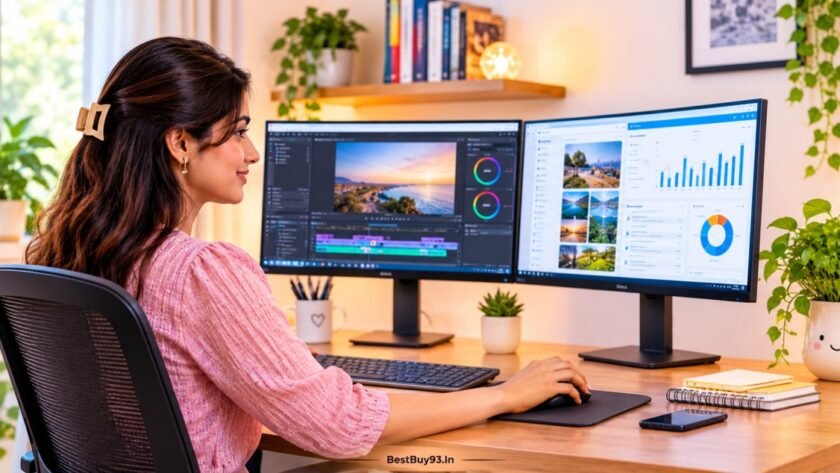

Working on a laptop screen all day can get frustrating. You open a spreadsheet, switch to your email, jump back to a browser tab, check a document and suddenly your desktop looks like a game of digital Tetris. Sound familiar?
That’s where an external monitor makes a difference. Adding a second display gives you more room to work, helps reduce constant window switching and makes it easier to manage multiple tasks at once.
But choosing the right monitor isn’t simply about buying the biggest screen you can afford. Screen resolution, panel quality, connectivity, ergonomic adjustments and laptop compatibility all matter.
In this guide, we’ll explore some of the best external monitors to consider for dual-screen productivity at home, compare their important features, and explain what to check before buying one in India.
Quick Roundup: Best External Monitors for Home Productivity
| Monitor | Best for | Main highlight |
|---|---|---|
| Dell Pro P2725DE | Best overall productivity | QHD, USB-C hub and 90W power delivery |
| ViewSonic VG2709-2K-MHDU | One-cable laptop setup | QHD, USB-C and 65W power delivery |
| Dell S2725DC | Work and entertainment | QHD, 144Hz and adjustable stand |
| LG 27U631A-B | Everyday office productivity | QHD IPS and USB-C |
| HP Series 5 Pro 527pu | Professional home offices | QHD, USB-C hub and DisplayPort out |
These are model recommendations based on published manufacturer specifications, not hands-on test results. Check the exact Indian model and current retailer listing before purchasing.
1. Dell Pro P2725DE – Best Overall for Dual-Screen Productivity
The Dell Pro P2725DE is worth considering if you want an external monitor that can do more than simply display your laptop screen. It combines a 27-inch QHD display with a USB-C hub, making it particularly useful for laptop-based home offices.
Its 2560 × 1440 resolution provides more workspace than a standard Full HD display. This is useful when you’re working with spreadsheets, research documents, browser windows and video calls throughout the day.
The monitor also supports up to 90W USB-C power delivery, allowing compatible laptops to receive power while transferring video and data through a single cable. Its connectivity options include HDMI, DisplayPort, USB and Ethernet.
The ergonomic stand supports height, tilt, swivel and pivot adjustments. You can also position the screen vertically when working with long documents or code.
What we like:
- 27-inch QHD IPS display
- 100Hz refresh rate
- USB-C connectivity with up to 90W power delivery
- Built-in USB hub and Ethernet connectivity
- Height, tilt, swivel and pivot adjustments
- Daisy-chain support for compatible multi-monitor setups
What we don’t like:
- More features than casual users may need
- Higher-end connectivity may increase the purchase cost
- Daisy chaining requires compatible computer hardware and connections
Best for: Professionals who want a laptop-friendly productivity monitor with extensive connectivity.
Check the Dell P2725DE on Dell India

- Refresh Rate: A high 100Hz refresh rate delivers less flicker, more seamless scrolling and smoother motion.
- Improved ComfortView Plus: Reduced harmful blue light emissions to ≤35%, for all-day comfort without sacrificing colour.
- Vivid Colours: Wide colour coverage with up to 16.7 M displayable colours of 99% sRGB.
2. ViewSonic VG2709-2K-MHDU – Best for a One-Cable Laptop Setup
If you prefer a clean desk without several cables running between your laptop and monitor, the ViewSonic VG2709-2K-MHDU deserves a closer look.
It features a 27-inch QHD IPS panel with a 2560 × 1440 resolution. The additional screen space is useful for keeping two documents visible, comparing information or working with multiple browser windows.
One of its most useful features is USB-C connectivity with up to 65W power delivery. With a compatible laptop, a single USB-C connection can carry video and provide power.
It also includes HDMI and DisplayPort inputs, dual 2.5W speakers and an ergonomic stand with height, tilt, swivel and pivot adjustments.
What we like:
- 27-inch QHD IPS display
- USB-C with 65W power delivery
- HDMI and DisplayPort connectivity
- Height, swivel, tilt and pivot adjustments
- Built-in dual speakers
- VESA-compatible mounting
What we don’t like:
- 75Hz refresh rate is not a major upgrade for everyone
- 65W charging may not be sufficient for some power-hungry laptops
- Built-in speakers may not replace dedicated desktop speakers
Best for: Laptop users who want a tidy home-office setup with fewer cables.
Check the ViewSonic VG2709-2K-MHDU
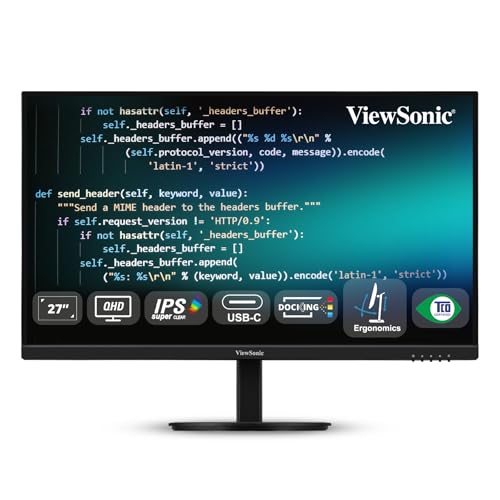
- 🖥️ [Experience Stunning QHD Clarity]: Bring every detail to life on the 27-inch QHD (2560 x 1440) display, designed to d…
- 🎨 [SuperClear IPS for Brilliant Color Accuracy]: The SuperClear IPS panel with 178° wide viewing angles and 300 nits bri…
- 🔌 [Simplify Your Setup with USB-C Connectivity]: Enjoy the convenience of a single USB-C cable that supports video, data…
3. Dell S2725DC – Best for Work and Entertainment
Not everyone uses a home monitor exclusively for spreadsheets and documents. Sometimes you want to finish your work, watch a video, attend an online meeting or enjoy some entertainment without switching devices.
The Dell S2725DC offers a combination of productivity-friendly features and entertainment capabilities.
It has a 27-inch QHD IPS display with a 144Hz refresh rate. The higher refresh rate makes scrolling and on-screen movement feel smoother, although it isn’t essential for ordinary office tasks.
The monitor also supports USB-C connectivity and up to 65W power delivery. Its adjustable stand offers height, pivot, swivel and tilt adjustments, giving you more flexibility when arranging your desk.
Other features include built-in speakers and eye-comfort technology.
What we like:
- 27-inch QHD IPS panel
- 144Hz refresh rate
- USB-C connectivity with power delivery
- Built-in speakers
- Height, tilt, swivel and pivot adjustments
- Eye-comfort features
What we don’t like:
- A higher refresh rate may not matter for basic office work
- 65W power delivery may not suit every laptop
- Some users may prefer a monitor with more professional docking features
Best for: People who want one monitor for work, casual entertainment and everyday computing.
Check the Dell S2725DC on Dell India
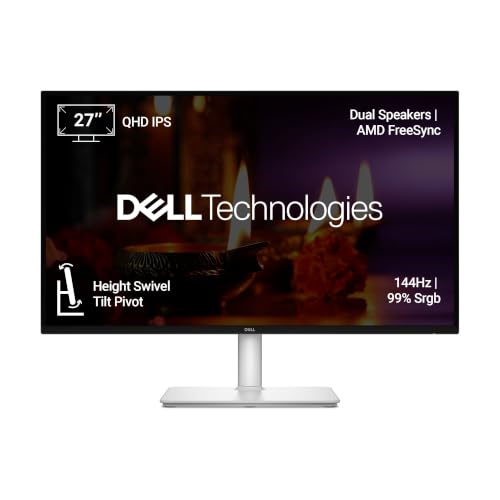
- Elevated Entertainment: Enjoy your favorite shows with fluid visuals and built-in speakers. The QHD resolution and 1500:…
- Hear The Audio Difference: Immerse yourself in sound with integrated dual 3W speakers delivering a wider range of freque…
- Eye comfort: Prioritise visual comfort with this 4-star TÜV-certified display. Reduce harmful blue light emissions while…
4. LG 27U631A-B – Best for Everyday Office Productivity
The LG 27U631A-B is a practical option if your main priority is a larger, sharper display for everyday productivity.
It features a 27-inch QHD IPS screen with a 2560 × 1440 resolution and a 100Hz refresh rate. LG lists 99% sRGB colour coverage, making it suitable for everyday office tasks, browsing and general content work.
The monitor includes USB-C connectivity, Reader Mode and Flicker Safe technology. These features can be useful when spending extended periods reading documents or working with text.
However, there is one important detail: its USB-C power delivery is rated at just 15W. This is not enough to charge most laptops during normal use. You may still need to connect your laptop’s original power adapter separately.
The stand is tilt-adjustable, so consider a monitor arm if you need greater flexibility.
What we like:
- 27-inch QHD IPS display
- 100Hz refresh rate
- 99% sRGB colour coverage (typical)
- USB-C connectivity
- Reader Mode and Flicker Safe
- Useful for documents, spreadsheets and browsing
What we don’t like:
- USB-C power delivery is limited to 15W
- Tilt-only stand
- No extensive docking functionality
Best for: Students, bloggers, researchers and home-office users who want a QHD screen without paying for a full docking monitor. Best External Monitors
Check the LG 27U631A-B on LG India
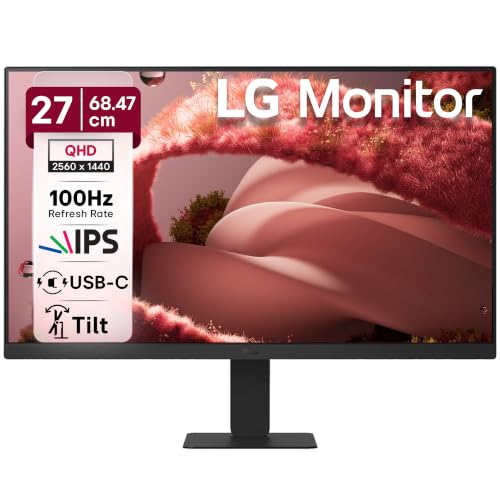
- Display: 27 In (68.47cm), IPS panel, resolution (2560×1440), 16:9 Aspect Ration, With brightness levels of 250 [cd/m²] (…
- 100Hz Refresh Rate & 5ms Response: The monitor runs at a 100Hz refresh rate, paired with a 5ms response time (GtG at Fas…
- HDR10 & HDR Effect: HDR10 support for enhanced contrast and brightness, HDR Effect mode for vivid, lifelike visuals. The…
5. HP Series 5 Pro 527pu – Best for a Professional Home Office
The HP Series 5 Pro 27-inch QHD USB-C Monitor 527pu is another option for people who want a more connected workstation.
It features a 27-inch QHD IPS display with a 2560 × 1440 resolution. The specification sheet lists a 100Hz maximum refresh rate at QHD, along with a 350-nit brightness rating.
Connectivity includes HDMI, USB-C, a USB hub and DisplayPort out. The DisplayPort output is particularly worth investigating if you are planning a compatible daisy-chain monitor arrangement.
For people who regularly work with documents, presentations, browser tabs and business applications, the extra connectivity can help create a more organised desk.
What we like:
- 27-inch QHD IPS display
- 350-nit brightness
- USB-C and USB hub
- HDMI and DisplayPort connectivity
- DisplayPort out for compatible multi-monitor configurations
- Flicker-free display
What we don’t like:
- Professional connectivity may be unnecessary for basic users
- Check the exact USB-C power delivery specification before buying
- Verify compatibility before planning a daisy-chain setup
Best for: Professionals who need a connected office display for a more organised workstation. Best External Monitors
Check the HP Series 5 Pro 527pu on HP India
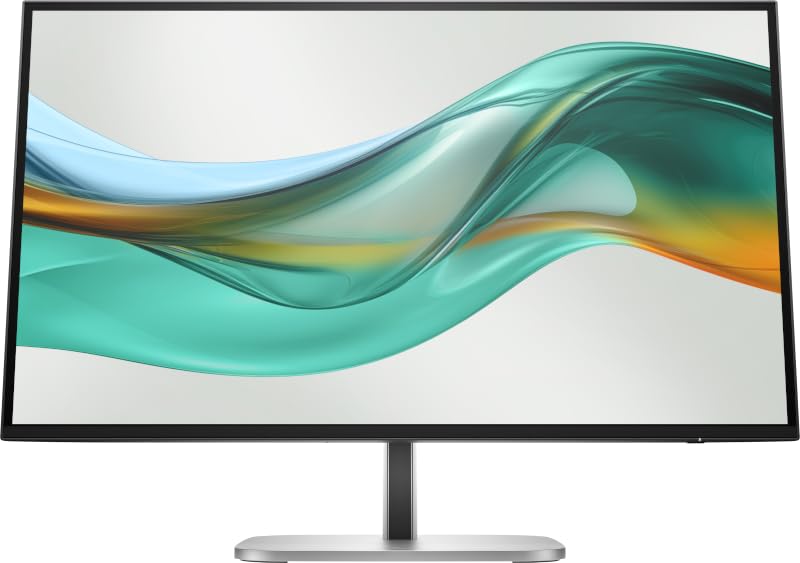
- QHD Resolution: Dive into the captivating definition and sharp details of 3.7 million pixels. 2560 x 1440 Quad HD resolu…
- IPS Technology: No matter where you are or sit, IPS technology ensures image accuracy and consistency across wide 178-de…
- 100 Hz Refresh Rate: With a 100 Hz refresh rate this monitor is capable of clear details, smoothly moving from frame to …
Monitor Comparison: Which One Should You Choose?
| Feature | Dell P2725DE | ViewSonic VG2709 | Dell S2725DC | LG 27U631A-B | HP 527pu |
|---|---|---|---|---|---|
| Screen size | 27-inch | 27-inch | 27-inch | 27-inch | 27-inch |
| Resolution | QHD | QHD | QHD | QHD | QHD |
| Panel | IPS | IPS | IPS | IPS | IPS |
| Refresh rate | 100Hz | 75Hz | 144Hz | 100Hz | Up to 100Hz |
| USB-C | Yes | Yes | Yes | Yes | Yes |
| Power delivery | Up to 90W | 65W | Up to 65W | 15W | Check exact listing |
| Ergonomic stand | Full adjustment | Full adjustment | Full adjustment | Tilt | Check exact listing |
Specifications are based on manufacturer information. Features can vary by regional SKU, so verify the exact model number before ordering.
What to Look for When Buying an External Monitor
Buying a monitor for dual-screen productivity requires more thought than simply checking its screen size. Here are the features worth prioritising.
1. Screen Size: 24 Inches or 27 Inches?
A 24-inch monitor is generally easier to accommodate on a compact desk. It works well for emails, browsing, documents and everyday office work.
A 27-inch monitor gives you more physical screen space. It is particularly useful when working with spreadsheets, editing documents or keeping two windows open side by side.
For most home-office users, 27 inches is a comfortable starting point if the desk has enough depth.
2. Resolution: Full HD, QHD or 4K?
Resolution determines how much detail the display can show.
| Resolution | Best suited for |
|---|---|
| Full HD (1920 × 1080) | Basic office tasks and budget setups |
| QHD (2560 × 1440) | Spreadsheets, multitasking and everyday productivity |
| 4K UHD (3840 × 2160) | Detailed creative work, sharp text and high-resolution content |
A 27-inch QHD monitor is a particularly sensible choice for productivity. It offers a good balance between screen space, text sharpness and price.
If you’re considering a 27-inch Full HD monitor, compare text clarity carefully. The lower pixel density may make small text appear less sharp than on a QHD display.
3. Panel Technology: Why IPS Is a Practical Choice
IPS panels are a popular choice for office monitors because they generally offer wide viewing angles and consistent colours.
This is useful if you frequently move between screens or occasionally show documents to someone sitting beside you.
VA panels can offer stronger contrast, while OLED displays offer excellent contrast and deep blacks. However, for a general-purpose home-office monitor, IPS is a sensible starting point.
4. Connectivity: HDMI, DisplayPort or USB-C?
Check the ports on both your laptop and the external monitor.
- HDMI: A widely supported connection for video.
- DisplayPort: Useful for higher-resolution displays and compatible multi-monitor setups.
- USB-C: Can carry video, data and power when the laptop and monitor support the necessary features.
Do not assume that every USB-C port supports external displays. Some laptop USB-C ports are limited to data transfer.
Look for DisplayPort Alt Mode or Thunderbolt support in your laptop specifications before choosing a USB-C monitor.
5. USB-C Power Delivery
Power delivery determines how much power a monitor can send to a connected laptop.
For example, a monitor with 65W USB-C power delivery may be suitable for many everyday laptops, while some performance laptops require more power.
A monitor with 15W USB-C power delivery may transfer video but will generally not replace your laptop charger.
Always compare the monitor’s power output with your laptop’s charging requirements.
6. Ergonomic Adjustments
A good monitor should fit your sitting position rather than force you to adjust your posture around it.
Look for:
- Height adjustment
- Tilt adjustment
- Swivel adjustment
- Pivot adjustment
- VESA mounting compatibility
A height-adjustable stand is especially useful if you spend several hours working at your desk.
7. Eye-Comfort Features
For long working sessions, consider monitors with:
- Flicker-free technology
- Low blue-light modes
- Anti-glare screens
- Adjustable brightness
- Reader or eye-comfort modes
These features can improve viewing comfort, although they cannot replace regular breaks and good screen positioning. Best External Monitors
How to Set Up a Dual-Screen Workspace at Home
Once you’ve selected your monitor, setting it up properly is just as important.
- Place your external monitor directly in front of your usual sitting position if it is your primary display.
- Keep your laptop to the side or use it as the secondary screen.
- Connect the monitor using a compatible HDMI, DisplayPort or USB-C cable.
- Open your computer’s display settings and select Extend rather than Duplicate.
- Arrange the screens so the cursor moves naturally between them.
- Adjust the display height and brightness to suit your workspace.
For example, you could keep your research and browser windows on the external monitor while using the laptop screen for email, messaging or reference documents.
If you use Windows, the display settings allow you to rearrange screens and select which one acts as the main display. Best External Monitors
Common Mistakes to Avoid
- Buying a monitor without checking laptop compatibility: Your laptop must support the monitor’s connection and resolution.
- Assuming every USB-C monitor charges laptops: Check the actual power delivery rating.
- Choosing a large Full HD screen without checking sharpness: Resolution matters as much as screen size.
- Ignoring the stand: A basic tilt-only stand may not suit your desk or posture.
- Buying two monitors without measuring desk space: Check width, depth and available mounting space.
- Paying extra for gaming features you won’t use: A 144Hz refresh rate is not essential for spreadsheets or email.
- Forgetting cable requirements: Make sure the required video cable is included or budget for a compatible one.
In Case You Are Looking For –
- Best Surge Protectors for Home Electronics
- Best Electric Dusters for Cleaning Keyboard and PC
- Best UPS Systems for Wi-Fi Routers During Power Cuts
- Best Gaming Headphones for a ₹1 Lakh Gaming Laptop
- Best Wireless Earbuds for Everyday Use in India
- Best Bluetooth Keyboards for Phones, Tablets & Laptops
Frequently Asked Questions
1. Is an external monitor worth buying for work from home?
Yes. An external monitor can provide more screen space, reduce constant window switching and make multitasking easier. It is particularly useful for people who work with documents, spreadsheets, research and communication tools. Best External Monitors
2. Is a 24-inch or 27-inch monitor better for dual-screen productivity?
A 24-inch monitor is suitable for compact desks and basic office tasks. A 27-inch QHD monitor is generally more comfortable for working with multiple windows and detailed documents. Best External Monitors
3. Is QHD better than Full HD for office work?
QHD offers a higher resolution than Full HD, providing more screen detail and workspace. It is particularly useful on 27-inch monitors where text and spreadsheets can benefit from sharper presentation. Best External Monitors
4. Can I connect two external monitors to my laptop?
Yes, provided your laptop supports multiple external displays. Check the laptop’s graphics capabilities, available ports, USB-C or Thunderbolt support and maximum supported display resolution. Best External Monitors
5. Is USB-C better than HDMI for connecting a monitor?
USB-C can be more convenient because compatible connections can carry video, data and power through one cable. HDMI remains a reliable option for video, especially when laptop USB-C ports do not support display output. Best External Monitors
6. Do I need a 144Hz monitor for productivity?
No. A 60Hz or 75Hz monitor is sufficient for many everyday office tasks. A higher refresh rate can make scrolling and movement feel smoother, but it is not a requirement for productivity. Best External Monitors
7. Should I buy two identical monitors?
Two identical monitors can provide a more consistent experience in terms of size, resolution, colour and appearance. However, you can also combine different screen sizes if your desk space and workflow require it. Best External Monitors
8. Can I use my laptop as the second screen?
Yes. You can use the laptop’s built-in display alongside an external monitor. This is one of the simplest ways to create a dual-screen workspace without buying two separate monitors. Best External Monitors
Final Verdict: Which External Monitor Should You Buy?
If you’re setting up a dual-screen workspace at home, a 27-inch QHD IPS monitor is a strong starting point. It provides useful screen space without immediately pushing you into the higher cost of a 4K display.
The Dell Pro P2725DE stands out for its professional connectivity and up to 90W USB-C power delivery. The ViewSonic VG2709-2K-MHDU is worth considering for its 65W one-cable laptop setup, while the LG 27U631A-B is a practical everyday option if you don’t need laptop charging through the monitor.
Ultimately, choose based on your laptop’s ports, charging needs, desk space and daily workflow. A well-matched external monitor can make your home office feel more organised and give you the extra workspace needed to get things done without constantly juggling windows. Best External Monitors