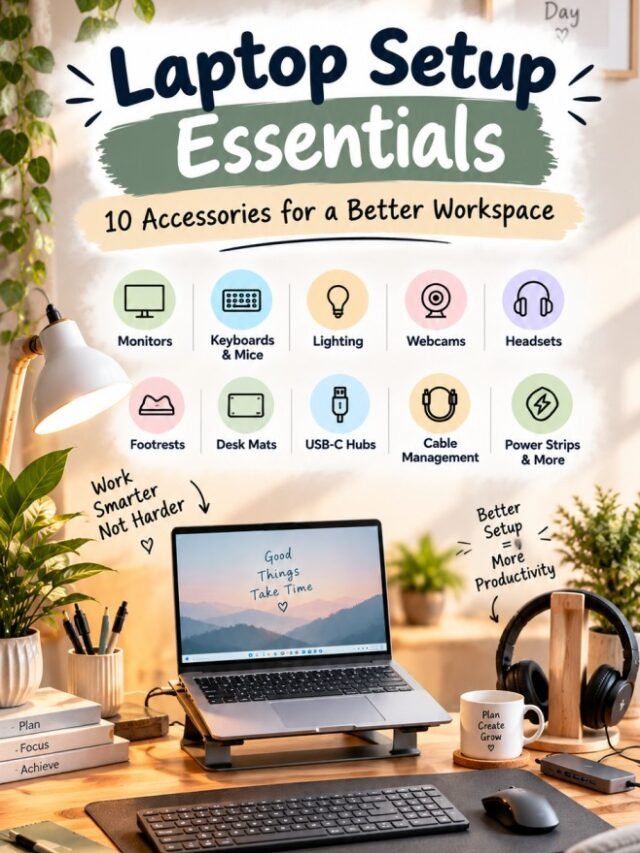
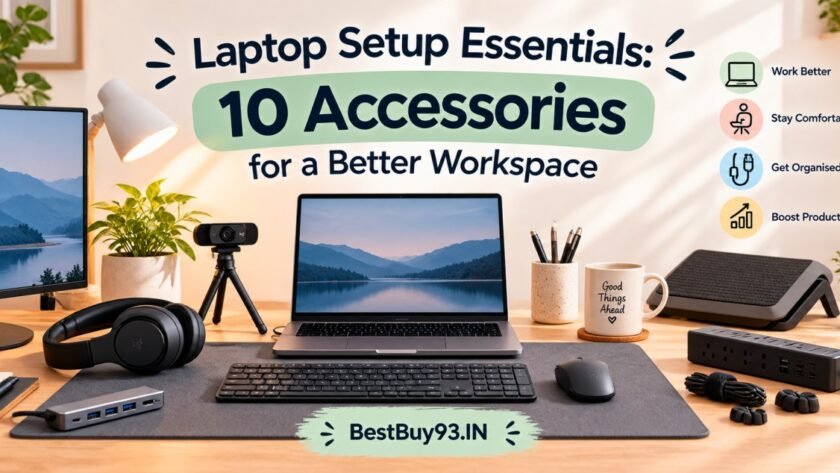

Working on a laptop is convenient, but a basic laptop-and-charger setup is not always enough for long workdays. Whether you work from home, study, freelance, attend online meetings, create content, or simply spend several hours at your desk, the right accessories can make your workspace more organized and comfortable.
A useful laptop setup does not have to mean buying every gadget available. The goal is to choose accessories that solve genuine problems such as limited screen space, uncomfortable typing, poor lighting, cable clutter, or awkward seating.
In this guide, we’re looking at 10 practical laptop setup essentials that can help you create a cleaner and more functional workspace. Some are productivity-focused, while others are designed around comfort, organization, and everyday convenience.
Note: This guide focuses on accessories beyond a dedicated laptop stand, since a laptop-stand article covers that category separately. Product availability and prices can change, so check the current listing before purchasing.
Also Read | Best Bean Bags vs Accent Chairs for Cozy Corners
💻 Why Upgrade Your Laptop Setup?
A laptop is designed to be portable, which means its built-in screen, keyboard, trackpad, speakers, and camera are all packed into one compact device.
That is excellent for portability but a permanent desk setup gives you an opportunity to separate those functions.
For example:
- An external monitor gives you more screen space.
- A wireless keyboard and mouse can make desk-based work more convenient.
- A desk lamp improves workspace illumination.
- A webcam can be useful for frequent video calls.
- A headset can make meetings and calls easier.
- A footrest can help you position your feet comfortably.
- A desk mat creates a cleaner working surface.
- Cable-management accessories reduce desk clutter.
- A multi-port hub expands connectivity when your laptop has limited ports.
- A surge-protected power strip can help organize your desk’s power requirements.
Logitech’s ergonomics guidance also recommends using an external keyboard and mouse with a laptop for prolonged desk work, while positioning the screen at a comfortable viewing angle and keeping the keyboard and mouse close.
1. 🖥️ External Monitor
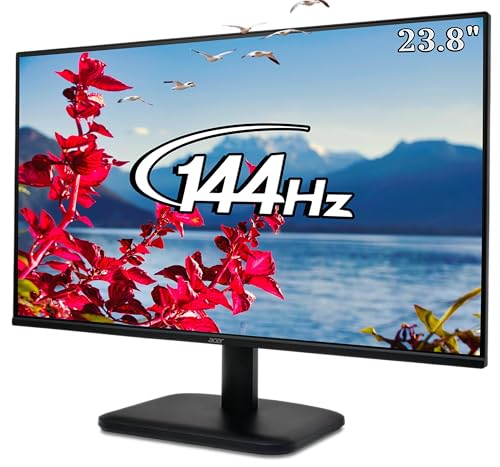
If you regularly work with documents, spreadsheets, browsers, editing software, or multiple windows, an external monitor can be one of the most useful additions to a laptop setup.
Instead of constantly switching between applications on a single laptop screen, you can use the laptop and monitor together.
Why consider one?
An external monitor can be useful for:
- Multitasking
- Excel and spreadsheet work
- Writing and research
- Photo and video editing
- Coding
- Online classes
- Content creation
- Keeping reference material open while working
For a simple setup, a 23.8- or 24-inch Full HD monitor can be a practical starting point.
If you frequently work with colour-sensitive creative projects, higher-resolution displays or monitors with better colour coverage may be worth considering.
💡 Setup tip
Place your primary display directly in front of you rather than constantly turning your neck toward a side monitor. Logitech’s ergonomic setup guidance recommends positioning the top portion of the screen around 10° below eye level and keeping the main display directly in front.
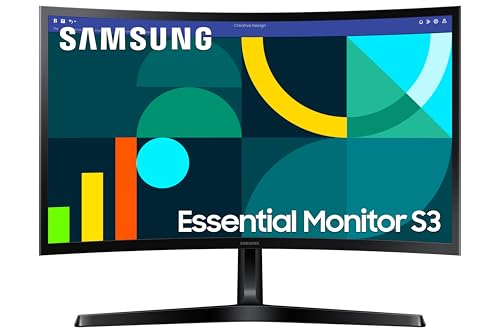
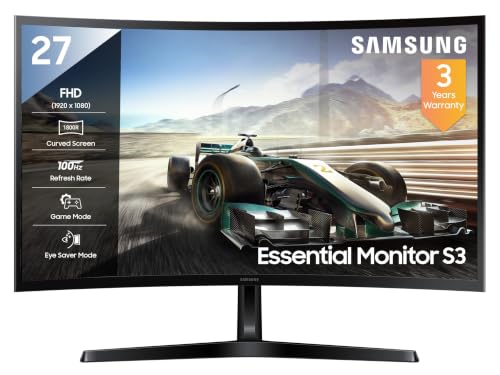
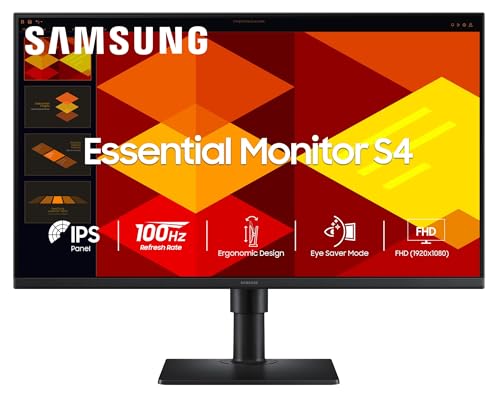
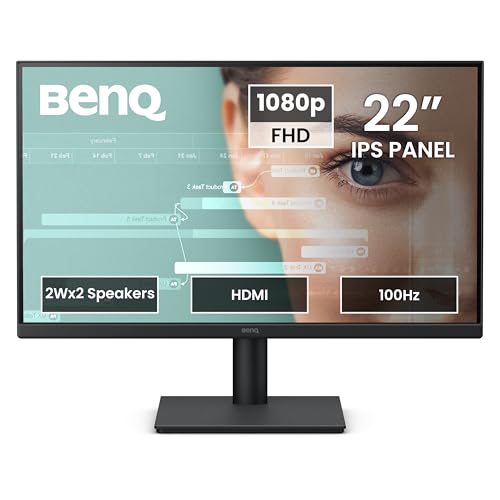
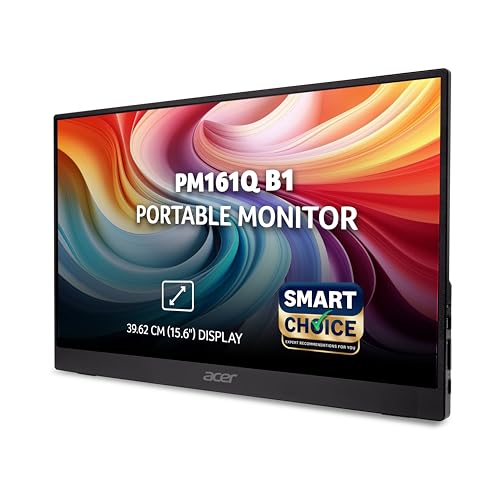
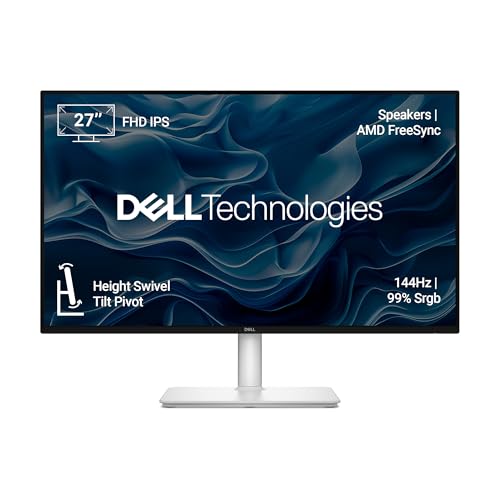
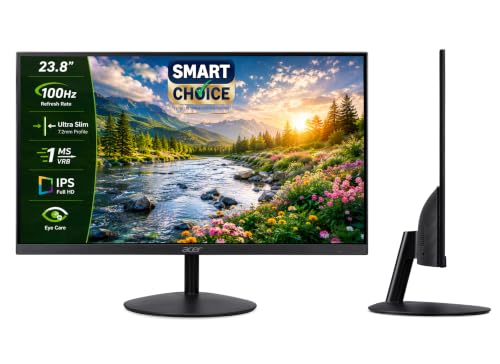
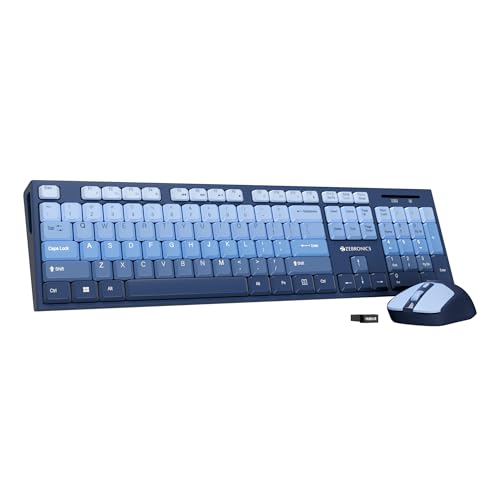
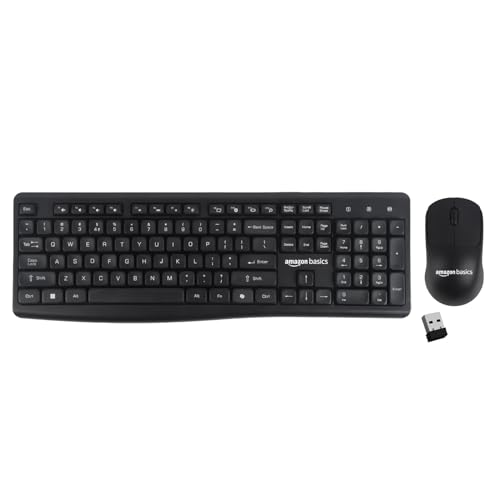
2. ⌨️ Wireless Keyboard + Mouse Combo
Once you connect your laptop to an external monitor, the built-in keyboard and trackpad become less convenient for a permanent workstation.
That’s where a wireless keyboard and mouse combo comes in.
A compact combination can help keep your desk cleaner by reducing cables.
What to look for
Consider:
- Wireless connectivity
- Comfortable key spacing
- Quiet operation
- Good battery life
- Full-size vs compact layout
- Multi-device support
- Mouse shape and size
- Windows/macOS compatibility
Logitech currently offers several keyboard-and-mouse combinations in India, ranging from compact options to more ergonomic productivity-focused models.
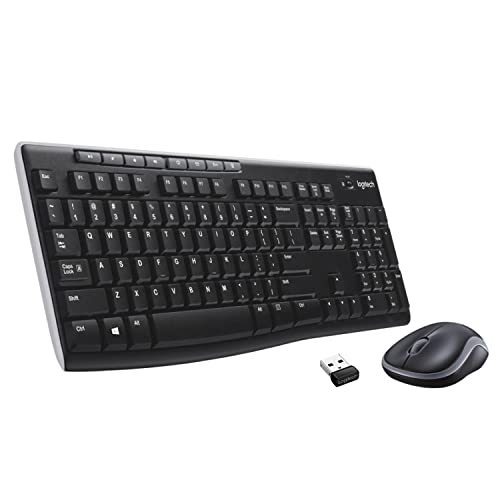
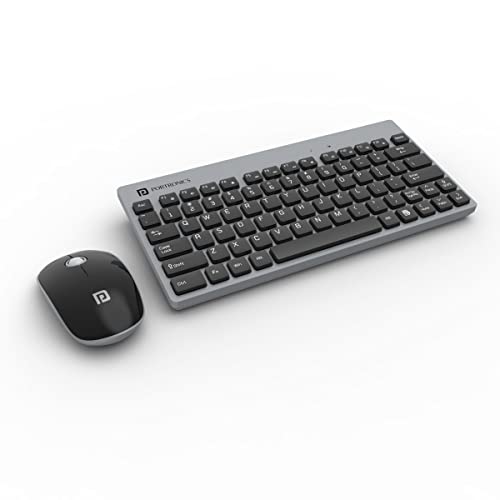
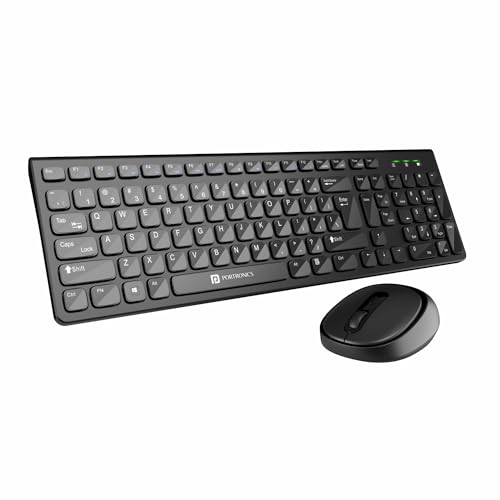
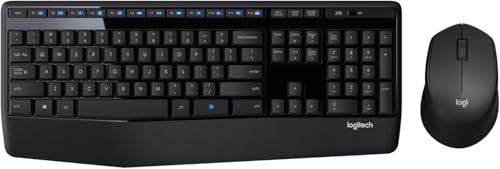
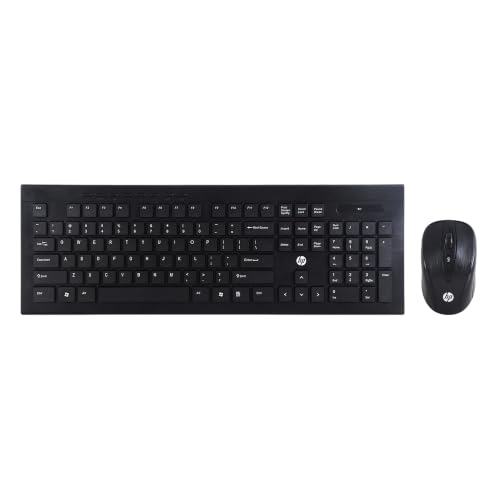
For example, the Logitech MK470 Slim Combo is designed around a slim, compact workspace and includes a low-profile keyboard and mouse. Logitech also describes its mouse as having 90% noise-reduced clicking.
Logitech MK470 Slim Combo Wireless Keyboard and Mouse
Best for:
Home offices, students, writers, researchers and people who want a cleaner desk.




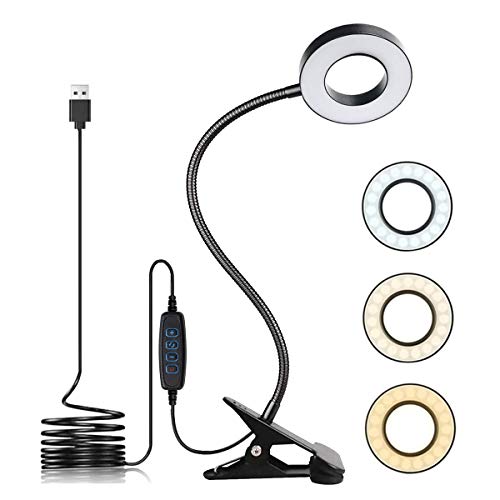
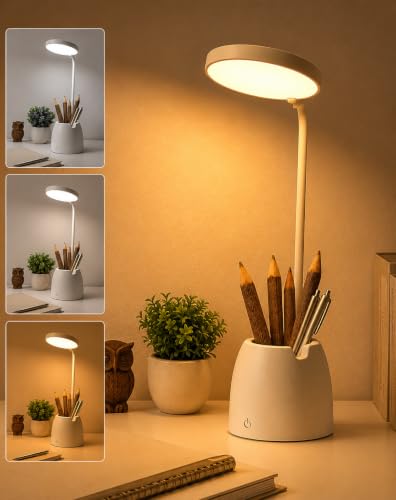
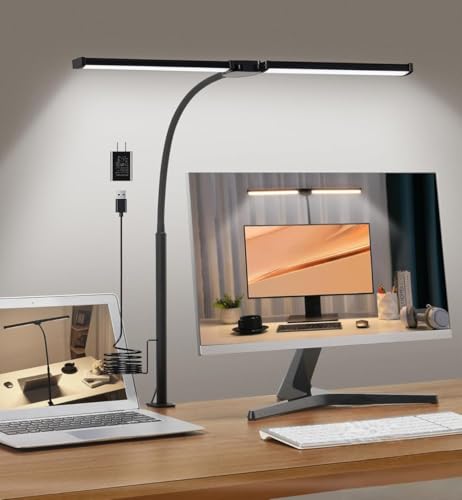
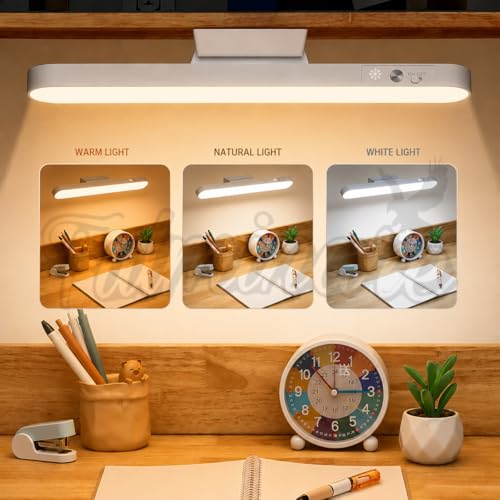
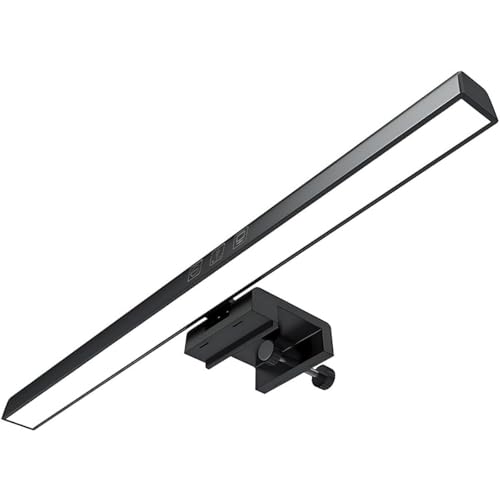
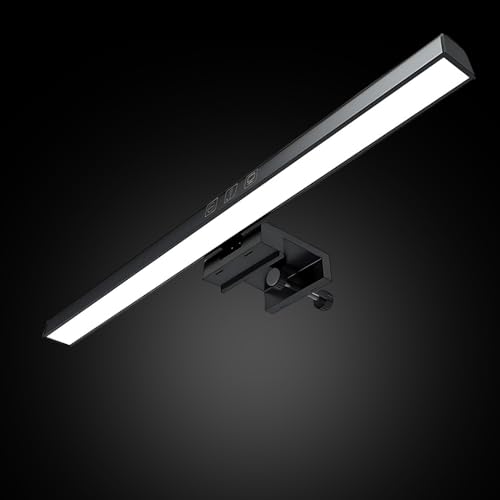
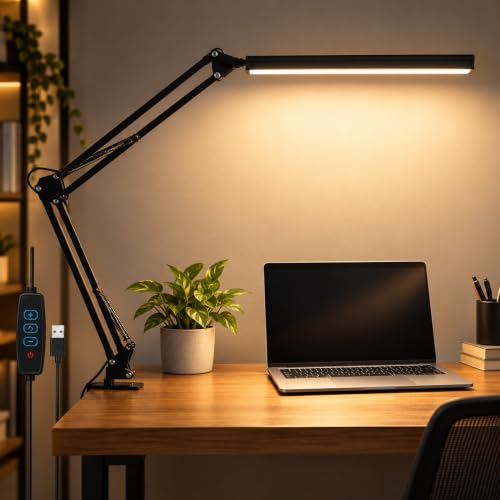
3. 💡 Desk Lamp or Monitor Light Bar
Good lighting is an underrated part of a laptop setup.
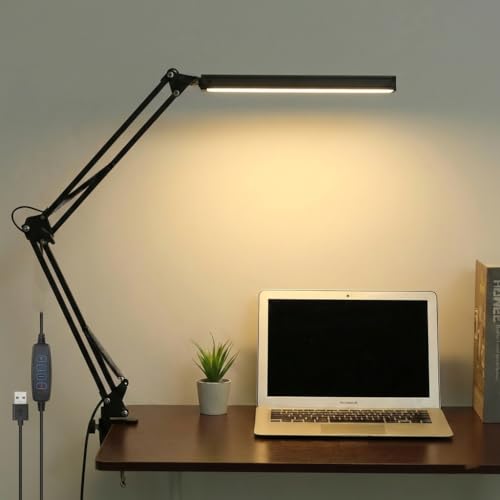
Working in a dim room with only your laptop screen illuminated can make the workspace feel uncomfortable. A dedicated desk lamp can provide additional illumination around your keyboard, notebook and desk.
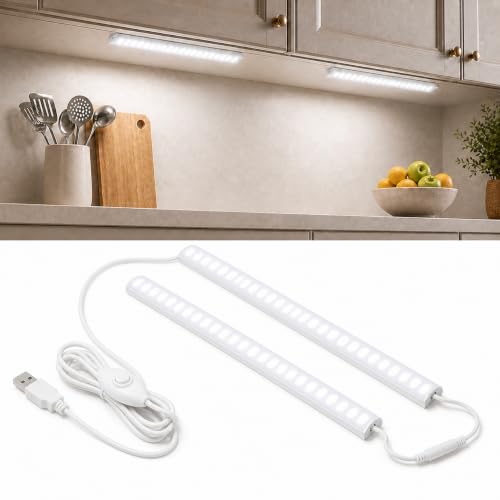
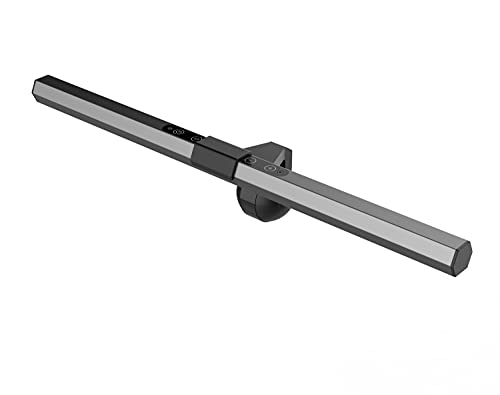
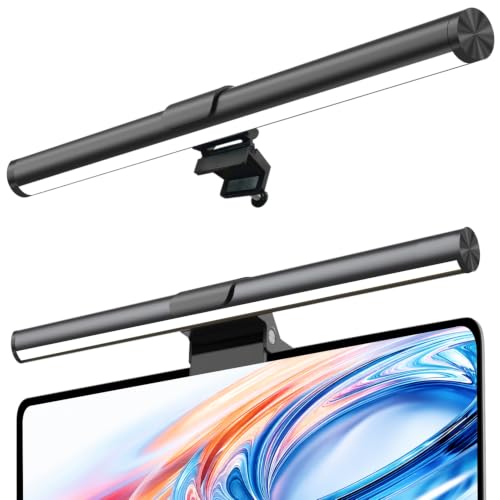
For smaller desks, a monitor light bar can be particularly interesting because it sits on top of the display rather than occupying valuable desk space.
BenQ’s ScreenBar range, for example, is designed to illuminate the desk while using an asymmetric optical design intended to reduce reflections on the screen.
The standard ScreenBar uses USB power and supports monitors between 1 cm and 3 cm thick according to BenQ’s specifications.
For a budget setup
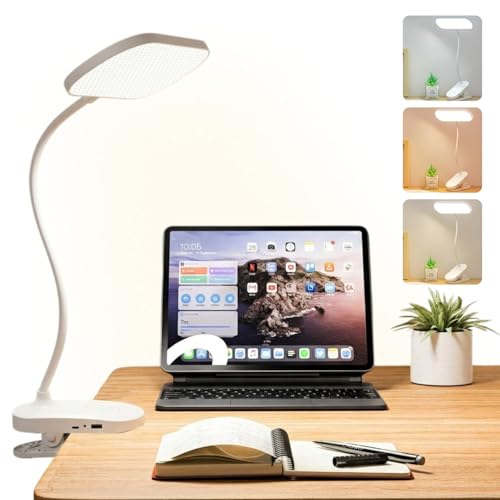
You don’t necessarily need a premium monitor light. A simple adjustable LED desk lamp can also work well.
Look for:
- Adjustable brightness
- Warm and cool lighting
- Flexible neck
- Stable base
- USB-C charging or USB power
- Compact footprint
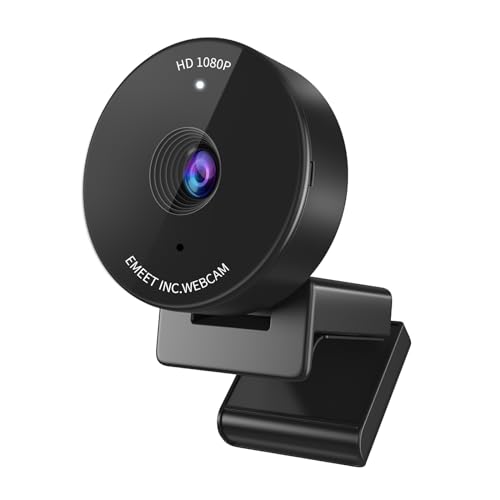
4. 🎥 External Webcam
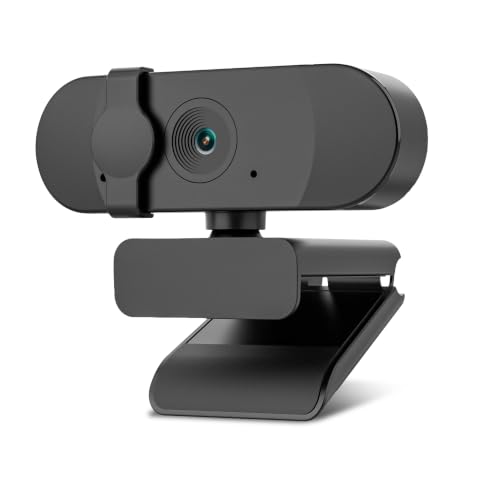
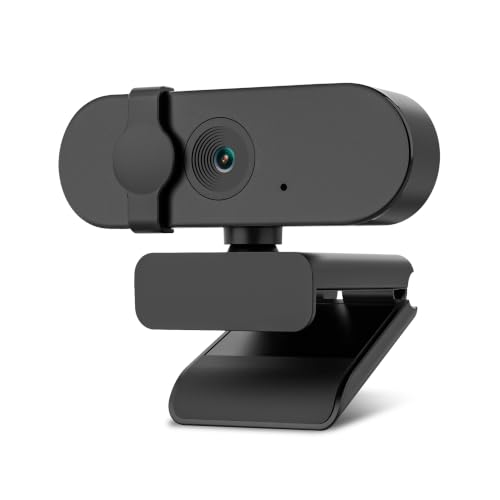
If you regularly attend Zoom, Google Meet, Microsoft Teams or other video calls, an external webcam can be a useful upgrade.
Laptop webcams vary considerably. An external webcam gives you more flexibility when positioning the camera and can be particularly useful if your laptop is connected to an external monitor.
What to check before buying
Look for:
- 1080p resolution
- Autofocus
- Built-in microphone
- Low-light performance
- USB plug-and-play connectivity
- Privacy shutter, if available
- Compatibility with your operating system
The Logitech C920 HD Pro Webcam remains one example of a widely available 1080p webcam for video calling and recording.
Logitech C920 HD Pro Webcam
💡 Simple positioning tip
Try placing the camera close to eye level rather than looking significantly downward toward the laptop.
This can create a more natural-looking frame during meetings.



5. 🎧 Headset or Dedicated Headphones
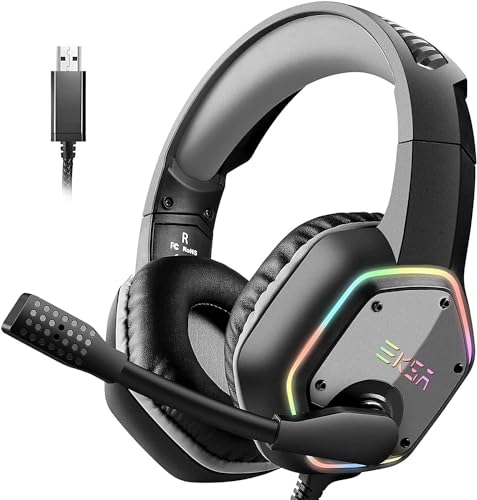
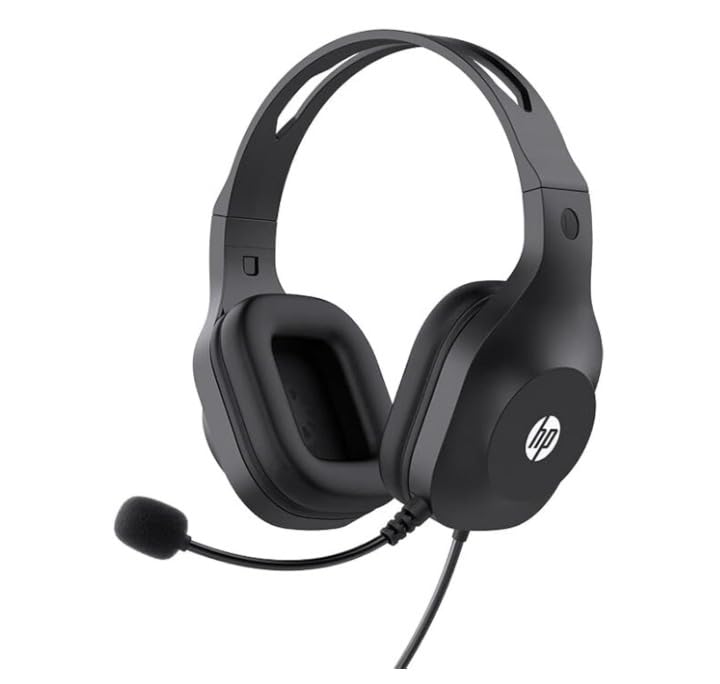
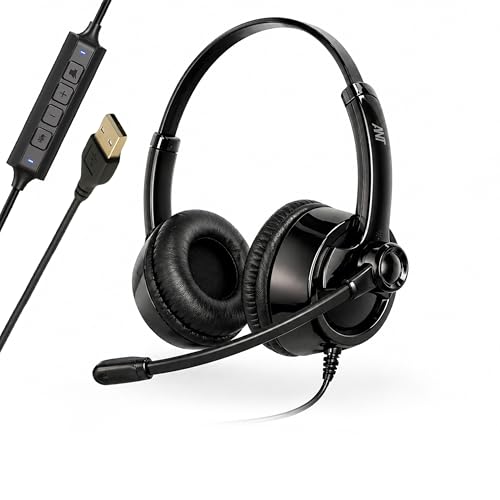
If your work involves frequent meetings, calls, online classes or voice recording, a dedicated headset can make your setup more convenient.
A headset with a microphone is particularly useful when you want clearer voice communication without relying on the laptop’s built-in microphone.
Wired vs wireless
Wired headset
- No charging required
- Usually simple plug-and-play
- Useful for long meetings
- Often more affordable
Wireless headset
- Cleaner desk
- More freedom of movement
- Useful for switching between devices
- Requires charging
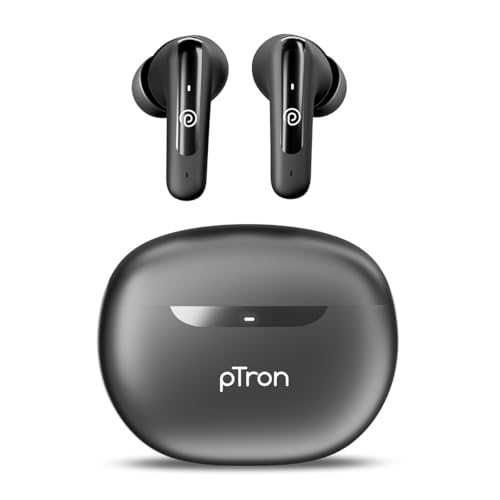
For a simple wired setup, the Logitech H390 USB Headset is one option available in the Indian market.
Logitech H390 USB Headset
Best for:
Remote workers, students, customer-support work, online tutors and frequent video-call users.










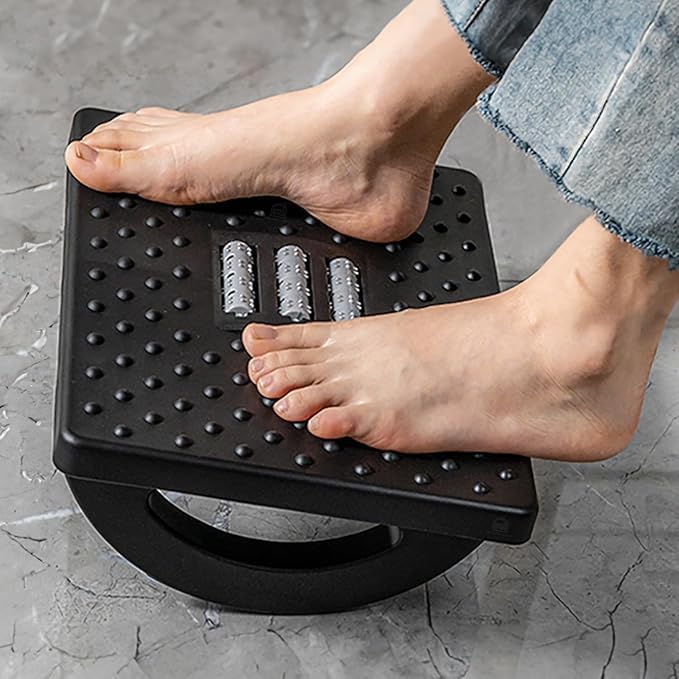
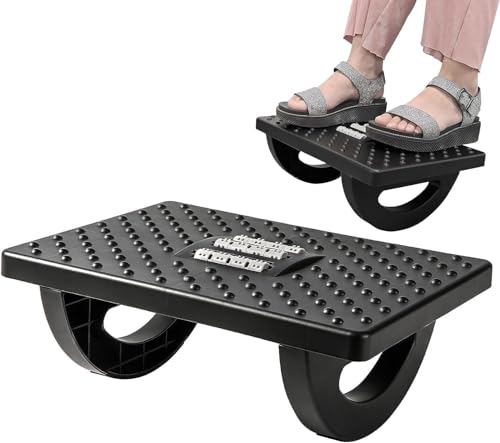
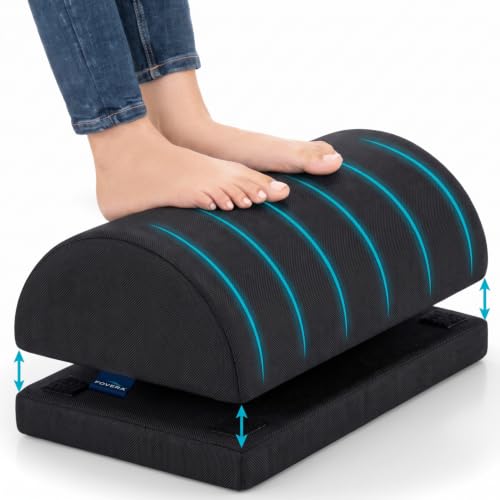
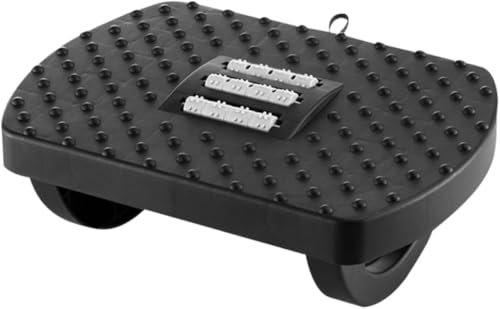
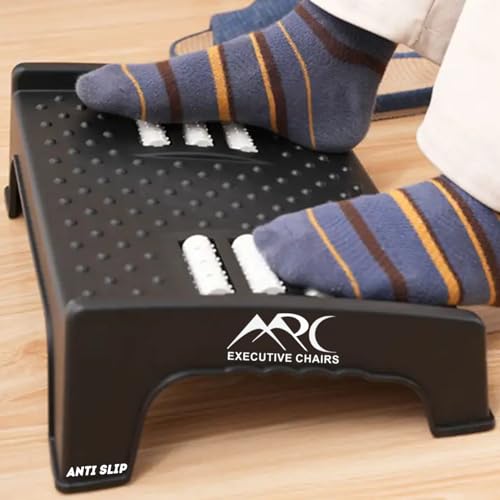
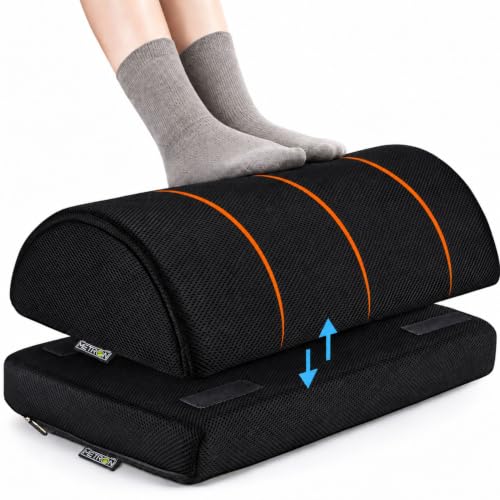
6. 🦶 Under-Desk Footrest
Your desk setup isn’t only about what’s on top of the table.
Your lower body matters too.
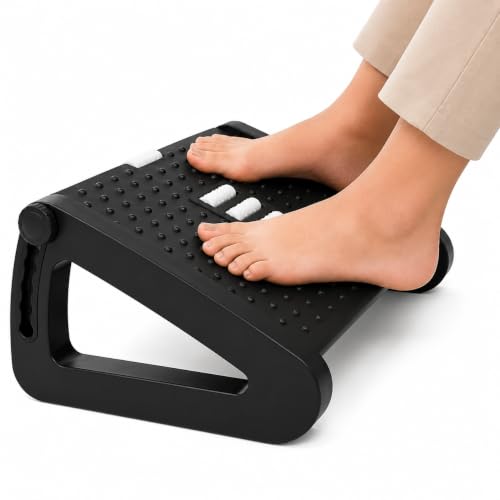
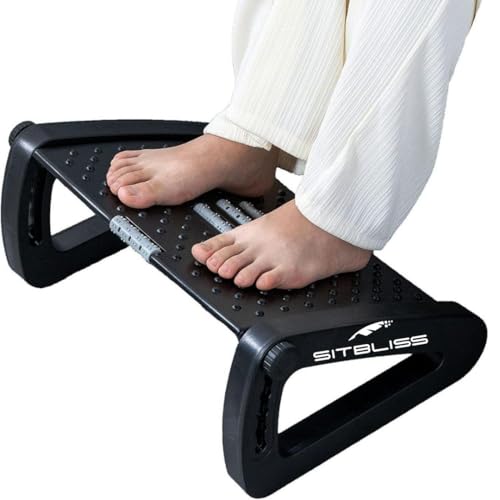
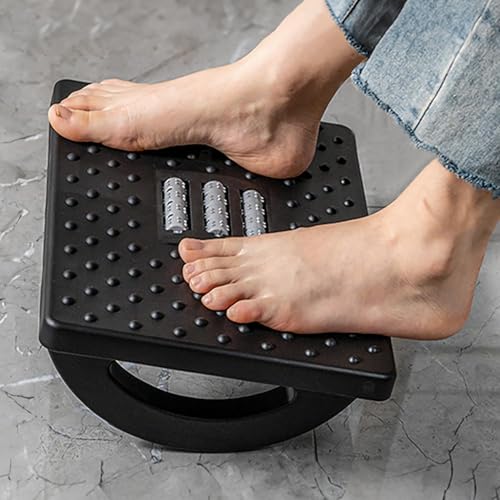
If your feet don’t rest comfortably on the floor because of your chair or desk height, an under-desk footrest can provide another way to position your feet.
A footrest can be particularly useful for shorter users or desks where adjusting the chair and desk independently doesn’t produce a comfortable position.
Look for:
- Stable construction
- Non-slip base
- Comfortable surface
- Appropriate height
- Easy-to-clean material
- Adjustable angle, if preferred
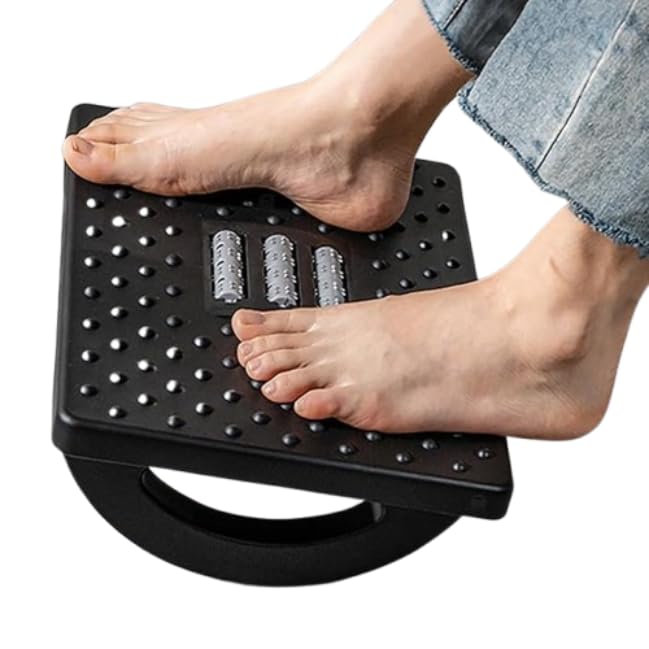
For example, products such as the CasaZenith under-desk footrest are designed specifically for workstation use.
CasaZenith Under-Desk Foot Rest
Logitech’s ergonomic guidance also notes that if a desk cannot be adjusted and a higher chair is needed, a footrest can help provide support for the feet.


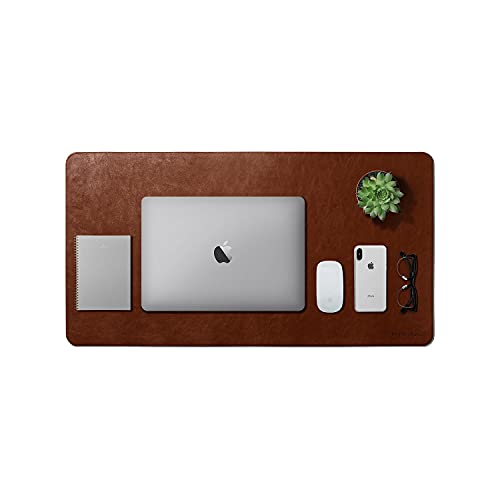
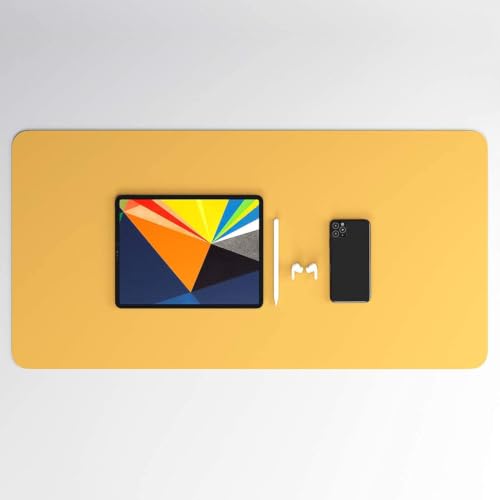
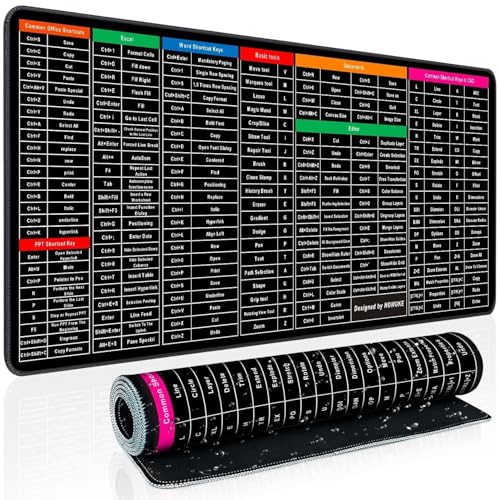
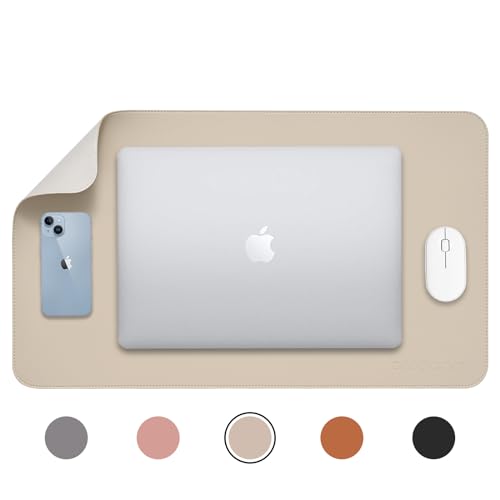
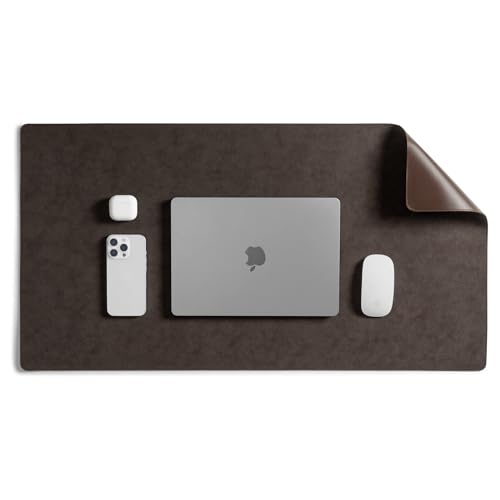
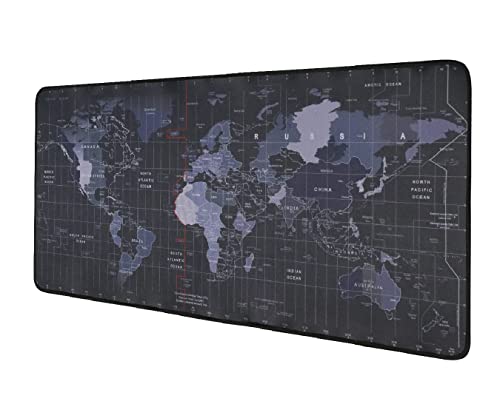
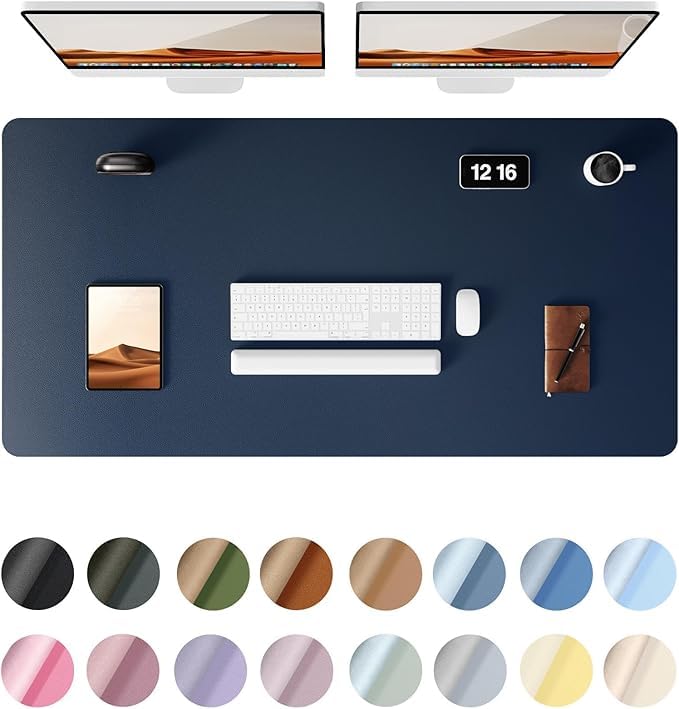
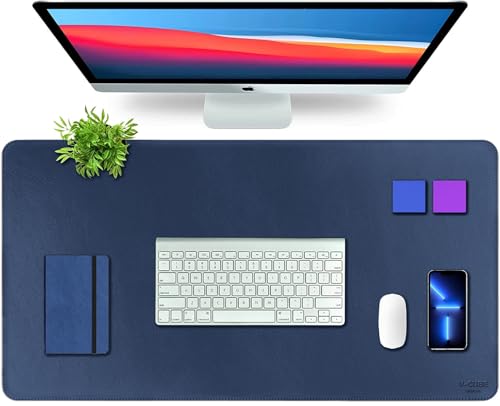
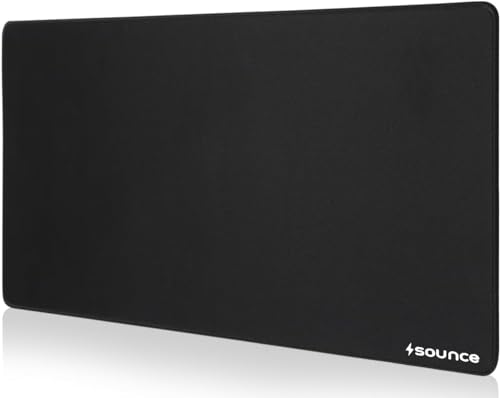
7. 🖱️ Large Desk Mat
A desk mat is not essential for everyone, but it can make a workspace look considerably more organised.
Instead of having the keyboard, mouse and other small accessories directly on the desk surface, a large mat creates a defined working area.
Why use one?
A desk mat can:
- Provide a consistent mouse surface
- Protect the desk from everyday wear
- Reduce small scratches
- Visually define the workspace
- Make the setup look more coordinated
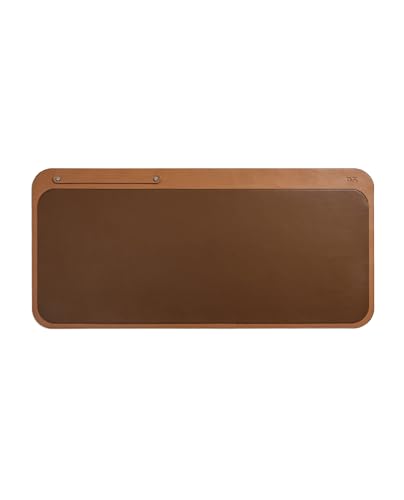
For a simple setup, you don’t necessarily need an RGB gaming mat.
A neutral black, grey, beige or brown desk mat can suit a minimalist home office much better.
Amazon Basics Extended Rectangular Mouse Pad.
💡 Best choice for a clean aesthetic
Choose a mat that is large enough for your keyboard and mouse but doesn’t overwhelm the desk.


8. 🔌 USB-C Hub or Multi-Port Adapter
Modern laptops are increasingly compact, and some models provide only a handful of physical ports.
If you regularly connect a mouse, keyboard, pen drive, external display, memory card or other accessories, a USB-C hub can simplify your setup.
Amazon Business specifically lists USB hubs and adapters among commonly used laptop accessories, including models from Zebronics and Portronics.
Zebronics TA210U 4-in-1 Type-C USB Hub₹199 · Zebronics + others
Before buying a hub, check:
- USB-A ports
- USB-C ports
- HDMI output
- SD/microSD slots
- Ethernet
- Power delivery support
- Data-transfer speeds
- Compatibility with your laptop
⚠️ Important: Don’t assume every USB-C port supports video output or charging. Check your laptop’s specifications before buying a hub.
9. 🧹 Cable Management Accessories
A workspace can have excellent gadgets and still look messy because of cables.
Laptop chargers, monitor cables, USB cables, headphone wires and extension cords can quickly create clutter.
Fortunately, cable management doesn’t require an expensive accessory.
Useful options include:
- Cable clips
- Velcro cable ties
- Cable sleeves
- Under-desk cable trays
- Adhesive cable holders
- Cable labels
- Charging-cable organisers
💡 Simple cable-management method
Step 1: Separate power cables from everyday USB cables.
Step 2: Bundle long cables using reusable Velcro ties.
Step 3: Route cables toward the rear edge of the desk.
Step 4: Keep frequently used cables accessible.
Step 5: Label similar-looking chargers if you have multiple devices.
The goal isn’t to hide every cable. It’s to prevent cables from crossing the main working area.
10. ⚡ Surge-Protected Power Strip
A laptop setup can quickly become a multi-device setup.
You might have:
- Laptop charger
- Monitor
- Desk lamp
- Phone charger
- Speaker
- Webcam
- USB hub
- Printer
Instead of scattering multiple adapters around the room, a suitable power strip can consolidate the setup.
What to look for
Check for:
- Adequate number of sockets
- Proper safety certifications
- Overload protection
- Surge protection where appropriate
- Sufficient cable length
- Sturdy construction
- Individual switches, if useful
Don’t choose a power strip solely because it has the highest number of sockets. Electrical safety and appropriate load capacity matter more.
🛒 10 Laptop Setup Essentials at a Glance
| Accessory | Main Purpose | Useful For |
|---|---|---|
| External Monitor | More screen space | Multitasking |
| Wireless Keyboard + Mouse | Comfortable desk input | Daily work |
| Desk Lamp | Better workspace lighting | Night work |
| External Webcam | Video calls | Meetings |
| Headset | Calls + audio | Remote work |
| Footrest | Foot support | Long desk sessions |
| Desk Mat | Cleaner workspace | Keyboard + mouse |
| USB-C Hub | More connectivity | Modern laptops |
| Cable Management | Reduce clutter | Any desk |
| Power Strip | Centralise power | Multi-device setups |
💻 How to Build a Laptop Setup on Different Budgets
You don’t need to buy everything at once.
₹2,000–₹3,000 Basic Setup
Start with:
- Wireless keyboard + mouse
- Desk mat
- Cable-management clips
- Basic desk lamp
This is enough to make a basic laptop workspace feel more organised.
₹5,000–₹10,000 Comfortable Setup
Consider adding:
- Better keyboard + mouse
- Desk lamp
- Footrest
- USB-C hub
- Desk mat
- Cable management
This works well for students, freelancers and people working from home.
₹15,000+ Productivity Setup
You can move toward:
- External monitor
- Wireless keyboard + mouse
- USB-C hub
- Webcam
- Headset
- Desk lighting
- Footrest
- Cable-management system
The monitor becomes the biggest productivity-focused upgrade in this setup.
🪑 Don’t Ignore Ergonomics
Buying accessories is only half of the equation.
How you arrange them matters too.
A practical laptop workstation should aim for:
Screen
Keep the primary display in front of you and at a comfortable viewing height.
Keyboard
Keep the external keyboard close enough that your elbows don’t need to reach forward.
Mouse
Keep it next to the keyboard rather than far away.
Feet
Your feet should have stable support.
Desk
Keep frequently used objects within easy reach.
Lighting
Avoid creating a large brightness difference between your screen and the surrounding workspace.
Logitech’s work-from-home ergonomics guidance specifically recommends an external screen, keyboard and mouse for prolonged laptop work and emphasises keeping your elbows close to the desk and avoiding unnecessary reaching or twisting. Logitech
🎯 Which Accessories Should You Buy First?
You don’t have to purchase all 10.
If you work 8+ hours on a laptop
Prioritise:
External monitor → keyboard + mouse → lighting → foot support
If you attend lots of meetings
Prioritise:
Webcam → headset → external monitor → keyboard + mouse
If your desk is tiny
Prioritise:
Compact keyboard + mouse → USB-C hub → monitor light → cable management
If your desk is messy
Prioritise:
Cable management → desk mat → wireless keyboard + mouse → power strip
If you’re on a tight budget
Start with:
Keyboard + mouse → desk lamp → cable management
Then upgrade gradually.
🛍️ What to Check Before Buying Laptop Accessories
Before clicking Buy Now, check these points:
1. Compatibility
Make sure the accessory works with your laptop’s operating system and available ports.
2. Desk Size
A huge monitor, full-size keyboard and large accessories can overwhelm a small desk.
3. Connectivity
Check whether you need USB-A, USB-C, HDMI, Bluetooth or another connection.
4. Power Requirements
Some accessories require their own power supply, while others draw power from USB.
5. Frequency of Use
Buy based on what you actually do every day.
6. Build Quality
For accessories used daily, durability can matter more than having the most features.
7. Cable Length
Don’t overlook cable length when buying monitors, webcams, lamps or wired accessories.
🧠 A Simple Laptop Setup Formula
If you don’t know where to start, use this formula:
Laptop + External Display + Keyboard + Mouse + Lighting + Audio + Organisation
Then add:
Webcam + USB Hub + Footrest + Power Management
as your needs grow.
This keeps the setup practical instead of turning your desk into a collection of gadgets.
❓ FAQs About Laptop Setup Essentials
What are the most useful laptop accessories for work?
An external monitor, keyboard, mouse, desk lighting and proper cable management are among the most practical upgrades for a desk-based laptop setup.
Do I need an external keyboard and mouse with a laptop?
Not necessarily. However, for people who regularly work at a desk for long periods, an external keyboard and mouse can make it easier to position the screen separately from the input devices.
Is an external monitor worth buying for a laptop?
It can be particularly useful if your work involves multitasking, spreadsheets, research, editing or multiple applications.
Do I need a USB-C hub?
Only if your laptop needs more connectivity than its built-in ports provide. Check the exact ports and capabilities of your laptop before choosing one.
Is a desk lamp necessary for a laptop setup?
It isn’t mandatory, but additional workspace lighting can be useful, particularly when working in the evening or in a dim room.
Is a webcam necessary if my laptop already has one?
No. An external webcam is mainly useful if you want additional camera flexibility or features that your laptop’s built-in webcam doesn’t provide.
What should I buy first for a home laptop setup?
Start with the accessories that solve your biggest daily problem. For many desk-based users, that could mean an external monitor, keyboard and mouse, better lighting or cable management.
Can I create a good laptop setup on a budget?
Absolutely. You can start with inexpensive accessories such as a keyboard-and-mouse combo, desk lamp, desk mat and cable clips, then add larger upgrades such as a monitor later.
🏠 Final Thoughts
A good laptop workspace doesn’t need to be expensive or overloaded with gadgets.
The best approach is to identify what’s actually frustrating you during everyday work.
Need more screen space? Add a monitor.
Typing uncomfortable? Add a keyboard.
Trackpad annoying for long sessions? Add a mouse.
Desk looks messy? Start with cable management.
Work at night? Improve the lighting.
Lots of video calls? Consider a webcam and headset.
Feet don’t sit comfortably? Look at a footrest.
The idea behind a good laptop setup is simple: make your workspace work better for you. 💻✨