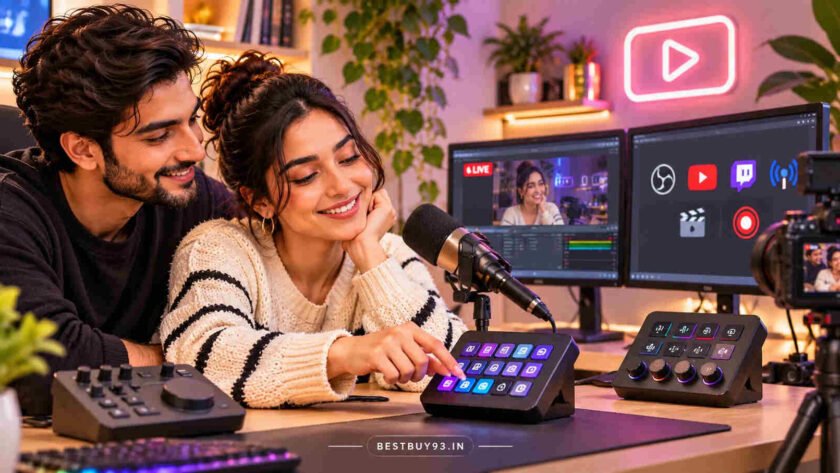

A Stream Deck is one of those gadgets that looks slightly unnecessary right up until you start using one.
Then suddenly you have one button for OBS.
One for mute.
One for switching cameras.
One for recording.
One for opening Spotify.
And one extremely important button whose sole purpose is probably playing a ridiculous sound effect when somebody joins the stream. 😂🎙️
But Elgato is not the only option anymore.
In 2026, creators can choose from dedicated stream controllers, programmable macro pads, editing consoles, modular control surfaces and even phone-based software decks.
Some alternatives are cheaper.
Some give you physical dials.
Some have LCD buttons.
Some are better for editing than live streaming.
And some turn an old phone or tablet into a surprisingly capable control deck without requiring any new hardware at all.
For this guide, we compared current Stream Deck alternatives based on:
customizable controls, OBS and Streamlabs compatibility, audio controls, LCD keys, dials, macros, software ecosystem, Windows/macOS support, recording workflow, creator features, India availability and overall value.
One important 2026 update before we begin: Loupedeck stopped selling its own hardware line in March 2025, although Logitech continues software support and future development through the shared platform. That means older recommendations such as the Loupedeck Live S can still work, but I would not make discontinued hardware the first purchase for a new setup today.
So, let’s look at the Stream Deck alternatives that actually make sense now.
Best Stream Deck Alternatives: Quick Comparison
| Product | Controls | Best For | OBS/Streaming Use | Main Advantage |
|---|---|---|---|---|
| Razer Stream Controller X | 15 programmable buttons | Best Overall Stream Deck Alternative | Excellent | Closest direct Stream Deck competitor |
| Razer Stream Controller | 12 touch keys + 6 dials + 8 buttons | Best for Audio + Streaming | Excellent | Physical dials and deep control |
| Ulanzi D200H | 13 LCD touch keys + info display | Best Budget Hardware Pick | Very Good | Affordable + built-in docking hub |
| Cooler Master MasterHUB | Modular LCD keys, faders, rollers, knobs | Best Modular Controller | Good | Build your own control layout |
| Logitech MX Creative Console | 9 LCD keys + dialpad | Best for Streamers Who Also Edit | Moderate | Excellent creative-app workflow |
| Xencelabs Quick Keys | 8 keys × 5 sets + dial + OLED | Best Shortcut Controller | Shortcut-based | Up to 40 shortcuts per app |
| TourBox Elite Plus | Buttons, wheel, knobs and dials | Best for Recording + Editing | Shortcut-based | Excellent tactile workflow |
| Macro Deck | Phone/tablet/browser | Best Free Software Alternative | Excellent | Free and open source |
1. Razer Stream Controller X
Best Overall Stream Deck Alternative
If you want something that behaves most like a traditional Stream Deck without actually buying an Elgato Stream Deck, the Razer Stream Controller X is probably the easiest place to start.
It has 15 programmable membrane buttons, arranged in the familiar 5×3 layout.
Razer includes a removable magnetic faceplate, detachable angled stand and USB-C connection. The device weighs around 146g without the stand.
More importantly, it works with the Loupedeck software platform.
That gives you controls for services including:
OBS Studio, Streamlabs and Twitch.
Razer’s current support documentation, updated in October 2026, still provides setup instructions for OBS, Streamlabs and Twitch using the latest Loupedeck software.
That matters because Stream Deck-style hardware lives or dies by its software.
A box with 15 pretty buttons is not particularly exciting if those buttons cannot actually control your stream.
Why It Works Well for Streaming
You can map buttons for actions such as:
switching OBS scenes, starting or stopping a stream, muting audio, triggering actions and launching applications.
The button icons can also change according to your layout and profile.
This makes it especially useful for solo creators who cannot constantly reach for the mouse while recording.
Imagine:
Camera rolling.
You finish the intro.
Tap one button.
OBS switches scenes.
Tap another.
Screen share appears.
Another button mutes the microphone.
Much cleaner than playing keyboard Twister during a live stream.
Reasons to Buy
| What We Like | What We Don’t Like |
|---|---|
| 15 programmable buttons | No physical dials |
| OBS and Streamlabs support | Requires Loupedeck software |
| Compact design | Smaller ecosystem than Elgato |
| Custom icons | Wired only |
| Detachable magnetic stand | Premium pricing in India can fluctuate |
| Current 2026 software support |
Best For
Streamers who want the closest direct alternative to a standard Stream Deck.

- · INSTANT CONTROL INFINITE CREATIVITY – With the Razer Stream Controller X, creativity comes easily. Manage your streami…
- · CONTROL AT YOUR FINGERTIPS – 15 Switchable Buttons – Create handy shortcuts for streaming, video editing, music produc…
- · AUTOMATE YOUR PROCESS – Multi-Link Macros – Kickstart your stream at the push of a key. With Multi-link Macros, create…
2. Razer Stream Controller
Best Stream Deck Alternative With Dials
The larger Razer Stream Controller is much more interesting if your workflow involves audio.
Instead of giving you only buttons, Razer combines:
12 LCD touch buttons, six tactile analog dials, two side LCD panels and eight additional programmable buttons.
That makes it much better for situations where you frequently adjust levels.
For example:
Mic volume.
Game audio.
Discord.
Music.
Browser audio.
Monitoring volume.
With normal Stream Deck-style buttons, adjusting volume often means repeatedly tapping + and − controls.
With a dial?
Turn.
Done.
That tactile control makes a surprisingly big difference during live streaming.
Strong OBS and Streamlabs Integration
Razer provides official instructions for using the controller with OBS Studio and Streamlabs.
Actions can be assigned to buttons and rotational controls through Loupedeck software.
Razer also supports dynamic profiles, allowing the controller layout to change according to the active application.
That means the same device could behave differently when you open:
OBS, Premiere Pro or another application.
Reasons to Buy
| What We Like | What We Don’t Like |
|---|---|
| Six physical dials | Larger than Stream Controller X |
| 12 touch controls | More expensive |
| Additional programmable buttons | Software learning curve |
| Excellent audio control | Wired |
| OBS/Streamlabs support | Overkill for very simple setups |
| Good for streaming + editing |
Best For
Streamers who frequently manage multiple audio sources while live.

- All-in-one Stream Controller: Effortlessly manage your stream with shortcuts for multiple programs—organized through cus…
- 12 Haptic Switchblade Keys: Bind an infinite variety of commands and macros. Customize their icons for easy visual navig…
- 6 Tactile Analog Dials: Conveniently tweak the levels of your audio, media, and other channels, as you manage it all at …
3. Ulanzi D200H
Best Budget Hardware Stream Deck Alternative
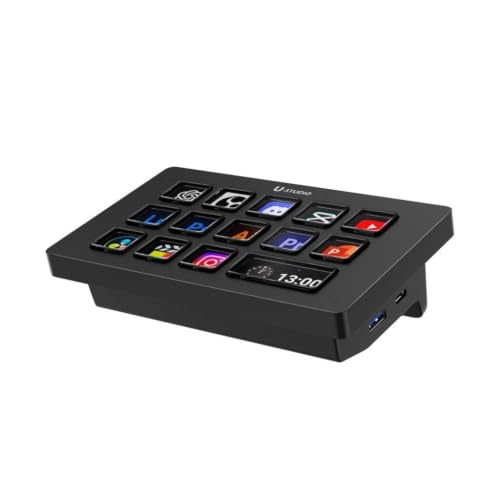
This is probably one of the most interesting value options currently available.
The Ulanzi D200H is designed specifically as a streaming-focused controller.
It includes:
13 LCD touch keys plus a dedicated information display that can show things such as system information, time or custom backgrounds.
Ulanzi lists support for:
OBS, YouTube Live and TikTok Live Studio, alongside creative programs such as Premiere Pro, After Effects, DaVinci Resolve and CapCut.
That gives it a broader creator role than simply controlling a livestream.
The Clever Part: It Is Also a Dock
The D200H doubles as a 7-in-1 docking hub.
Ulanzi lists features including USB connectivity, SD/TF card readers and USB-C Power Delivery passthrough.
For laptop creators, that is genuinely useful.
Instead of placing:
stream controller + USB hub + SD card reader
on your desk…
the D200H combines those functions.
That is the kind of product design that makes me wonder why nobody did it sooner. 😭
System Support
Ulanzi lists support for:
Windows 10 or newer and macOS 10.13 or newer.
Reasons to Buy
| What We Like | What We Don’t Like |
|---|---|
| 13 LCD keys | Smaller software ecosystem |
| Dedicated info display | Less established than Elgato/Razer |
| Built-in docking hub | Wired |
| OBS support | Plugin availability may vary |
| Useful for laptop creators | |
| Strong value |
Best For
Creators who want an affordable hardware controller and USB hub in one unit.
4. Cooler Master MasterHUB
Best Modular Stream Deck Alternative
Cooler Master looked at normal stream controllers and apparently decided:
“What if LEGO, but for streamers?”
And honestly?
That is basically MasterHUB. 😂
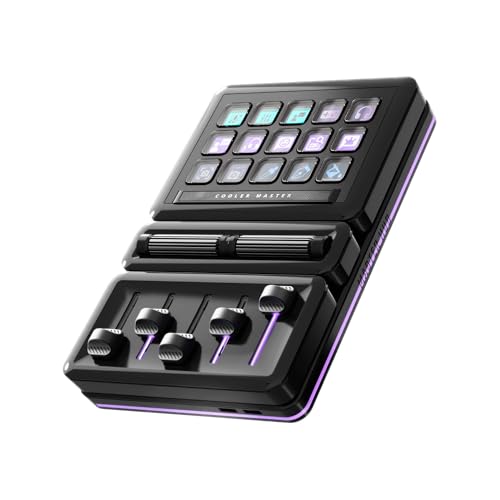
The Cooler Master MasterHUB is a modular control surface.
Instead of buying one permanently fixed button layout, you attach different modules to a base.
Available module types include:
a 15-key IPS display module, three-knob module, five-fader module, two-roller module and encoder with IPS display.
That is incredibly flexible.
A streamer could build:
15 LCD buttons + volume faders.
A video editor could prefer:
buttons + jog controls.
An audio-focused creator might want more knobs.
Supported Apps
Cooler Master officially lists support for apps including:
OBS, Streamlabs, Twitch, Photoshop and Premiere Pro.
Why This Is Exciting
Typical Stream Deck alternatives force you to choose between:
buttons or buttons + dials.
MasterHUB lets you physically rearrange your controller.
That makes it particularly attractive for creators whose workflows change.
But There Is a Catch
Software.
A 2026 Tom’s Hardware review praised the modular hardware but noted that the software and plugin ecosystem still lag behind more established competitors.
The review specifically highlighted good build quality and modularity but criticized software limitations and pricing.
That is important.
Stream-controller hardware is only half the product.
The software is arguably more important.
So I would recommend MasterHUB primarily to creators who value the modular hardware enough to tolerate a younger software ecosystem.
Reasons to Buy
| What We Like | What We Don’t Like |
|---|---|
| Fully modular | Software still developing |
| LCD buttons | Relatively expensive |
| Physical faders available | Large footprint |
| Knobs and rollers available | Plugin ecosystem smaller |
| OBS/Streamlabs support | Windows-centric workflow |
| Extremely flexible |
Best For
Creators who want to physically customize their control surface.
- Base Module: Versatile hub allowing complete customization for endless configurations, ensuring seamless integration of …
- 15xKey IPS Display: Interactive interface providing customizable keys for intuitive app control, enhancing user experien…
- 5xFader Module: Precision control tool enabling fine adjustments to audio, video, and other parameters, optimizing creat…
5. Logitech MX Creative Console
Best for Streamers Who Also Edit Videos
This one requires an important distinction.
The Logitech MX Creative Console is not primarily sold as a livestream controller.
It is a creative workflow controller.
But for someone who spends more time:
recording → editing → designing thumbnails → colour grading
than actually livestreaming, it can make more sense than a pure streaming deck.
The console combines two devices:
the MX Creative Keypad and MX Creative Dialpad.
The keypad uses programmable LCD display keys, while the dialpad includes a large aluminium dial, roller and additional controls.
Logitech says users can create up to 15 keypad pages per application and customize functions and icons through Logi Options+.
Creative App Support
Logitech specifically highlights:
Premiere Pro, DaVinci Resolve, Photoshop, Illustrator, Lightroom, Final Cut Pro, Figma, Zoom and Spotify.
So if your workflow is:
record a YouTube video → edit in Premiere → design thumbnail → publish
the MX Creative Console can potentially stay useful for the whole process.
Streaming Caveat
I would not rank this above Razer or Ulanzi for dedicated OBS control.
Its biggest advantage is broader creative-production workflow, rather than being a streamer-first product.
Reasons to Buy
| What We Like | What We Don’t Like |
|---|---|
| LCD shortcut keys | Not primarily designed for streaming |
| Excellent physical dial | Premium price |
| Strong Adobe integration | Two-piece setup takes desk space |
| DaVinci Resolve support | OBS workflow is less central |
| Up to 15 pages per app | |
| Great for editing |
Best For
YouTubers and creators who spend more time editing than livestreaming.

- Speed Up Your Creative Workflow: The Logitech MX Creative Console lets you quickly access tools and actions on your favo…
- Customize for Any App: Assign tools and actions to up to 15 keypad pages by profile, dial, and roller, and upload your o…
- 3 months of Adobe Creative Cloud on us (a value of $179)*: Pair two of the world’s top creative tools. Buy one MX Creati…
6. Xencelabs Quick Keys
Best Compact Shortcut Controller
The Xencelabs Quick Keys takes a different approach.
Instead of displaying a giant grid of LCD buttons, it gives you:
eight physical keys, an OLED display and a programmable dial.
But those eight buttons can switch between five sets, giving you up to 40 shortcuts per application.
That is actually a lot of functionality for such a compact device.
Why the OLED Display Helps
Traditional macro pads suffer from one huge problem:
you forget what the buttons do.
Button 4 was mute.
Or maybe screenshot.
Or possibly launch Photoshop.
Good luck. 😭
The Xencelabs OLED display shows the assigned button labels.
That makes switching between shortcut sets much easier.
Dial Controls
The dial supports multiple configurable modes.
You might assign it to:
volume, timeline movement, zoom or another adjustable function.
For recording and editing workflows, this can be very useful.
Streaming Limitation
Xencelabs Quick Keys is primarily a shortcut controller.
It does not have the same streamer-specific plugin ecosystem as a Stream Deck or Razer controller.
That means you will often rely on keyboard shortcuts.
OBS supports extensive hotkeys, so this still works but requires more manual configuration.
Reasons to Buy
| What We Like | What We Don’t Like |
|---|---|
| Up to 40 shortcuts per app | Only eight physical keys visible at once |
| OLED labels | Not streamer-first |
| Programmable dial | More manual setup |
| Compact | No individual LCD keys |
| Wireless capability | |
| Excellent for recording/editing |
Best For
Creators who use keyboard shortcuts heavily and want physical tactile controls.

- Visualized Shortcuts with OLED Display: Easily identify and switch between shortcut sets with the built-in OLED screen. …
- 40 Programmable Keys – The Ultimate Shortcut Keypad: Access up to 40 shortcut commands (8 keys × 5 sets) that auto-switc…
- Dial Control with 4 Programmable Modes: The multi-function rotary mini keydial offers smooth control over zoom, canvas r…
7. TourBox Elite Plus
Best for Video Recording and Post-Production
The TourBox Elite Plus is another product that sits slightly outside traditional Stream Deck territory.
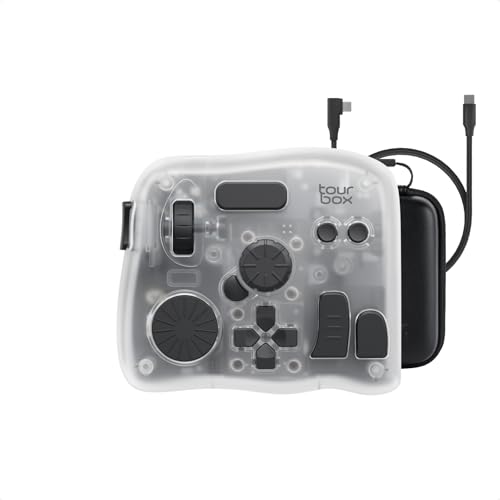
It is designed primarily as a tactile creative controller.
TourBox supports apps including:
DaVinci Resolve, Photoshop, Lightroom, Final Cut Pro, Capture One, Blender and other creative software.
The Elite Plus supports both wired and Bluetooth operation on Windows and macOS, and also adds Bluetooth support for iPadOS and Android workflows.
Why It Is Interesting for Recording Creators
Recording is only one part of creator work.
After recording comes:
editing.
Colour correction.
Audio levels.
Timeline navigation.
Clip trimming.
TourBox excels at tactile controls such as:
wheels, knobs, buttons and dials.
For video editors, those controls often feel faster than constantly reaching for keyboard shortcuts.
Not the Best Pure Streaming Pick
If your priority is:
OBS scenes + Twitch + alerts + chat commands
Razer or Ulanzi makes more sense.
But if your workflow is:
record → edit → colour grade → export,
TourBox is far more compelling.
Reasons to Buy
| What We Like | What We Don’t Like |
|---|---|
| Excellent tactile controls | Not designed primarily for streaming |
| Bluetooth + wired | Learning curve |
| Great editing support | No LCD button grid |
| DaVinci Resolve support | Premium pricing |
| Strong ergonomic design | Requires shortcut configuration |
| Works across creative apps |
Best For
Video creators who want a Stream Deck alternative mainly for recording and post-production.
- Next generation creative control – TourBox's first Bluetooth control for iPad creation, totally compatible with iPadOS, …
- Innovative control system – Equipped with the latest TourBox hardware and software, it offers full-stack support from BA…
- Redefine creative work process – With 7 years of industry experience, TourBox has redefined digital drawing, photo and v…
8. Macro Deck
Best Free Stream Deck Alternative
Before spending ₹10,000, ₹20,000 or ₹30,000 on hardware…
try your phone.
Seriously.
Macro Deck can turn a phone, tablet or web browser into a programmable control surface for your computer.
It is free and open source.
Macro Deck supports Windows, macOS and Linux and includes integrations for OBS Studio, Twitch, Discord, Spotify and more.
Its OBS integration can control:
streaming, recording, scenes, scene collections, replay buffer, virtual camera, audio inputs, filters and other functions.
That makes it an extremely capable way to test whether you actually benefit from Stream Deck-style controls.
Why I Recommend Trying Software First
If you already own:
an old phone,
a spare Android tablet,
an iPad,
or even a second browser window…
you already possess the physical screen.
Macro Deck supplies the software layer.
Try it.
Build eight or twelve buttons.
Use it for a week.
If you constantly use it, you now know buying dedicated hardware makes sense.
If you forget it exists after Tuesday?
Congratulations.
You just saved ₹20,000. 😂
Reasons to Try It
| What We Like | What We Don’t Like |
|---|---|
| Free and open source | No physical tactile buttons |
| OBS integration | Requires another device/browser |
| Windows/macOS/Linux | Touchscreen use means looking down |
| Custom buttons and widgets | Setup requires some tinkering |
| Excellent value | |
| Great for beginners |
Which Stream Deck Alternative Is Best?
For pure streaming:
Razer Stream Controller X is the best overall alternative.
For audio-heavy streaming:
Razer Stream Controller wins because of its six tactile dials.
For budget hardware:
Ulanzi D200H is extremely interesting.
For modular control:
Cooler Master MasterHUB is unique.
For editing-heavy YouTubers:
Logitech MX Creative Console makes more sense.
For tactile shortcuts:
Xencelabs Quick Keys works beautifully.
For editing and post-production:
TourBox Elite Plus is excellent.
And if your budget is exactly ₹0:
Macro Deck wins by default.
Stream Deck Alternative Comparison
| Feature | Razer Controller X | Razer Controller | Ulanzi D200H | MasterHUB | MX Creative Console | Quick Keys |
|---|---|---|---|---|---|---|
| Visual Buttons | ✅ | ✅ | ✅ | ✅ | ✅ | OLED labels |
| Physical Dials | ❌ | ✅ 6 | ❌ | Optional | ✅ | ✅ |
| OBS Focus | Excellent | Excellent | Very Good | Good | Limited | Hotkey-based |
| Editing Apps | Good | Good | Good | Good | Excellent | Excellent |
| Audio Control | Basic | Excellent | Good | Excellent with modules | Good | Good |
| Software Maturity | Good | Good | Growing | Growing | Good | Good |
| Portability | Excellent | Good | Good | Fair | Good | Excellent |
What Should You Look for When Buying a Stream Controller?
OBS and Streamlabs Support
If livestreaming is your main goal, check native integrations before looking at anything else.
The controller should ideally let you easily control:
scene switching, recording, streaming, audio mute, sources and replay functions.
A controller with gorgeous knobs but no useful integration is basically decorative desk jewellery.
LCD Keys vs Physical Buttons
LCD keys are convenient because each button shows its current function.
That makes them ideal if you use multiple profiles.
Physical macro keys can feel better to press but require you to remember their assignments.
This is why the Razer Stream Controller X feels more intuitive for beginners than traditional macro pads.
Do You Need Dials?
If you manage audio live:
probably.
Dials are excellent for:
microphone volume, music level, game audio, monitoring volume and editing adjustments.
For simple scene switching, however, buttons alone are enough.
How Many Keys Do You Need?
You probably need fewer than you think.
A basic streaming layout could use:
Start Stream
Start Recording
Mic Mute
Scene 1
Scene 2
Scene 3
Camera Toggle
Screen Share
Music
Clip
Chat
BRB
That is only twelve functions.
Folders and pages can expand this dramatically.
So do not automatically assume more keys = better.
Why Software Matters More Than Hardware
This is the biggest lesson from almost every Stream Deck competitor.
Hardware companies love advertising:
LCD displays.
Machined aluminium knobs.
RGB.
Touchscreens.
But a stream controller is fundamentally an automation platform.
Its usefulness depends on:
plugins, profiles, macros, app integration, stability and updates.
Cooler Master’s MasterHUB is a perfect example.
The modular hardware is genuinely creative, but recent reviews still identify software maturity as a limitation.
Buy the ecosystem not just the buttons.
Is Loupedeck Still Worth Buying?
Only with caution.
Logitech officially ended sales of Loupedeck hardware on March 28, 2025.
Support and software development continue, and current Loupedeck software still supports products including Loupedeck Live, Live S and Razer’s Stream Controller family.
So if you already own a Loupedeck?
Keep using it.
If you find one heavily discounted?
It may still be worthwhile.
But for a brand-new purchase in 2026, I would generally prefer current hardware.
Can You Use a Stream Deck Alternative for Recording Instead of Streaming?
Absolutely.
This is probably underappreciated.
You can configure controls for:
starting/stopping OBS recording, launching camera software, opening folders, adding markers, opening editing applications, triggering macros and controlling music.
For YouTube creators who rarely go live, a programmable console can still save significant time.
Can You Use These Controllers With OBS?
Yes depending on the device.
Razer currently provides official OBS setup instructions.
Ulanzi lists OBS support.
Cooler Master lists OBS among supported applications.
Macro Deck includes a dedicated OBS integration.
For shortcut-oriented devices such as TourBox and Xencelabs Quick Keys, you can also map OBS keyboard hotkeys.
Do You Need a Stream Controller as a Beginner?
No.
Start with OBS hotkeys.
If you regularly forget shortcuts or constantly need to switch windows then a control surface becomes useful.
An even better approach is:
Try Macro Deck first.
If you love the workflow, buy hardware later.
How We Selected These Stream Deck Alternatives
We evaluated current manufacturer specifications, support documentation, software status and current 2026 availability.
Our main criteria included:
streaming-software integration, programmable keys, display keys, physical dials, macros, app profiles, editing support, OS compatibility, ecosystem maturity, current hardware status and value.
We also excluded Loupedeck from the main ranking because Logitech officially stopped new Loupedeck hardware sales in 2025, even though software support continues.
Frequently Asked Questions
What is the best Stream Deck alternative?
The Razer Stream Controller X is one of the strongest direct alternatives because it provides 15 programmable buttons and current OBS, Streamlabs and Twitch support through the Loupedeck platform.
What is the cheapest Stream Deck alternative?
If you already own a phone or tablet, Macro Deck is one of the cheapest options because its main platform and web client are free and open source.
What is the best Stream Deck alternative with dials?
The full-size Razer Stream Controller includes six analog dials plus LCD controls and programmable buttons.
Is the Ulanzi D200H good for streaming?
It is designed for streaming and officially supports OBS, YouTube Live and TikTok Live Studio while also providing customizable LCD controls.
Can Logitech MX Creative Console replace a Stream Deck?
For editing and creative workflows, yes.
For dedicated live-stream management, Razer or Ulanzi provides more streamer-focused integration. Stream Deck
Does Cooler Master MasterHUB work with OBS?
Yes.
Cooler Master officially lists OBS, Streamlabs and Twitch among supported applications. Stream Deck
Can I control OBS from my phone?
Yes.
Macro Deck can turn a phone, tablet or browser into a control surface and includes native OBS integration. Stream Deck
Is Loupedeck discontinued?
New Loupedeck hardware sales officially ended in March 2025.
Software and technical support continue. Stream Deck
Final Verdict: Which Stream Deck Alternative Should You Buy?
If you want the simplest direct Elgato alternative, start with the Razer Stream Controller X.
Fifteen programmable controls, OBS support and an established Loupedeck-based software layer make it the easiest transition for traditional streamers.
If your livestream involves constant audio mixing, the larger Razer Stream Controller is better because six physical dials are far more practical than repeatedly tapping volume controls.
For creators on a tighter budget, the Ulanzi D200H is arguably the most interesting option.
You get customizable LCD controls, streaming integrations and a docking hub in the same device.
If you want something genuinely different rather than a Stream Deck clone, consider the Cooler Master MasterHUB.
Its modular approach is excellent, although its software ecosystem still needs to catch up with the hardware ambition.
For creators who mostly record YouTube videos and then spend hours editing, the Logitech MX Creative Console, Xencelabs Quick Keys or TourBox Elite Plus may actually make more sense than a streamer-first controller.
And before buying anything?
Install Macro Deck on a spare phone or tablet.
Use it for a week.
If you find yourself constantly pressing the virtual buttons, you have proven that dedicated stream-controller hardware will genuinely improve your workflow.
That is a much better buying strategy than spending ₹20,000 because a desk setup on Instagram had glowing buttons. 😭🎛️
A great Stream Deck alternative should do one thing above everything else:
remove friction while you are live or recording.
You should not have to hunt through OBS menus.
You should not have to alt-tab while talking.
You should not have to remember whether Ctrl+Shift+F9 muted the mic or accidentally launched something completely unrelated.
One button.
One action.
Back to creating. 🎥✨