
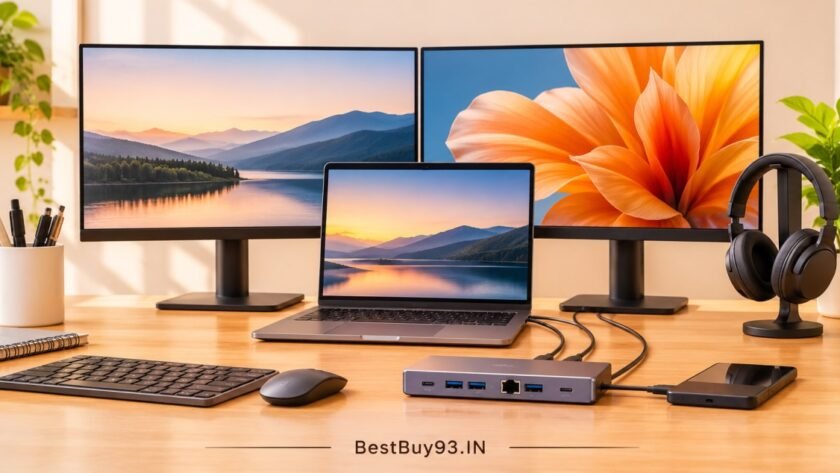

A laptop is great for portability, but working with multiple monitors, external hard drives, keyboards, mice, webcams and other accessories can quickly turn your desk into a cable jungle. That’s where a USB-C docking station comes in.
A good USB-C dock lets you connect several peripherals through a single cable, making it easier to switch between a laptop-only setup and a fully equipped workstation. Depending on the model and your laptop’s capabilities, it can also support multiple external monitors, wired internet, fast data transfers and laptop charging.
But choosing the right dock isn’t as simple as counting HDMI and USB ports. Some docking stations support dual 4K displays, while others may only mirror the same screen or support one external monitor on certain laptops. Compatibility matters just as much as the dock itself.
In this guide, we’ll explore some of the best USB-C docking stations for connecting multiple monitors and peripherals, explain the differences between USB-C, Thunderbolt and DisplayLink, and share what to check before buying one in India.
Also Read | Best External Monitors for Dual-Screen Productivity
Best USB-C Docks at a Glance
| Docking station | Best for | Notable features |
|---|---|---|
| UGREEN Revodok Pro 207 | Budget dual-monitor setup | Dual HDMI outputs |
| HP USB-C Dock G5 | Office productivity | Multiple USB ports, DisplayPort, HDMI and Ethernet |
| Dell Thunderbolt Dock WD22TB4 | Dell and Thunderbolt workstations | Multiple display outputs and modular design |
| Microsoft Surface Thunderbolt 4 Dock | Premium Surface and Thunderbolt setups | Dual 4K support, 96W charging |
| Kensington SD4700P | DisplayLink-based multi-display setups | Dual-display connectivity and multiple USB ports |
Important: These models use different display technologies and have different compatibility requirements. The presence of two HDMI or DisplayPort connectors does not automatically guarantee two independent external screens. Always check the manufacturer’s display-support matrix for your exact laptop.
1. UGREEN Revodok Pro 207 Dual-Monitor USB-C Dock
Best for: Budget-conscious Windows users who need two external displays
If you’re looking for a relatively affordable way to connect two monitors to a compatible laptop, the UGREEN Revodok Pro 207 is worth considering.
This docking station features two HDMI outputs and is advertised with dual 4K display support at up to 60Hz under compatible configurations. Its compact aluminium design also makes it suitable for a home-office desk where you don’t want a large docking station taking up valuable space.
Key features
- Two HDMI display outputs.
- Advertised dual 4K at 60Hz support.
- USB-C host connection.
- Aluminium construction.
- Multiple connectivity options for everyday peripherals.
What we like
- Two HDMI outputs make connecting compatible monitors straightforward.
- Compact design is suitable for smaller desks.
- Useful for extending a Windows laptop workspace.
What we don’t like
- Dual-display functionality depends on laptop graphics and operating-system support.
- Base-chip Apple Silicon MacBooks may mirror the displays rather than extend them independently.
- Not a replacement for a full-featured Thunderbolt workstation dock.
Our take: Consider this model if you want a straightforward dual-monitor setup without spending on an expensive enterprise docking station. Check the exact laptop compatibility before ordering.
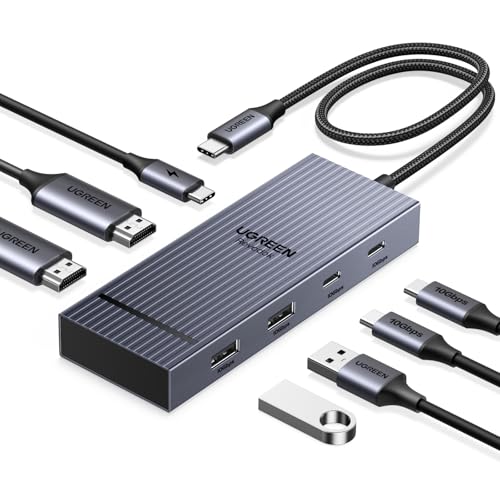
- 7-in-1 Connectivity: The Revodok Pro 207 USB C Docking Station is designed to enhance productivity with 2x 4K@60Hz HDMI,…
- Dual 4K@60Hz HDMI Display: The Dual HDMI Dock features two 4K@60Hz HDMI ports, allowing dual-screen 4K@60Hz HD configura…
- Lightning Fast Transfer Speeds: This USB-C hub dual monitor comes with two USB A&C ports for connecting keyboards, and m…
2. HP USB-C Dock G5
Best for: Office desks and everyday productivity
The HP USB-C Dock G5 is designed to simplify workstation connectivity. It offers a combination of USB-A, USB-C, DisplayPort, HDMI and Ethernet connections, making it useful for people who regularly connect monitors and accessories.
One of its practical advantages is its broad compatibility with supported HP laptops and other compatible computers.
Key features
- Two DisplayPort outputs.
- One HDMI 2.0 port.
- Multiple USB-A connections.
- Front USB-C port with 15W power output.
- Gigabit Ethernet.
- Up to 100W laptop power delivery under supported configurations.
HP’s documentation lists external monitor support for two displays plus the laptop screen in its general product specifications. Actual resolutions depend on the host laptop’s DisplayPort capabilities and configuration.
What we like
- Good selection of display and peripheral connections.
- Ethernet is useful for stable wired networking.
- Compact desktop-friendly design.
- Supports compatible Windows, macOS and ChromeOS devices.
What we don’t like
- It isn’t a Thunderbolt dock.
- Display performance depends on the laptop’s USB-C DisplayPort Alt Mode support.
- Charging power can vary between HP and non-HP systems.
Our take: The HP USB-C Dock G5 is a sensible option for an organised office workstation, particularly if you need multiple USB connections, wired internet and external displays.
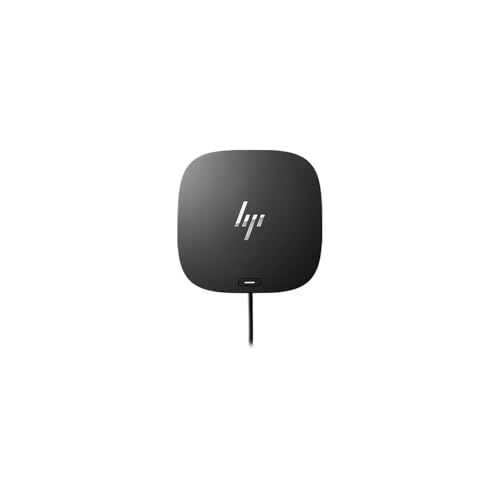
- The HP USB-C Dock G5 Docking station is designed with universal compatibility in mind, this dock works with both HP and …
- Docking Station connects your laptop to up to three additional monitors, various external devices and the internet with …
- This sleek, compact dock unlocks enhanced productivity and entertainment options with high-speed connectivity. Enjoy com…
3. Dell Thunderbolt Dock WD22TB4
Best for: Dell laptop users and demanding workstation setups
If your work involves multiple displays, external storage and several connected accessories, the Dell WD22TB4 offers a more advanced docking solution.
Unlike a basic USB-C hub, this model uses Thunderbolt 4 technology and includes several video-output options. It is designed to provide a central connection point for a compatible workstation.
Key features
- Thunderbolt 4 connectivity.
- Two DisplayPort 1.4 outputs.
- One HDMI 2.0 port.
- Additional USB-C display-capable connectivity.
- USB-A and USB-C peripheral ports.
- Gigabit Ethernet.
- Up to 130W power delivery to supported Dell systems and up to 90W to non-Dell systems with the specified power adapter.
Dell lists support for up to four external displays under supported configurations. The actual number of displays and achievable resolutions depend on the laptop, GPU, operating system and connection arrangement.
What we like
- Multiple video outputs offer flexibility.
- Thunderbolt 4 provides high-bandwidth connectivity.
- Strong option for compatible Dell workstations.
- Modular design allows certain components to be replaced or upgraded.
What we don’t like
- Premium workstation pricing may not suit casual users.
- Maximum charging power is higher on supported Dell systems than on non-Dell laptops.
- Display capabilities still depend on the connected computer.
Our take: Choose the Dell WD22TB4 if you have a compatible Dell laptop and want a more comprehensive desk setup with multiple displays and peripherals.
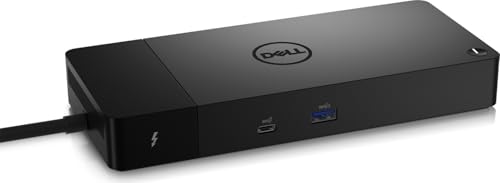
- Product Type: Docking station
- Enclosure Colour: Black
- Max Resolution Details: 5120 x 2880 – 60 Hz
4. Microsoft Surface Thunderbolt 4 Dock
Best for: Premium Surface and Thunderbolt 4 workstations
The Microsoft Surface Thunderbolt 4 Dock is designed for users who want a clean, high-performance workstation with fewer cables.
It connects to a compatible laptop through a single Thunderbolt 4 connection and supports up to two external 4K monitors at 60Hz when the laptop and displays support the required configuration.
Key features
- Thunderbolt 4 connectivity.
- Up to two 4K displays at 60Hz.
- Up to 96W laptop power delivery.
- Multiple USB-A and USB-C connections.
- 2.5 Gigabit Ethernet.
- 165W external power supply.
What we like
- Excellent connectivity for compatible Thunderbolt systems.
- Supports dual 4K external displays.
- 2.5GbE Ethernet is useful for fast wired networking.
- Up to 96W charging is suitable for many productivity laptops.
What we don’t like
- Premium pricing.
- USB-C-only host connections may offer reduced display functionality compared with Thunderbolt 4.
- Not every laptop can take advantage of all its features.
Our take: This is a strong premium choice for users with compatible Surface or other Thunderbolt 4 laptops. It makes the most sense when you actually need its bandwidth, display support and charging capabilities.

5. Kensington SD4700P USB-C Dual Display Docking Station
Best for: Users considering DisplayLink connectivity
Not every laptop can drive multiple external displays through its native USB-C graphics capabilities. This is where DisplayLink-based docking stations can be useful.
The Kensington SD4700P uses DisplayLink technology to provide dual-display connectivity alongside additional USB ports, Ethernet and audio connections.
Key features
- DisplayLink-based dual-display support.
- Multiple USB 3.0 connections.
- Gigabit Ethernet.
- Audio connectivity.
- Up to 60W laptop charging.
- External power supply.
What we like
- DisplayLink can help overcome certain native multi-monitor limitations.
- Useful collection of peripheral connections.
- Suitable for selected mixed-device workstation environments.
What we don’t like
- DisplayLink software and drivers are required.
- Not ideal for every graphics-intensive workflow.
- Maximum display performance depends on the dock’s exact configuration and connected system.
Our take: Consider a DisplayLink dock if your laptop cannot natively support the number of external displays you need. Check the manufacturer’s operating-system and driver requirements before buying.
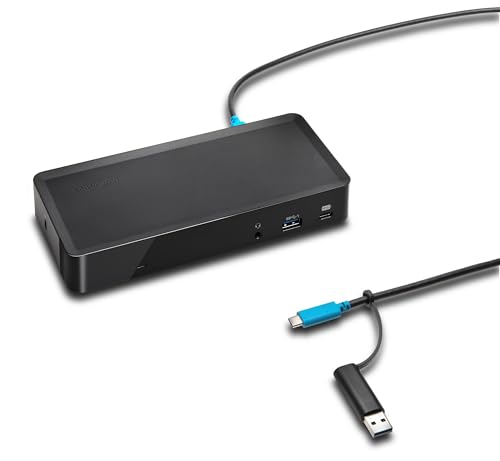
- USB-C Docking Station with Dual DisplayLink 4K Display for MacBooks, Dell, HP, Lenovo, ASUS, MSI and other Windows PCs, …
- The 1m USB-C cable (included) connects the dock to your device; 135W power provides up to 60W laptop charging (Windows l…
- Five SuperSpeed USB 3.0 ports (one with 2.1A fast charging); 15W USB-C charging and data port; 1/8″ combo headphone/micr…
USB-C vs Thunderbolt vs DisplayLink: What’s the Difference?
This is probably the most important section of the buying guide. Two docking stations can look almost identical but offer very different display capabilities.
| Technology | How it works | Best suited for |
|---|---|---|
| USB-C with DisplayPort Alt Mode | Sends native video through a USB-C connection | Everyday monitor connectivity |
| USB-C with MST | Splits compatible DisplayPort streams into multiple displays | Dual-monitor Windows setups |
| Thunderbolt 4 | Provides high-bandwidth connectivity for displays, storage and peripherals | Premium multi-monitor workstations |
| USB4 | Offers high-bandwidth data and display connectivity, depending on implementation | Modern compatible laptops |
| DisplayLink | Uses software and a dedicated graphics technology to deliver additional displays | Systems needing extra external screens |
What is DisplayPort Alt Mode?
DisplayPort Alt Mode allows compatible USB-C ports to transmit video signals. If your laptop supports this feature, you can connect a compatible USB-C dock or display adapter to output video.
However, not every USB-C port supports DisplayPort Alt Mode. Some ports are intended only for data transfer or charging.
What is MST?
Multi-Stream Transport, commonly called MST, allows a compatible DisplayPort connection to carry multiple independent display streams.
It is particularly useful for Windows laptop users who want to connect two external monitors through one compatible docking station.
Apple macOS handles MST differently from Windows, so a dock that provides extended displays on a Windows laptop may mirror screens or offer reduced functionality on a Mac.
What is DisplayLink?
DisplayLink uses a software-driven approach to provide additional display outputs through supported docks.
It can be useful for certain laptops that cannot natively support multiple external displays. However, it requires compatible drivers and may not be ideal for demanding gaming, colour-critical editing or other graphics-intensive work.
What to Look for When Buying a USB-C Dock
Before purchasing a docking station, consider the following specifications.
1. Number of external monitors
Start by deciding how many displays you want to connect.
- One external monitor: A simple USB-C hub may be sufficient.
- Two external monitors: Look for compatible MST, Thunderbolt or DisplayLink support.
- Three or more monitors: Check the exact simultaneous display configuration rather than relying on the number of video ports.
2. Resolution and refresh rate
A dock advertising 4K support doesn’t necessarily mean it can run two 4K displays at 60Hz simultaneously.
Check whether the manufacturer specifies:
- Single 4K at 60Hz.
- Dual 4K at 60Hz.
- Dual 1440p at 60Hz.
- Multiple Full HD displays.
- Support for higher refresh rates.
Your laptop’s GPU, dock bandwidth, cables and monitors all affect the final result.
3. Laptop charging power
Power Delivery, or PD, determines how much power a dock can supply to a connected laptop.
Common charging capacities include 45W, 60W, 65W, 90W, 96W and 100W.
A lightweight laptop may work comfortably with 65W charging, while a powerful workstation may require a higher-wattage adapter.
Always compare the dock’s output with your laptop manufacturer’s recommended charging requirement.
4. USB-A and USB-C ports
Consider how many accessories you regularly connect.
Useful connections include:
- USB-A for keyboards, mice and receivers.
- USB-C for modern storage devices and accessories.
- High-speed USB ports for external SSDs.
- SD and microSD card readers for photographers.
- 3.5mm audio for headsets.
Don’t assume every USB-C port supports video or laptop charging. Some are data-only.
5. Ethernet connectivity
A Gigabit Ethernet connection can provide a more consistent wired network connection than Wi-Fi in certain environments.
For demanding network setups, 2.5GbE may be worth considering, provided your router, switch and internet or local network equipment support it.
6. Operating-system compatibility
Before purchasing, check compatibility with:
- Windows 10 and Windows 11.
- macOS.
- ChromeOS.
- Linux, if required.
Also check whether the dock needs a driver, firmware update or a particular USB-C or Thunderbolt standard.
How to Set Up a Multi-Monitor Workstation
A docking station is most useful when your desk is organised around a single connection point.
Here’s a simple setup:
- Place your laptop on a stand or laptop riser.
- Position your external monitors at comfortable viewing heights.
- Connect the monitors to the dock using supported HDMI or DisplayPort cables.
- Connect your keyboard, mouse and external storage.
- Plug in the Ethernet cable if you prefer a wired network.
- Connect the dock’s power adapter.
- Attach the dock’s host cable to your laptop.
- Open your display settings and select the extended desktop option.
For Windows, you can use the display settings menu to arrange the monitors according to their physical positions.
For macOS, check System Settings and Displays to configure the supported display arrangement.
A well-organised setup can make multitasking easier, whether you’re editing videos, writing articles, managing spreadsheets or attending online meetings.
Common USB-C Dock Buying Mistakes to Avoid
| Mistake | What to check instead |
|---|---|
| Assuming every USB-C port supports video | Verify DisplayPort Alt Mode or Thunderbolt support |
| Buying based only on HDMI port count | Check simultaneous extended-display support |
| Ignoring MacBook display limitations | Verify the exact Mac model and chip |
| Choosing insufficient charging power | Match the dock’s PD output to laptop requirements |
| Ignoring cable specifications | Use cables rated for the required resolution and bandwidth |
| Buying a DisplayLink dock without checking drivers | Confirm operating-system and software compatibility |
| Expecting all USB-C ports to support every feature | Check each port’s data, charging and video specifications |
Frequently Asked Questions
Can a USB-C dock connect two monitors?
Yes, a compatible USB-C docking station can connect two external monitors. However, the laptop must also support the required display technology, such as DisplayPort Alt Mode with MST, USB4 or Thunderbolt. Yes. Most docking stations include USB ports for external storage. For fast file transfers, check the port’s data-transfer rating and ensure the SSD and cable support the same standard. Best USB-C Docks for Connecting Monitors & Peripherals
Does every USB-C docking station support dual monitors?
No. Some USB-C hubs support only one external display. Others may provide two physical video ports but mirror the same image depending on the laptop and operating system. Yes. Most docking stations include USB ports for external storage. For fast file transfers, check the port’s data-transfer rating and ensure the SSD and cable support the same standard. Best USB-C Docks for Connecting Monitors & Peripherals
Can I connect two monitors to a MacBook using a USB-C dock?
It depends on the MacBook model and its processor. Some MacBook models support multiple external displays natively, while certain base-chip Apple Silicon models have more limited native external-display support. A compatible DisplayLink dock may provide another option, subject to software and model compatibility. Yes. Most docking stations include USB ports for external storage. For fast file transfers, check the port’s data-transfer rating and ensure the SSD and cable support the same standard. Best USB-C Docks for Connecting Monitors & Peripherals
Can a USB-C dock charge my laptop?
Many full-size docking stations support USB Power Delivery and can charge a connected laptop. Check the dock’s maximum host charging output and compare it with your laptop’s power requirements. Yes. Most docking stations include USB ports for external storage. For fast file transfers, check the port’s data-transfer rating and ensure the SSD and cable support the same standard. Best USB-C Docks for Connecting Monitors & Peripherals
Is Thunderbolt better than regular USB-C?
Thunderbolt offers a more defined high-bandwidth connection and can support demanding display and peripheral configurations. However, a regular USB-C dock may be perfectly adequate for a simpler setup. The best choice depends on the laptop, monitor count and accessories you use. Yes. Most docking stations include USB ports for external storage. For fast file transfers, check the port’s data-transfer rating and ensure the SSD and cable support the same standard. Best USB-C Docks for Connecting Monitors & Peripherals
Do USB-C docks work with gaming laptops?
Some do, but gaming laptops may require more power than a docking station can provide. The laptop may still need its original power adapter for full gaming performance. Check the manufacturer’s charging and display requirements. V
Can I connect an external SSD through a docking station?
Yes. Most docking stations include USB ports for external storage. For fast file transfers, check the port’s data-transfer rating and ensure the SSD and cable support the same standard. Best USB-C Docks for Connecting Monitors & Peripherals
Final Verdict
The best USB-C docking station depends on how you work and what your laptop can support.
The UGREEN Revodok Pro 207 is worth considering for a budget dual-monitor Windows setup. The HP USB-C Dock G5 offers a useful collection of connections for everyday office productivity. Dell’s WD22TB4 is a more advanced option for compatible Dell workstations, while Microsoft’s Surface Thunderbolt 4 Dock is a premium choice for compatible Thunderbolt systems. The Kensington SD4700P is worth investigating if you specifically need a DisplayLink-based solution. Yes. Most docking stations include USB ports for external storage. For fast file transfers, check the port’s data-transfer rating and ensure the SSD and cable support the same standard. Best USB-C Docks for Connecting Monitors & Peripherals
Before spending money, check your laptop’s USB-C capabilities, monitor requirements and charging needs. A little compatibility research now can save you from buying a dock that looks impressive but doesn’t support the setup you actually want.